6. Shapes and Pixel Mapper effects - Page 119
TitanUniversal_Man_v8-0_TT.doc 05 August 2014
2> Open the Layout Editor.
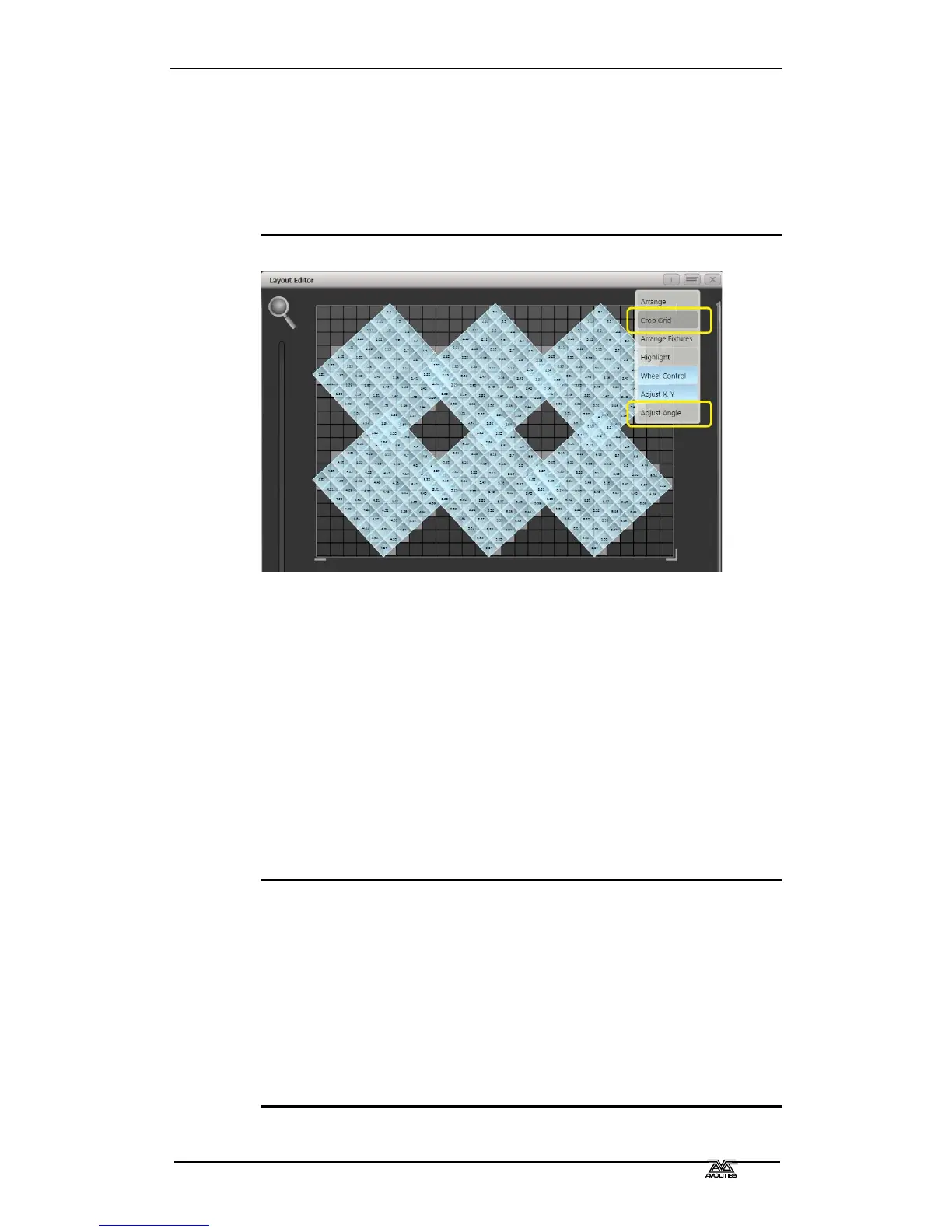
3> Select the fixture(s) that you want to angle and use the
appropriate wheel to control. (If wheels are not assigned to
control the cell layout you can toggle this on/off using the
context menu item 'Wheel Control'. Also, on the Pearl Expert
you may need to select 'Adjust Angle' and to return wheels to
controlling position select 'Adjust X,Y'.)
Note that underneath the visual representation of the fixtures the
actual cells used are shown in light grey.
If any of your fixtures have been naughty and ended up beyond the
bounds of the grid after rotating you can use context menu item
'Crop Grid' to make them behave.
6.4.4 Other Layout Editor tools
The Layout Editor’s context menu has some useful tools for laying out
fixtures quickly.
Context menu - 'Arrange Fixtures'
This is a very useful tool to quickly layout fixtures in a grid. For
example you might have 20x Colourblocks across four towers, each
with five blocks.
1> Select the fixtures and create a group.
2> Edit the layout of this group.
3> Select 'Arrange Fixtures' from the context menu.
4> Select the [Height] softkey and type '5'. (Width will
automatically be calculated.)
5> Toggle [Crop Grid to fixtures] so that it is highlighted. (This will
make the grid adjust to fit.)
6> Toggle [Arrange in..'] to 'Columns' or 'Rows'. 'Rows' will
arrange ixtures left to right and 'Columns' will arrange top to
bottom.
7> Select [OK] to complete.



 To Next Page