Page 46 – 3. Patching
TitanUniversal_Man_v8-0_TT.doc 05 August 2014
3. Patching
Patching is the process where you tell the Tiger Touch
• What type of lighting units you have connected to it
• What DMX addresses they are operating at
• Which DMX line (universe) each unit is connected to (there are
64 lines, but the console itself can only output 12; further lines
can be controlled using networked DMX processors over
TitanNet)
• Which buttons on the console you want to use to access them
(either physical buttons or touch buttons)
• Particular option settings for each fixture.
Before you start rigging, you can use the console to
work out the DMX addresses for the fixtures in your rig.
Patch them on the console (or simulator), then press
View, Patch to show the Patch View window. This will
use the DMX channels as efficiently as possible without
leaving any gaps.
On the Mk1 Tiger Touch
By default, DMX lines 1-4 are linked to the 4 XLR outputs on the
console. If you want to change this or use other lines, go to the DMX
Settings window in System mode – see section
12.3.6 on page 204 .
3.1 Patching new fixtures or dimmers
3.1.1 Fixture select buttons and handles
To control intelligent fixtures or dimmer channels, they must be
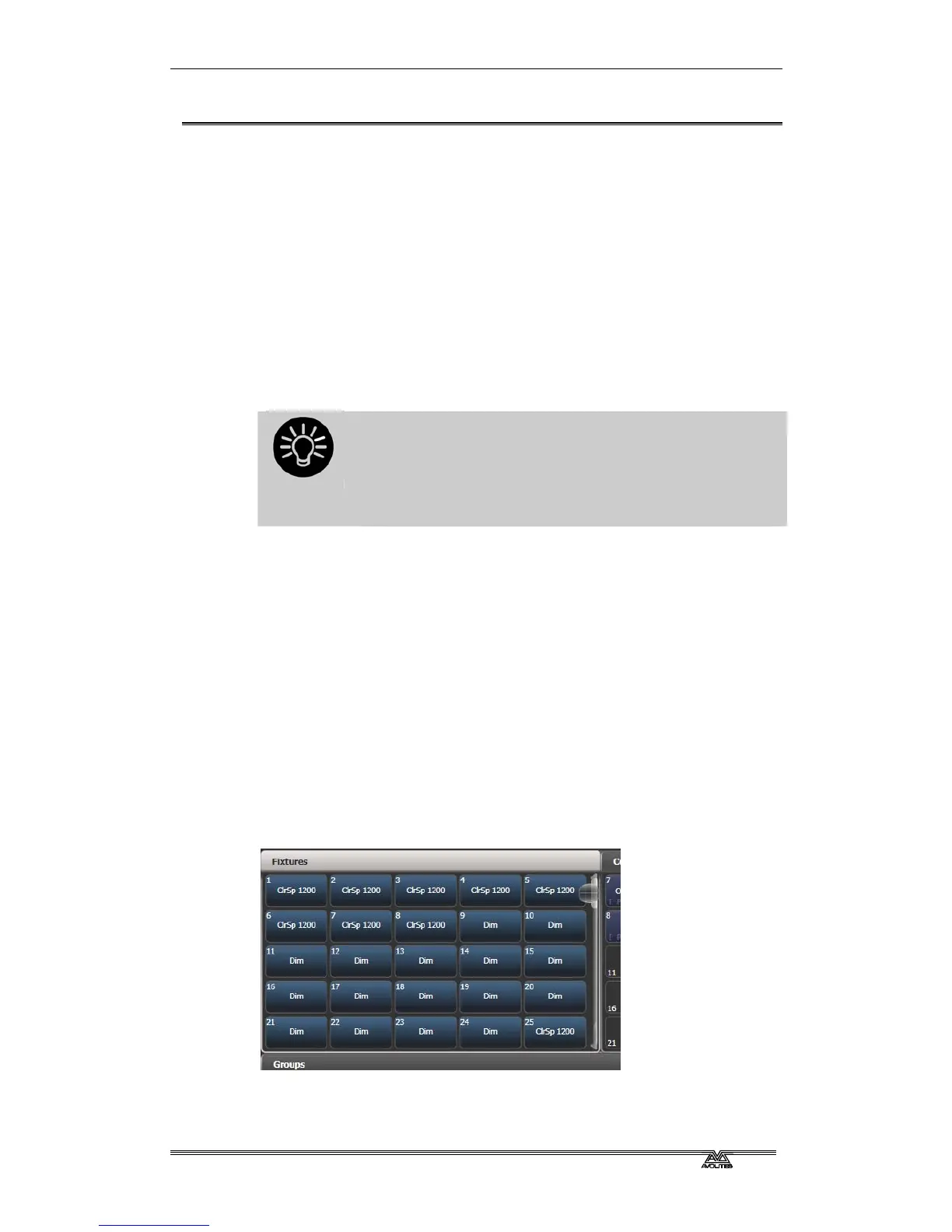
patched to a fixture button in the Fixtures workspace window .
If the Fixtures window is not shown, press the Fixtures button to the
right of the screen to show it, or press
View then [Show workspace
window] then [Fixtures].
Fixture buttons can be shown either in pages with Page buttons, or
you can use the scroll bar on the right to show different pages. Use
the [Pages Show/Hide] button on the right of the screen to select



 To Next Page