Page 58 – 3. Patching
TitanUniversal_Man_v8-0_TT.doc 05 August 2014
However, this may not always work out quite right, so using
Exchange Mapping you can manually map functions between the
fixtures. For example this allows you to map the old gobos to similar
new gobos even if they are not in the same wheel position, and to
ensure that rotation speeds work the same.
Any changes made will apply immediately to the show. Mappings are
remembered and will be used whenever you exchange the same
fixtures in the future (though you can restore to factory mappings at
any time should you need to).
To set up mapping:
1> Press
View then Patch to show the Patch View screen.
2> Select the Exchange Mapping tab.
3> In the leftmost column, click the fixture type of the new fixture
which you have changed to.
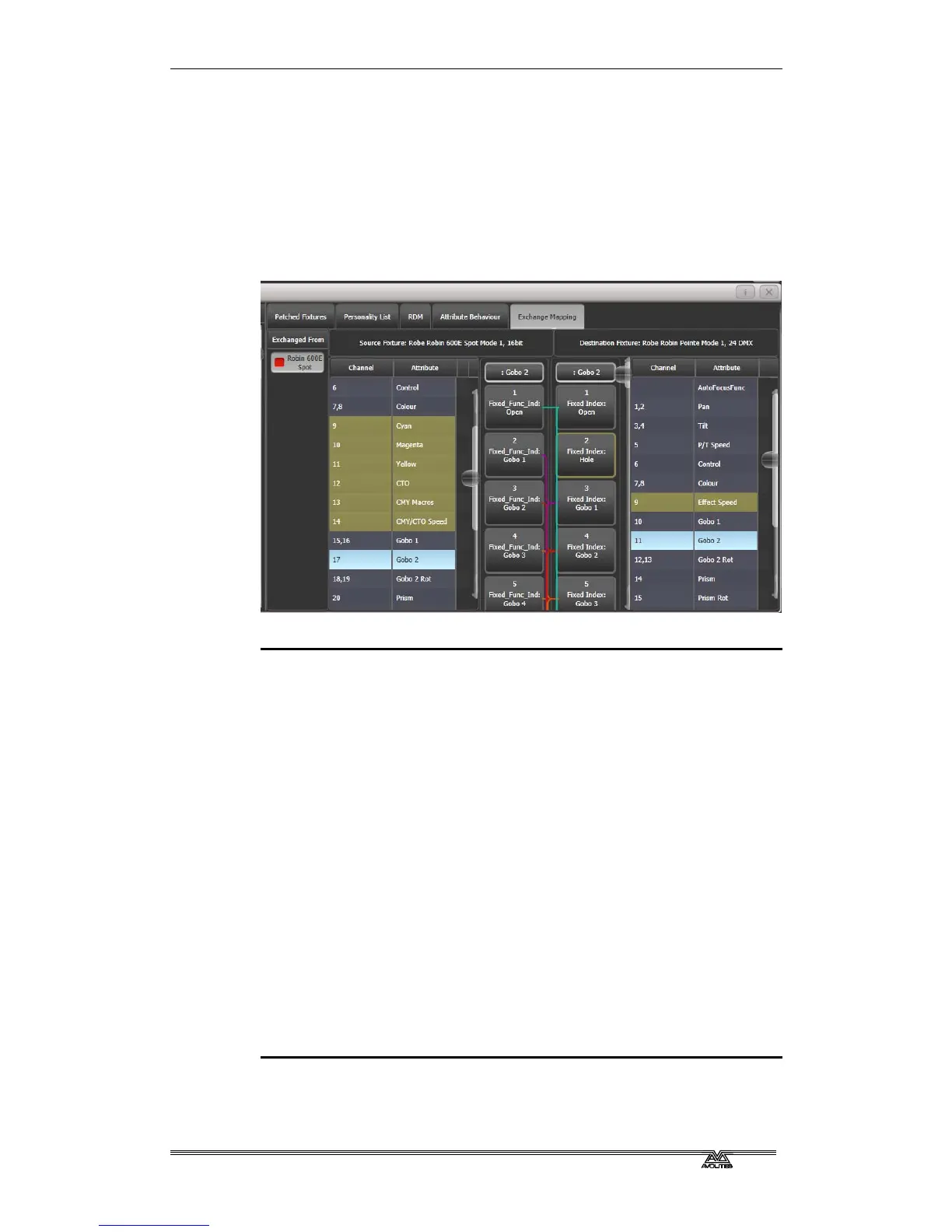
4> The view shows the old fixture on the left and the new fixture
on the right with attributes listed for both fixture types. You can
sort the list either alphabetically or in DMX channel order using
the [Sort] context menu option.
5> Select an attribute to show the mapping. The mapped attribute
on both fixtures will highlight in light blue. Brown controls are
not mapped. The centre of the view shows the individual
functions of the selected attribute, and coloured lines show how
these map between the fixtures.
6> To map a function, click on a source function then a destination
function. Any previous mapping will be removed. You can map
multiple source functions to a single destination function.
7> To unmap a function, double click the source function. If there
are multiple sources mapped, double click the destination
function.
8> To move a mapping, click the existing destination, then click
the new destination.



 To Next Page