6. Shapes and Pixel Mapper effects - Page 111
TitanUniversal_Man_v8-0_TT.doc 05 August 2014
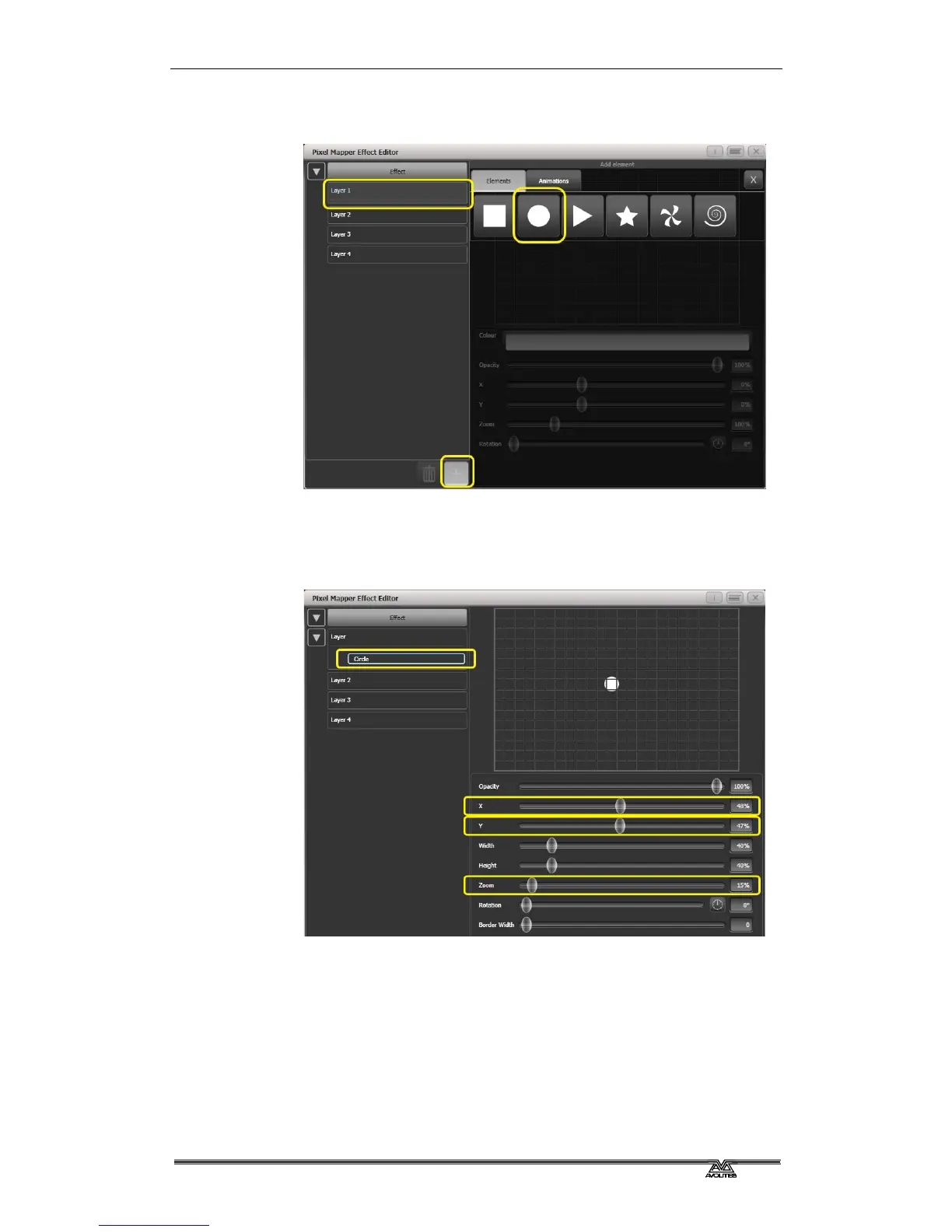
6> Select [Layer 1], click [+] at the bottom of the screen and then
choose Circle from the elements that appear.
7> Drag the 'Zoom' slider until the circle covers approximately one
cell. You can also use the 'Width' and 'Height' sliders to turn
the circle into an oval if that helps.
Then drag the 'X' and 'Y' sliders to position the circle roughly in
the centre of your fixtures if it is not already.
8> Select [+] again and choose Displacement from the animations
that appear (this is represented as a few static blocks). (Note
that nothing changes yet.)



 To Next Page