Page 126 – 6. Shapes and Pixel Mapper effects
TitanUniversal_Man_v8-0_TT.doc 05 August 2014
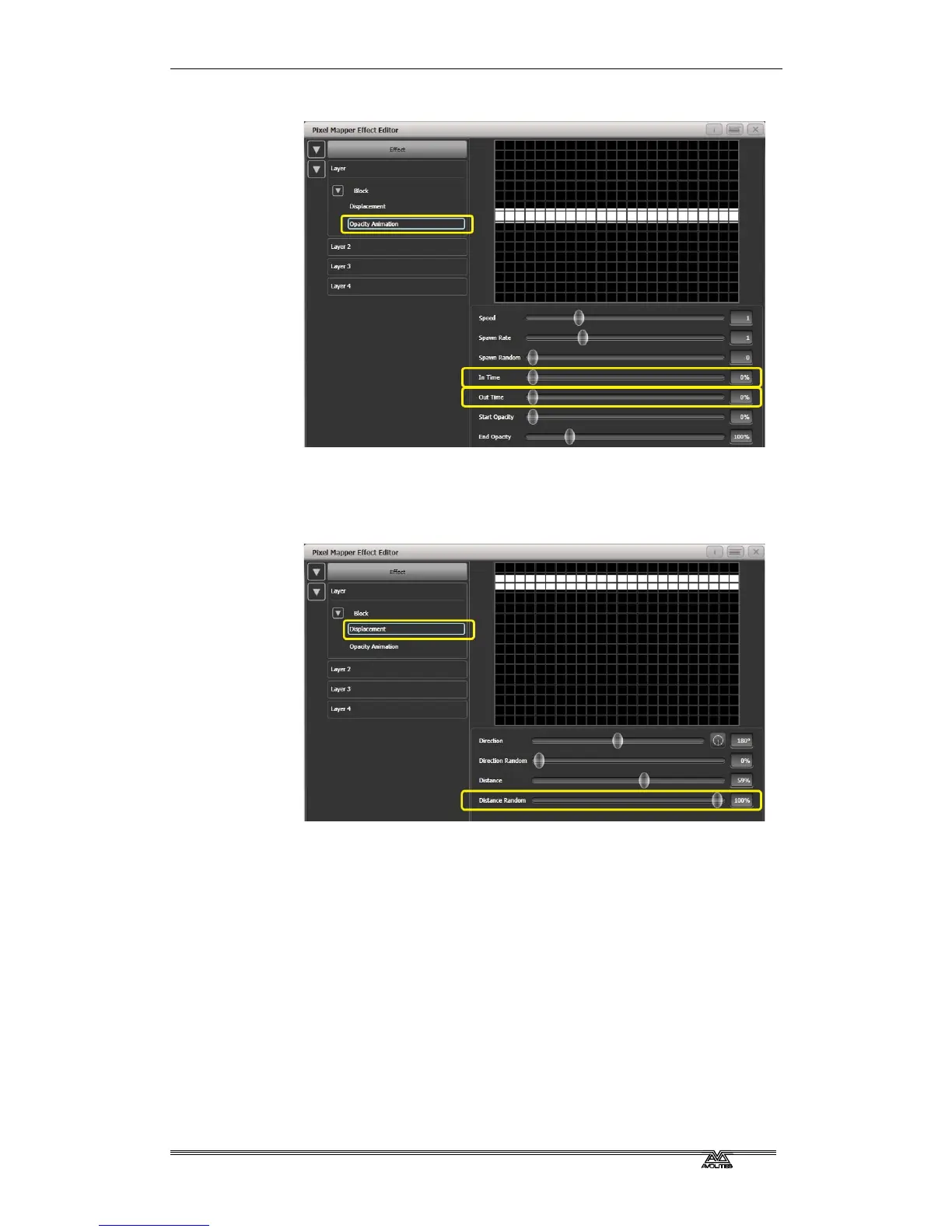
Reduce 'In Time' and 'Out Time' to create a snapping effect.
8> Click on 'Displacement' in the Layer to get back to the controls
for this animation again.
Now increase 'Distance Random' to 100%. (This will make the
bar draw at a random offset around the 'Distance' setting, in
this case making it anywhere within the grid.)
9> Return to the Opacity animation controls and increase speed
until you're happy.
10> At this point you may decide actually the effect would be better
if it was a vertical bar. To make this easy we can make
adjustments on the layer controls rather than on the individual
element and animations:
Select [Layer 1] to bring up the layer controls.
Change 'Rotation' to 90 degrees by clicking on the compass
button twice.



 To Next Page