2. Setting up and using the console - Page 41
TitanUniversal_Man_v8-0_TT.doc 05 August 2014
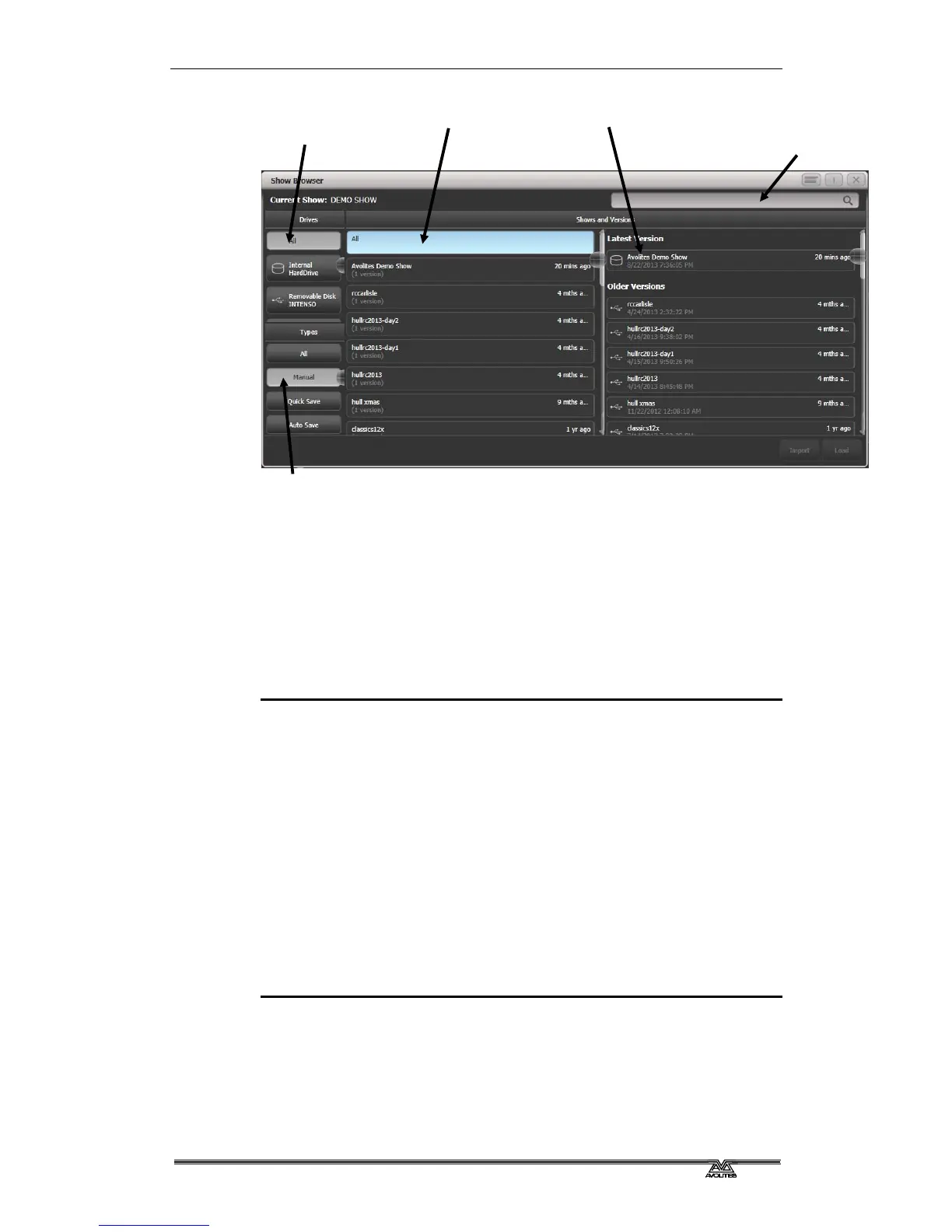
Press the Disk button then [Load Show] to load in a new show. The
Show Browser window will appear.
On the top left you can select which drive is used, or show files on all
drives. On the bottom left you can filter the list of shows to see all
shows, or just manual saves, quick saves or autosave files. On the
right you can see different versions of the showfile; this allows you to
reload an earlier version if you need to.
You can also load shows from the softkeys:
1> Press the Disk button.
2> Press [Load Show].
3> If you have a USB drive connected, select which drive you want
to load from.
4> Available shows are listed on the softkeys; press the key to load
the show (the F and G keys show more pages). If you type the
first few letters of the show name on the touch keyboard, the
list will only include shows starting with those letters, which can
make it easier to locate the show you want.
5> If there are multiple versions of the show stored on the disk,
select the one you want.
6> Press Load Show. The console will show a loading screen as the
different elements of the show load.
7> When the show has loaded the normal operating screen will
reappear.
When loading a show you have the option to keep the existing DMX
settings of the console, or to load the settings stored in the showfile.
The DMX settings determine how the XLR sockets on the back of the
console are used and how DMX is sent over the network using
TitanNet.
Available
disks/drives
Filter list of shows
List of shows
List of versions
Search bar



 To Next Page