Alphabets
116
8.2 Creating lettering
It is recommend to sew a test sample using the desired thread, the original fabric and the original
stabilizer. Please make sure that the fabric is fed evenly and lightly without colloding and being caught.
Do not pull, push or hold the fabric while sewing.
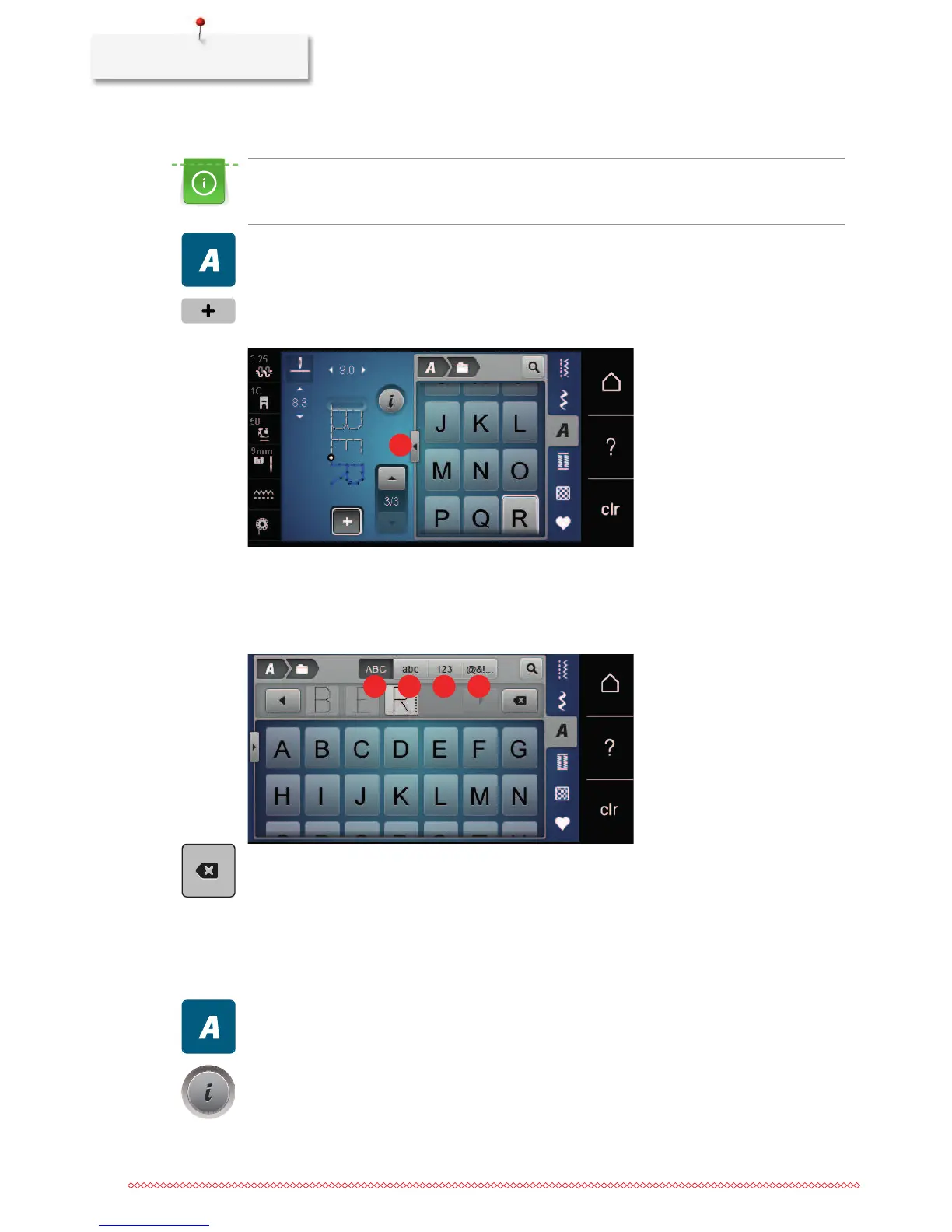
> Touch the icon «Alphabets».
> Select the font.
> Touch the icon «Single/Combi mode» to create a combination.
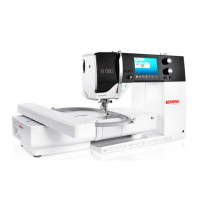
> Touch the icon «Display alphabets» (1) to open an extended enter mode.
> Select the letters.
> Touch the icon (2) (standard setting) to use upper case letters.
> Touch the icon (3) to use lower case letters.
> Touch the icon (4) to use figures.
> Touch the icon (5) to use special characters and mathematical symbols.
> Touch the icon «DEL» to delete single letters of the entered text.
> Touch the icon «Display alphabets» again to close the extended enter mode.
8.3 Altering font size
Block, Double block, Script, Quilting Text and Comic alphabets as well as Cyrillic and Script Cyrillic can be
reduced in size.
> Touch the icon «Alphabets».
> Select the font.
> Select the letters.
> Touch the icon «i»-Dialog.


 To Next Page