Creative embroidering
176
> Select an embroidery motif.
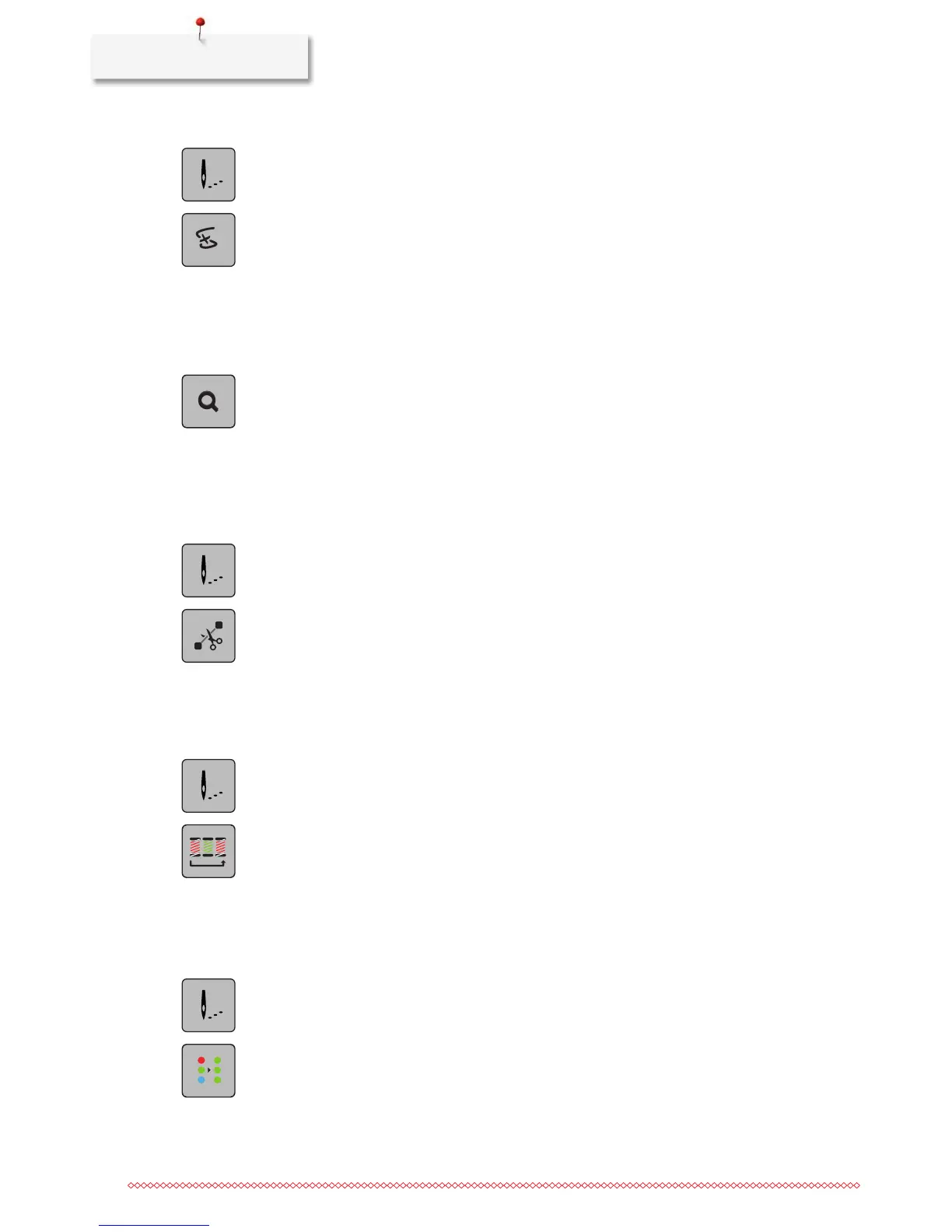
> Touch the icon «Embroidering».
> Touch the icon «Embroidery sequence control when thread breaks».
– In the left portion of the display a compact view of the embroidery motif is displayed. On the right
side the enlarged embroidery motif is displayed.
> Select the desired position in the compact view using the touchscreen pen/finger.
> Turn the «Upper Multifunctional knob» to move the hoop stitch by stitch.
> Turn the «Lower Multifunctional knob» to move the hoop in large steps.
– The number in the yellow-framed icon indicates the number of stitches within the embroidery
sequence.
> Touch the icon «Magnifier» to select the desired stitch via entry.
Cutting connecting stitches
The function is activated by default and the connecting stitches are cut automatically. When the function is
deactivated, the connecting stitches between the embroidery motifs must be cut manually.
> Select an embroidery motif.
> Touch the icon «Embroidering».
> Touch the yellow-framed icon «Cut the connecting stitches» to deactivate the function.
> Touch the yellow-framed icon «Cut the connecting stitches» again to activate the function.
Reducing color changes
When the embroidery motifs overlap, the color changes cannot be reduced.
> Select an embroidery motif.
> Touch the icon «Embroidering».
> Touch the icon «Reduce thread change».
– Identical colors of the embroidery motif are collected to one color.
Multi-colored embroidery motif on/off
Multi-colored embroidery motifs can also be embroidered in one color.
> Select an embroidery motif.
> Touch the icon «Embroidering».
> Touch the icon «Multi-colored embroidery motif on/off».
– The embroidery motif is embroidered in one color.


 To Next Page