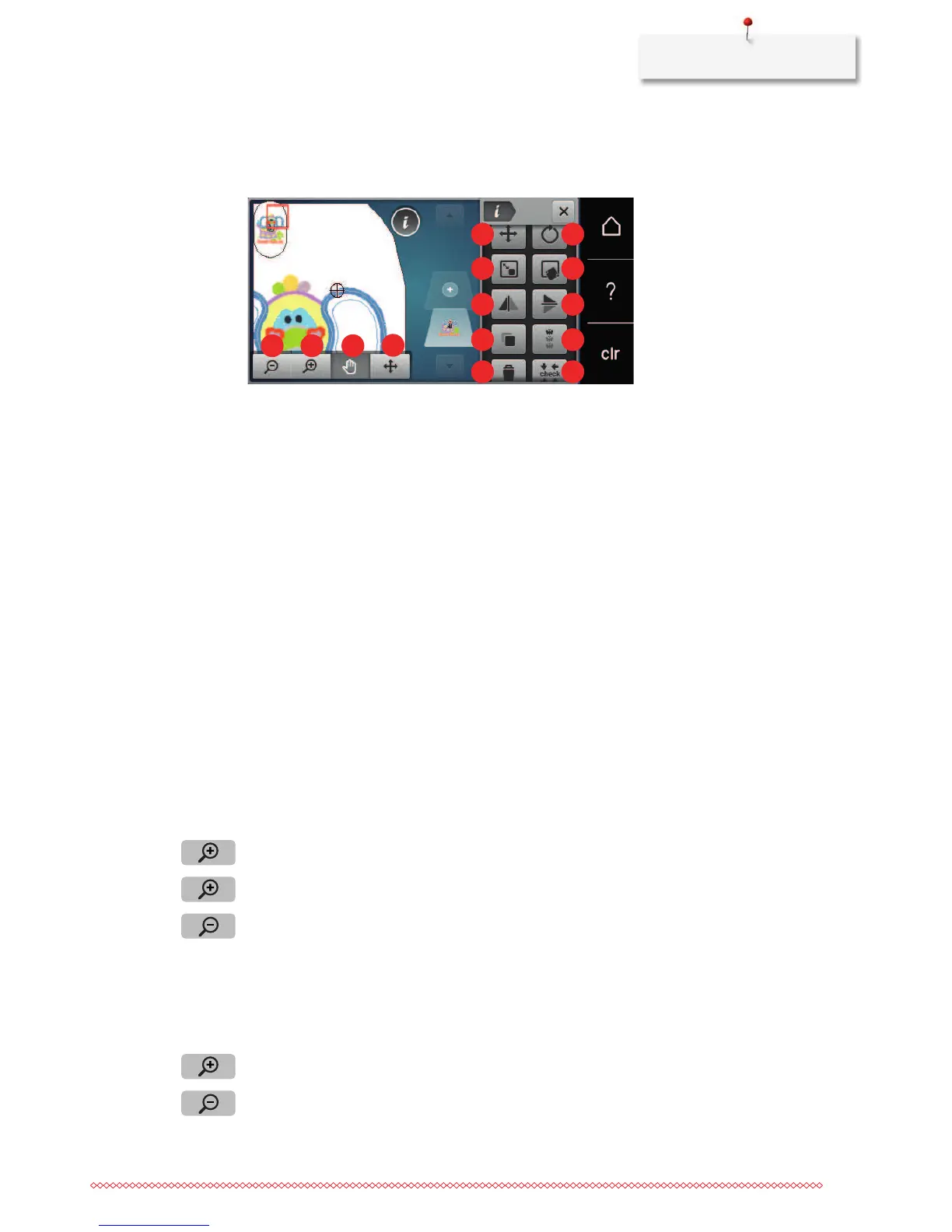
1 Zoom out 10 Mirror image up/down
2 Zoom in 11 Duplicating
3 Moving the view 12 Endless Embroidery
4 Moving the motif 13 Deleting (appears by scrolling)
5 Moving the motif 14 Check embroidery motif size (appears by
scrolling))
6 Rotating the embroidery motif 15 Bending text (only when an alphabet is selected,
appears by scrolling)
7 Altering the size 16 Grouping embroidery motifs (appears by
scrolling)
8 Pinpoint placement 17 Changing the sequence within an embroidery
motif combination (appears by scrolling)
9 Mirror image left/right 18 Altering the stitch type/stitch density (appears
by scrolling)
Scaling up the embroidery motif view
The view of the embroidery motif can be scaled up. In addition to that, the view can be adjusted with or
without changing the embroidery position.
> Select an embroidery motif.
> Touch the icon «Zoom in» to edit the view of the embroidery motif.
> Touch the icon «Zoom in» 1–4 times to enlarge the view of the embroidery motif gradually.
> Touch the icon «Zoom out» 1–5 times to get back to the Edit Mode.
Downsizing the embroidery motif view
The view of the embroidery motif can be downsized. In addition to that, the view can be adjusted with or
without changing the embroidery position.
> Select the embroidery motif.
> Touch the icon «Zoom in» to edit the view of the embroidery motif view.
> Touch the icon «Zoom in» 1to 4 times to downsize the view of the enlarged embroidery motif gradually.


 To Next Page