147
Embroidery Motifs
in the Edit screen touch the «Add Motif» icon ►
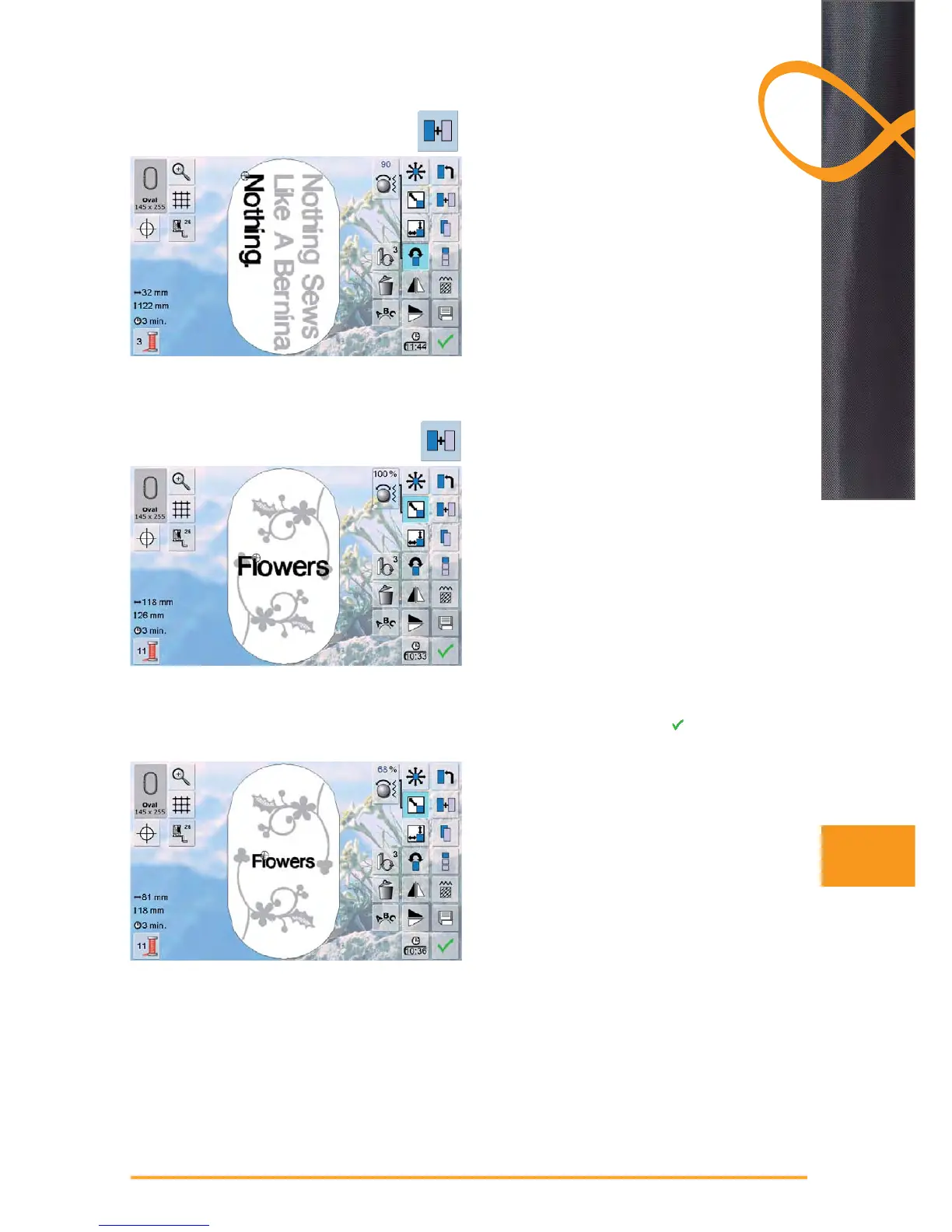
combine and position individually the rest of the text ►
ensure the distance between the lines is the same – ►
when positioning the lettering pay attention to the
numbers in the Information Areas of the «Move Motif»
icon and activate the «Show Grid» function
Depending on the application, the characters are added
after an embroidery motif is selected or the characters are
combined first and then added to the motif (e.g. embellis-
hed lettering).
Example:
select desired embroidery motif in the embroidery ►
computer
the embroidery motif appears in the Edit screen ►
touch the «Add Motif» icon ►
select the desired alphabet type in the Selection menu ►
of the embroidery computer
a special screen with keyboard appears ►
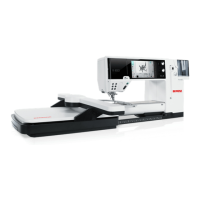
enter lettering (e.g. Flowers) ►
select characters with help of the Lower/Upper Case ►
icon
confirm combined lettering with ►
and lettering
appears in the Edit screen above the motif
Altering Text to Suit Motif
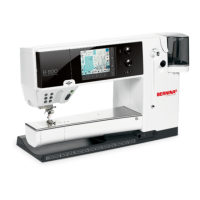
alter text size to suit motif with the function «Rescale ►
motif proportionally»
position the text as desired with the function «Move
►
motif»
Further Text Lines
Motifs and Lettering


 To Next Page