Appendix A Maintaining the Imaging System
Updating Image Lab Touch Software
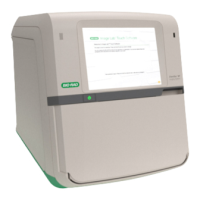
Updates of Image Lab™ Touch software are delivered on a USB flash drive. Before you
start the update, complete any image acquisitions or image exports in progress.
Important: Start Image Lab Touch software before you insert the USB flash drive into
the USB port.
To update Image Lab Touch
1. Log in to Image Lab Touch.
2. Insert the USB flash drive into the USB port above the imager main door.
A dialog box displays the current software version and the software update version.
3. (Optional) If the dialog box does not appear, tap Settings. Then tap Update Installation.
4. Tap OK.
The installer updates the imager with the latest version of Image Lab Touch.
When installation is complete, Image Lab Touch restarts and the login screen appears.
Reinstalling Image Lab Touch
Reinstall Image Lab Touch when software problems appear to be due to a flawed
installation or corrupted files. Complete any image acquisitions or image exports before
you begin.
User Guide | 105


 To Next Page