About the Live View Screen
Icon or Text Description
Help
— displays information about
Image Lab Touch
screens.
Logout
Logout
— logs you out and returns to the Welcome screen.
Tabs
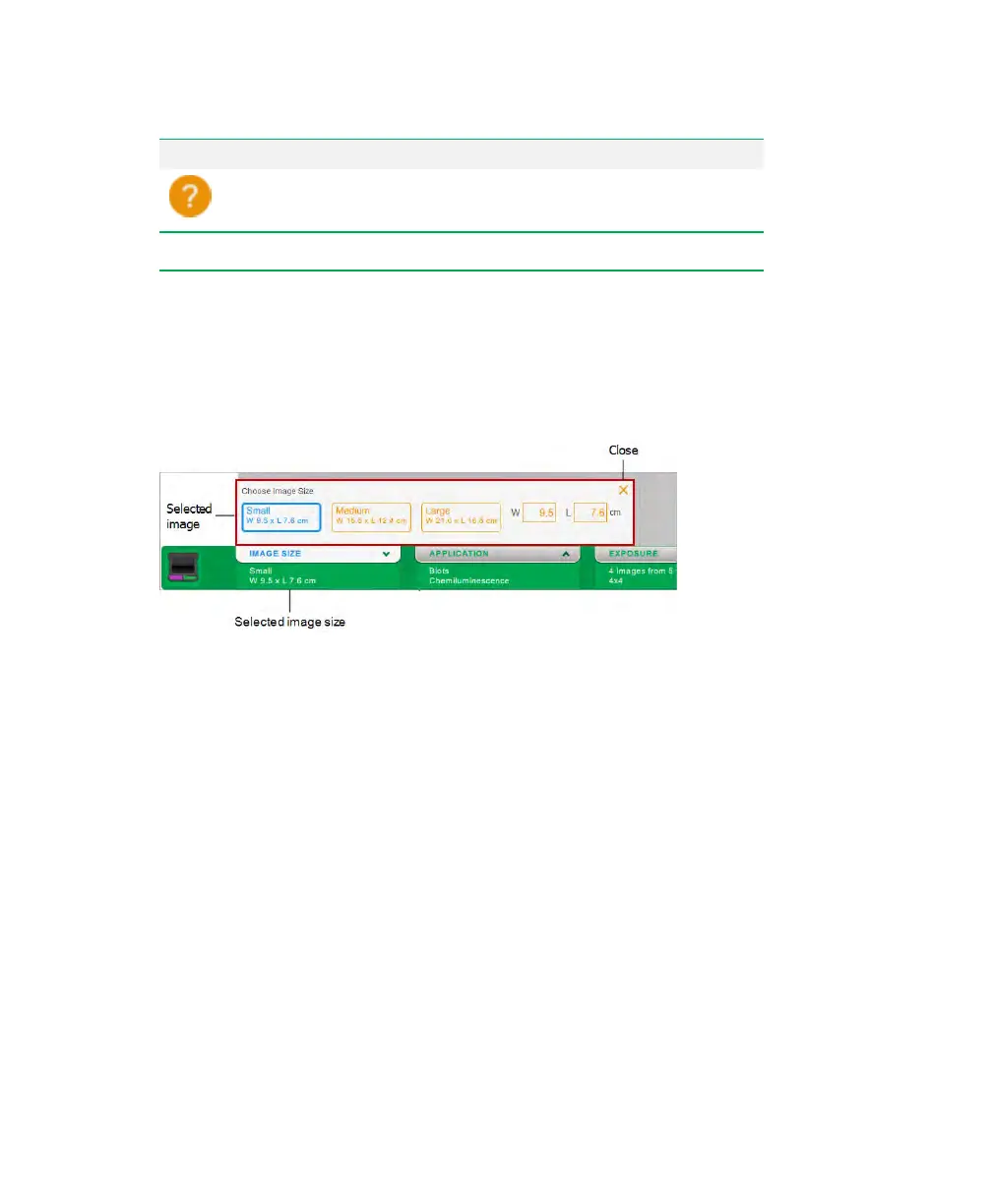
IMAGE SIZE, APPLICATION, and EXPOSURE tabs display image settings. Tapping a tab
opens a dialog box. For example, when you tap the IMAGE SIZE tab, this dialog box
appears:
Notes
n A blue border surrounds the current selection.
n Tabs display current settings when they are open. When the tabs are closed, current
settings appear in the green area below the tabs. In the example screen, the image
size (Small) and image dimensions (W 9.5 x L 7.6 cm) appear below the tab. Similarly,
the selected application and exposure settings appear below the APPLICATION and
EXPOSURE tabs.
n For information on entering numbers and text using the on-screen keypad or
keyboard, see Entering Text on Screen on page 39.
n To close the dialog box, tap the X or tap anywhere else on the screen.
User Guide | 33


 To Next Page