Chapter 2 Image Lab Touch Software Overview
Live View Screen Elements
n Main toolbar — accesses the Live View, Gallery, and Help screens, the Settings
menu, and the Logout icon. For more information about the toolbar icons, see The
Image Lab Touch Main Toolbar in the next section.
n Workspace — displays a live view of the sample on the sample tray.
n Sample tray — displays a thumbnail image of the sample tray on the imaging stage.
n Tabs — open dialog boxes where you can specify image acquisition settings.
n Camera icon — acquires an image of the sample.
n Zoom icons — zoom in and out to focus on an area of the sample.
The Image Lab Touch Main Toolbar
Tap the following screen objects to specify a setting or execute an action.
Icon or Text Description
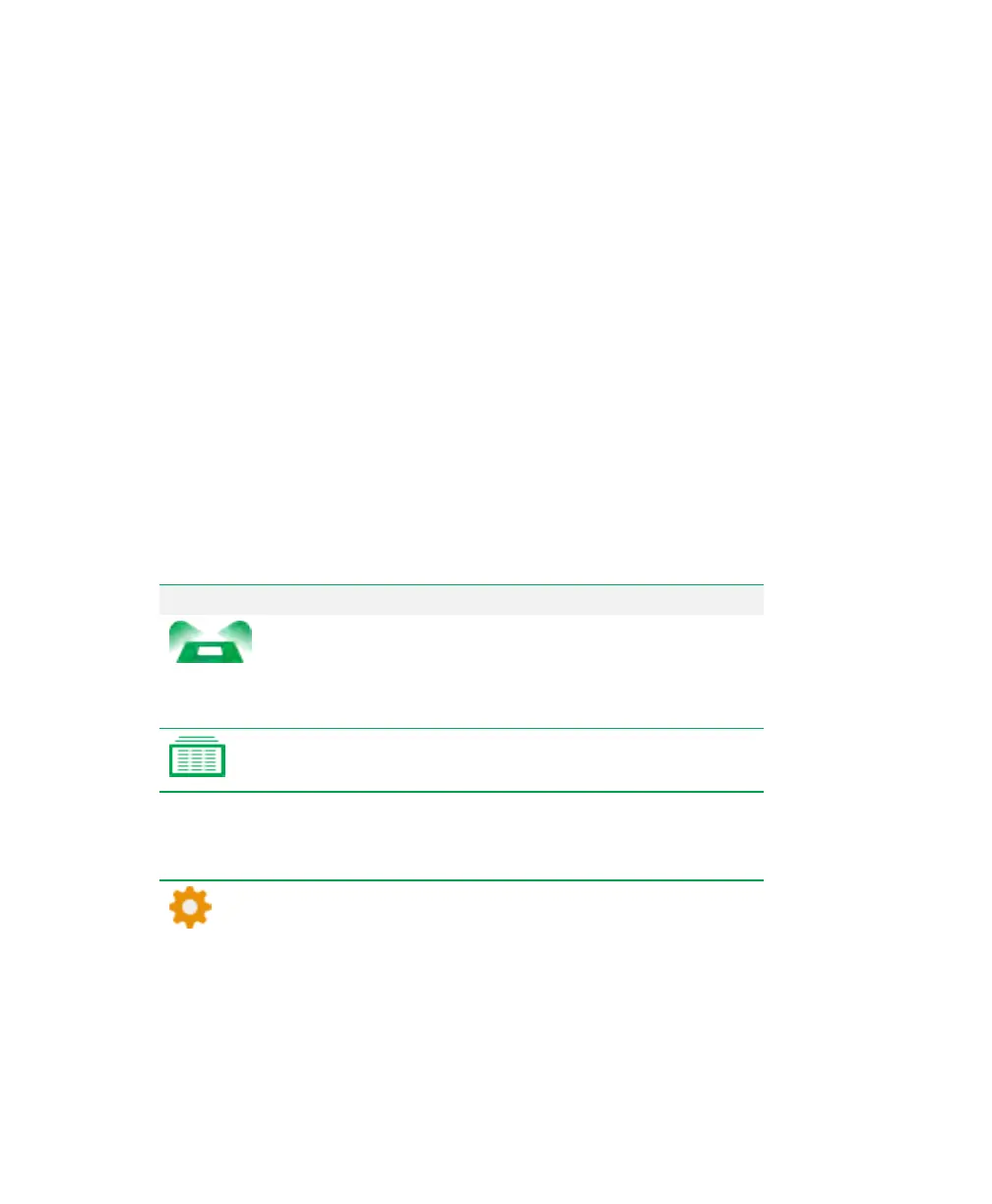
Live View
— accesses the Live View screen, which displays
the sample in the sample tray in real time. You can select
acquisition settings and tap the Camera icon to acquire
images.
Gallery
— displays thumbnails of all acquired images. You
can view, browse, delete, print, or export images.
Date and time
Date and Time
— displays the current date and time of the
imaging system. Go to Settings > Set Date and Time to
change this setting.
Settings
— displays system settings and accesses software
updates.
32 | ChemiDoc Touch Imaging System


 To Next Page