Exporting to a Shared Folder
Exporting to a Shared Folder
Before exporting images to a shared folder on a network drive or stand-alone computer,
obtain the following information:
n The UNC path to the shared folder on the network drive or stand-alone computer
n Log-in credentials to the shared folder
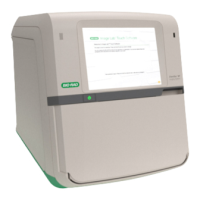
If the ChemiDoc Touch imager is connected to a stand-alone computer, see Exporting to a
Shared Folder on page 117.
To export images to a shared folder
1. Verify that the ChemiDoc Touch imager is connected via an Ethernet cable to a
network outlet or to a stand-alone computer.
2. Do one of the following:
n Select the images you want to export in the Gallery.
n Navigate to Image View by acquiring an image or opening an image in the
Gallery.
3. Tap Send/Save.
4. Tap Save to Network.
The Save to Network dialog box appears.
User Guide | 101


 To Next Page