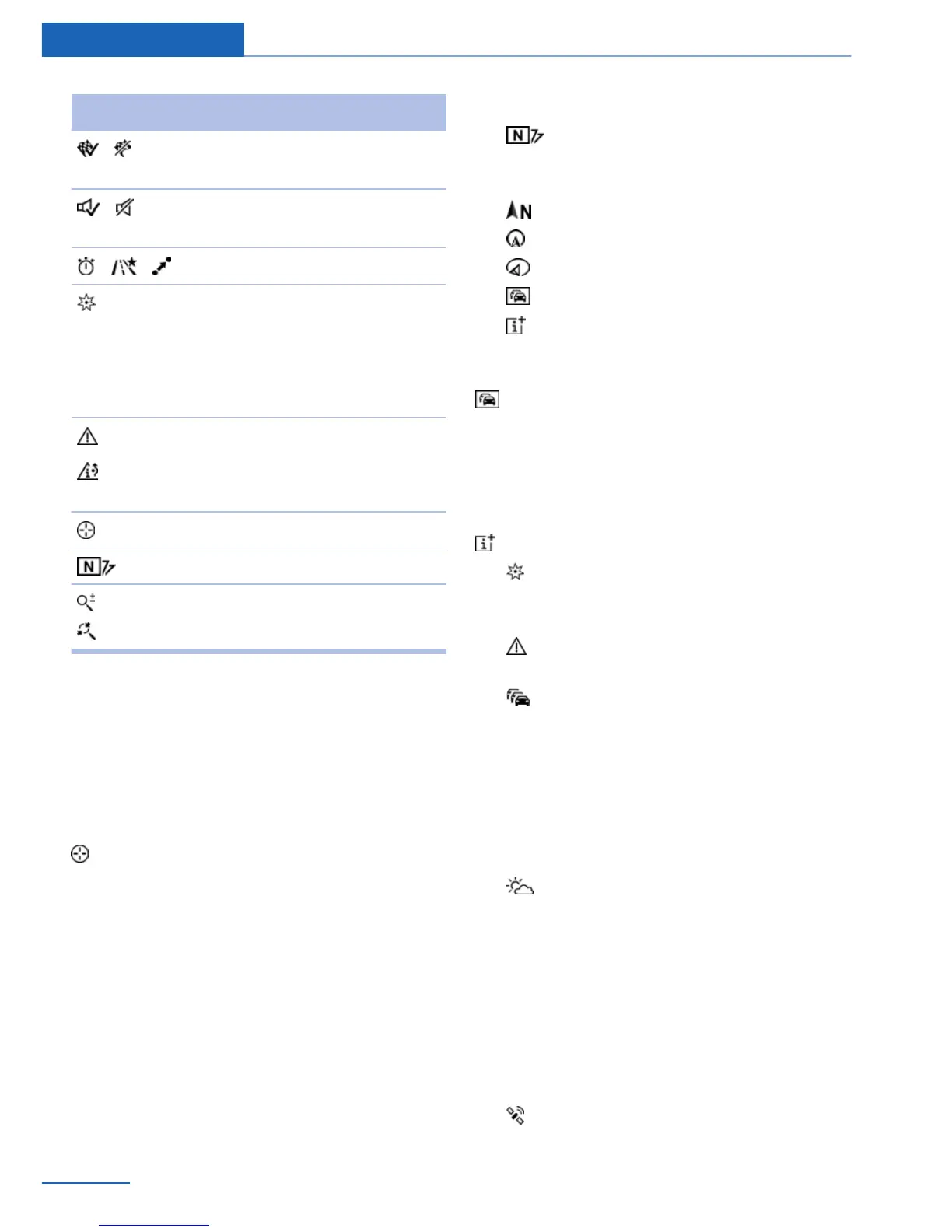
Symbol Function
Destination guidance active/
inactive.
Switching spoken instructions
on and off.
Change the route criteria.
Search for a special destina‐
tion.
The most used special desti‐
nation categories are offered in
the second level.
Traffic information functions.
Detour suggestions are availa‐
ble.
Interactive map.
Set the map view.
Change the scale.
To change to the function bar, move the con‐
troller to the left.
Map section
Change
"Interactive map"
▷ To shift the map: move the controller in the
required direction.
▷ To shift the map diagonally: move the con‐
troller in the required direction and turn it.
Adjusting
The settings are stored for the remote control
currently in use.
1.
"Navigation"
2. "Map"
3. "Map views"
Map views
▷ "View facing north"
▷ "Direction of travel view"
▷ "Perspective view"
▷ "Traffic info map"
▷ "Additional Info"
Traffic bulletin map
"Traffic info map": information about traffic
flow is displayed in a special map view. The
symbols for the other additional information
set are also displayed.
Additional information
"Additional Info"
▷ "Points of Interest": symbols for special
destinations are displayed. Adjust display,
refer to page 13.
▷ "Traffic icons": symbols for traffic infor‐
mation, refer to page 24, are displayed.
▷ "Traffic flow": depending on the map
scale, a traffic obstruction's length, direc‐
tion, and impact are displayed in the map
using traffic signs or colored lines along
the calculated route provided that corre‐
sponding traffic information is present. In‐
formation about traffic flow in the map
view, refer to page 26.
▷ "Weather": weather symbols are dis‐
played on the map.
Displayed symbols: clear skies, cloudy
skies, rain, thunder shower, and snowfall,
each with the current temperature.
The weather information is updated auto‐
matically.
The symbols are displayed in several se‐
lected scales.
▷ "Satellite images": depending on availa‐
bility and resolution, in some scales satel‐
Seite 22
Navigation Map view
22
Online Edition for Part no. 01 40 2 926 935 - X/13



 To Next Page