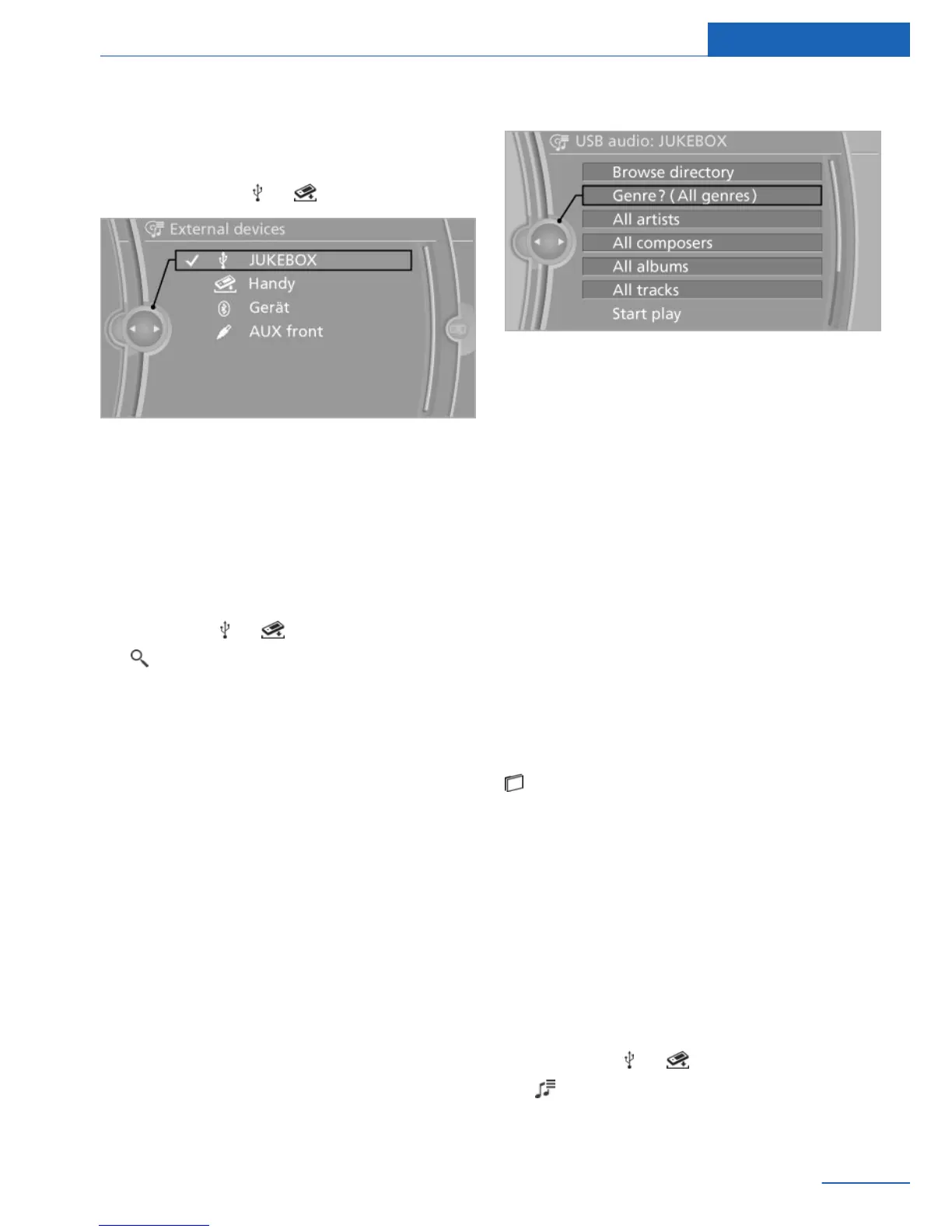
Playback
1. "Multimedia"
2. "External devices"
3. Select symbol or .
Playback is started.
Track search
Tracks are displayed if they have been saved in
the Latin alphabet.
1.
"Multimedia"
2. "External devices"
3. Select the or symbol.
4. "Music search"
Track search using information
1.
Select the desired category, e.g., "Genre"
or "Artist".
All entries are displayed in a list.
▷ Open "A-Z search" and input the de‐
sired entry. When a letter is entered,
the results are filtered using this letter
as the first letter. If multiple letters are
entered, all results that contain that se‐
quence are displayed.
▷ Select the desired entry from the list.
2. Select other categories if you wish.
Not all categories need to be selected. For
example, if all of the tracks by a certain ar‐
tist are to be displayed, call up that artist
only. All of the tracks by that artist are then
displayed.
3. "Play"
Restarting a track search
"Reset search"
Browsing a directory
If connection is via the USB audio interface in
the center console, the file directory of the de‐
vice can be displayed.
"Browse directory"
A list of directories and tracks is displayed.
This symbol identifies directories.
Select a track:
Select the desired track or directory.
To go up a level in the directory, move the con‐
troller to the left.
Playback lists
Calling up playback lists.
1.
"Multimedia"
2. "External devices"
3. Select the or symbol.
4. "Playlists"
5. Select the desired playlist.
Seite 53
External devices Entertainment
53
Online Edition for Part no. 01 40 2 926 935 - X/13



 To Next Page