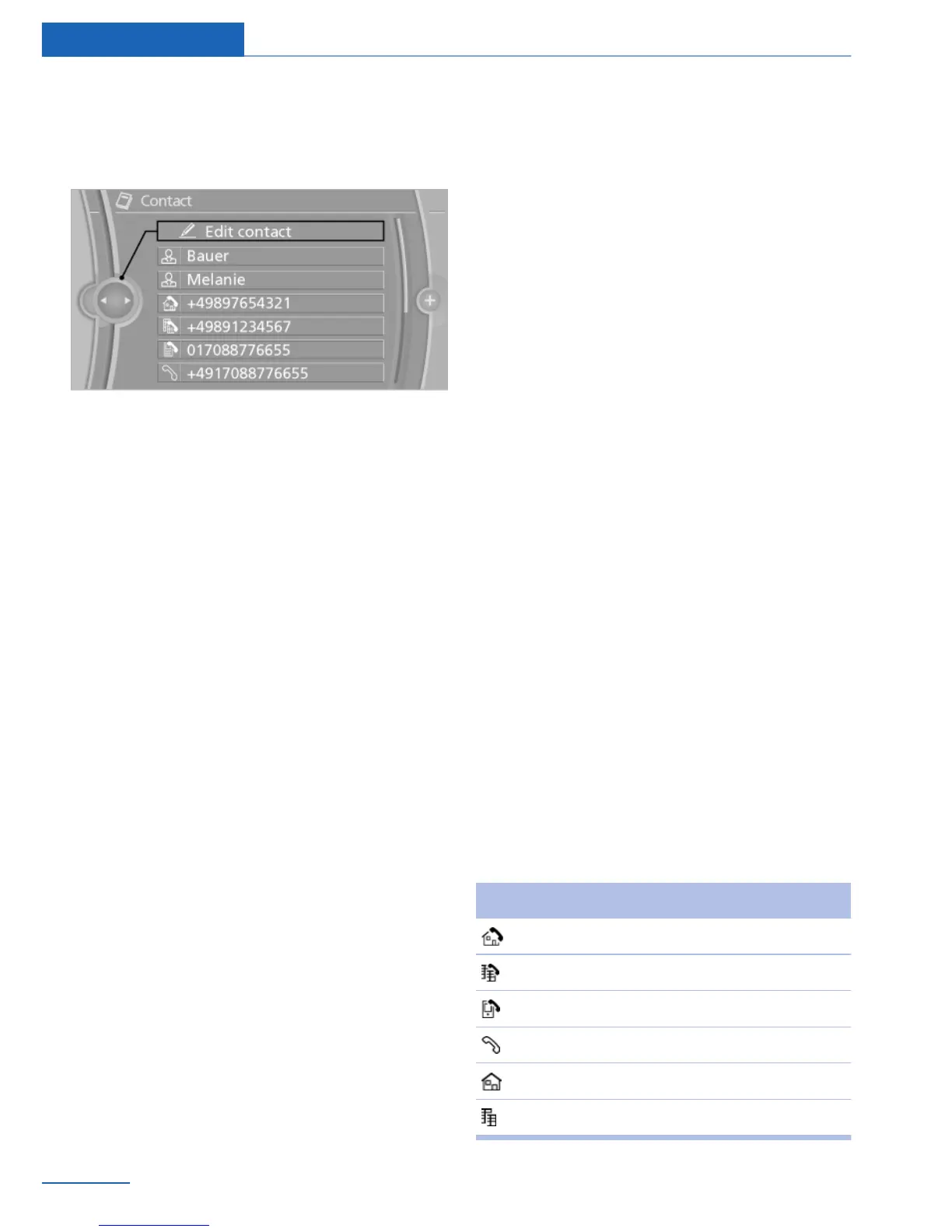
Edit
1. Select the desired contact.
2. "Edit contact"
3. Change the entries.
4. "Store contact in vehicle"
Selecting the contact as a navigation
destination
1.
Select the desired contact.
2. Select the address.
When contacts from the mobile phone and
the BMW Online address book are used,
the address may need to be matched to
the navigation data contained in the vehi‐
cle. In this case: correct the address.
3. "Start guidance" or "Add as another dest."
Checking the address as a destination
An address that is to be used for destination
guidance must match the navigation data con‐
tained in the vehicle. The address can be
checked for this purpose.
1.
Select the desired contact.
2. Highlight the address.
3. Open "Options".
4. "Check as destination"
5. Correct and store the address if necessary.
If the address is corrected and stored, a copy
of it is stored in the vehicle. The address is not
changed on the mobile phone.
Displaying a contact's Internet
address
An Internet address stored for a contact can be
called up.
1. Select the desired contact.
2. Select the Internet address.
The selected Internet address is displayed
in the browser.
New contact
Create
1.
"Office"
2. "Contacts"
3. Open "Options".
4. "New contact"
5. The entry fields are still filled with the pre‐
vious entries: "Delete input fields".
6. Fill out the entry fields: select entry field.
7. Enter text and make assignment as neces‐
sary.
8. In the navigation system: enter address.
Only addresses contained in the navigation
data in the vehicle can be entered. This en‐
sures that destination guidance is possible
for all addresses.
If necessary, "Accept address".
9. "Store contact in vehicle"
The entries for a Contact are assigned using
the following symbols.
Symbol Meaning
Home phone number.
Business phone number.
Mobile phone number.
Other phone number.
Home address.
Business address.
Seite 92
Communications Office
92
Online Edition for Part no. 01 40 2 926 935 - X/13



 To Next Page