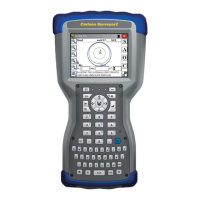
The Windows® Embedded Handheld operating system enhances the ability of the handheld to
recognize touch gestures, making it easy to use a finger to navigate. Use of the capacitive stylus is
an option. The keyboard keys can also be used.
Navigation options vary depending on the screen you are viewing. Here is a partial list of options:
VERTICAL AND HORIZONTAL MOVEMENT
Flick up, down or sideways on the touchscreen.
For more precise positioning, touch, hold, and move the screen up or down.
Use the scroll bar if it is available.
Use the navpad to move around on a screen.
A horizontal scrolling menu is located on control panel screens near the top.
MAKE A SELECTION
USING THE TOUCHSCREEN
Press or tap the function gadget or application icon you want to select, turn on, activate,
or turn off.
Press and hold a function gadget to bring up a control panel, menu, or list.
USING THE KEYBOARD
Use the up down right and left arrow keys on the navpad to select (highlight) a
gadget or icon on the screen. A ring appears around the selection. System Info has been selected
below:


 To Next Page
 Loading...