Commonwealth Bank Albert User Guide 15
Forgoen Manager password.
You can reset your Manager password on the Albert terminal if you have forgoen it or entered it
incorrectly three times. To enable this feature you must first set your secret answers.
Set your secret
answers
To set your secret answers:
1. Log into Albert with your Manager
password.
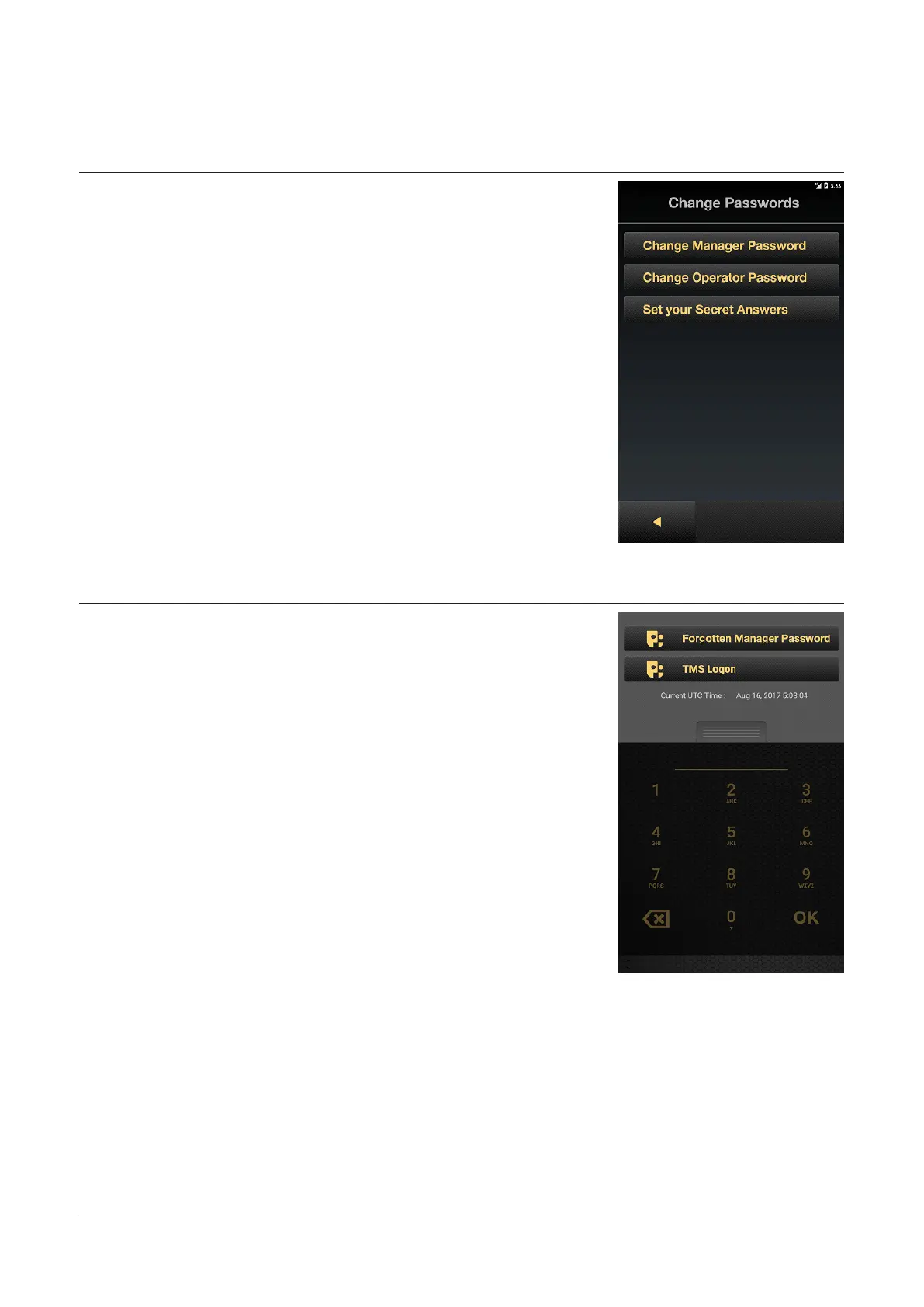
2. Tap the Seings app, then Device
Seings, then Change Passwords.
3. Enter your Manager password and
tap OK.
4. In the Change Passwords screen,
tap Set your Secret Answers.
5. Type answers for all five questions.
Aer completing each answer, tap
and hold the return key for two
seconds to go to the next question.
6. Once you have completed all five
answers, the OK buon will be
enabled. Tap OK to successfully
complete this task.
Forgoen Manager
Password
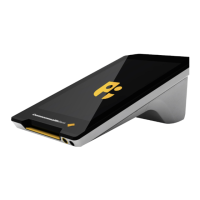
The Forgoen Manager Password
function allows you to reset your
Manager password. You can access it in
one of two ways:
1. If you enter the Operator or
Manager password incorrectly three
times you will receive a warning
message.
You will be advised that you can
re-enter the Manager password in
10 minutes, call the helpdesk or tap
Forgoen Manager Password.
2. If you cannot remember the
password and you would like to
reset it immediately, tap Forgoen
Manager Password in the menu.
In the Forgoen Password screen:
1. Enter your three secret answers.
Aer you have entered each answer,
tap Next.
2. You will be asked to enter a new
Manager password. You will then be
asked to type it in again to confirm
the new password.


 To Next Page