Commonwealth Bank Albert User Guide 49
8. Tracking shis.
Need to know the total for an individual shi? Albert makes it easy.
Viewing shi details.
Purpose To see total transactions for dierent shis.
View past shis 1. In the Purchase app, press the
Merchant Context buon or swipe
down on the screen to open the
Merchant Context Menu.
2. Tap History and Totals.
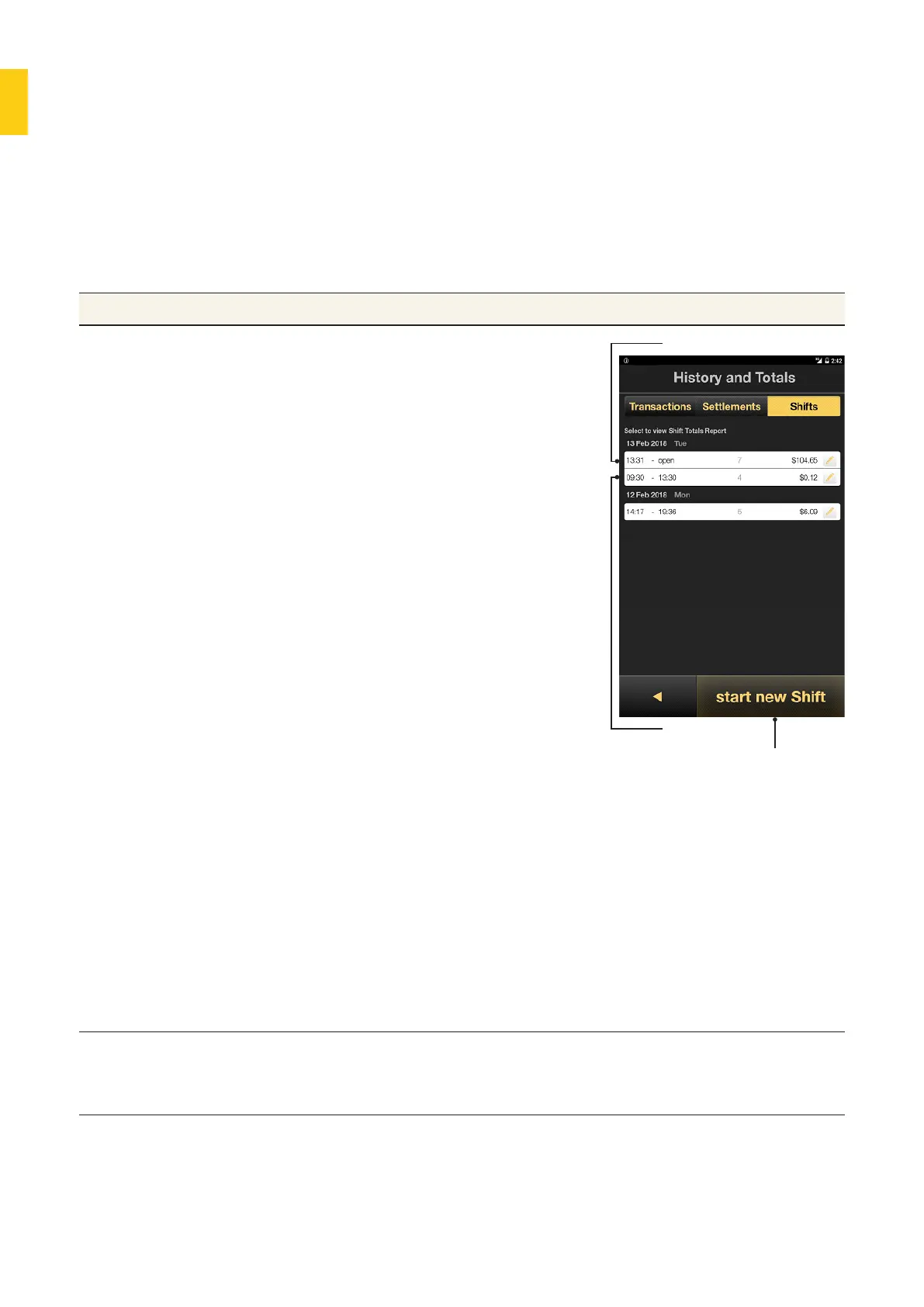
3. Tap Shis to display a list of shis
and their details, including the date,
time, number of transactions and
totals for the shi.
4. You will see the most current shi
at the top of the list. The end time
will appear open until you add a
new shi or the next auto-shi
begins.
5. To view a specific Shi Totals
Report, tap the row. You’ll be
prompted to enter the Manager
password.
6. Enter the Manager password and
tap OK.
7. The Shi Totals Report displays a
list of totals for each transaction
type for the shi.
8. To print the report, tap Print.
9. To view the Shi Totals Report for a
dierent date:
• Swipe right for future reports.
• Swipe le for past reports.
Past shis
Current shi
Start new shi buon
Modify past shis 1. Tap Edit to adjust the shi period.
2. Tap the input fields to adjust the date and time
using the keypad and buons, then tap OK.



 To Next Page