48 Commonwealth Bank Albert User Guide
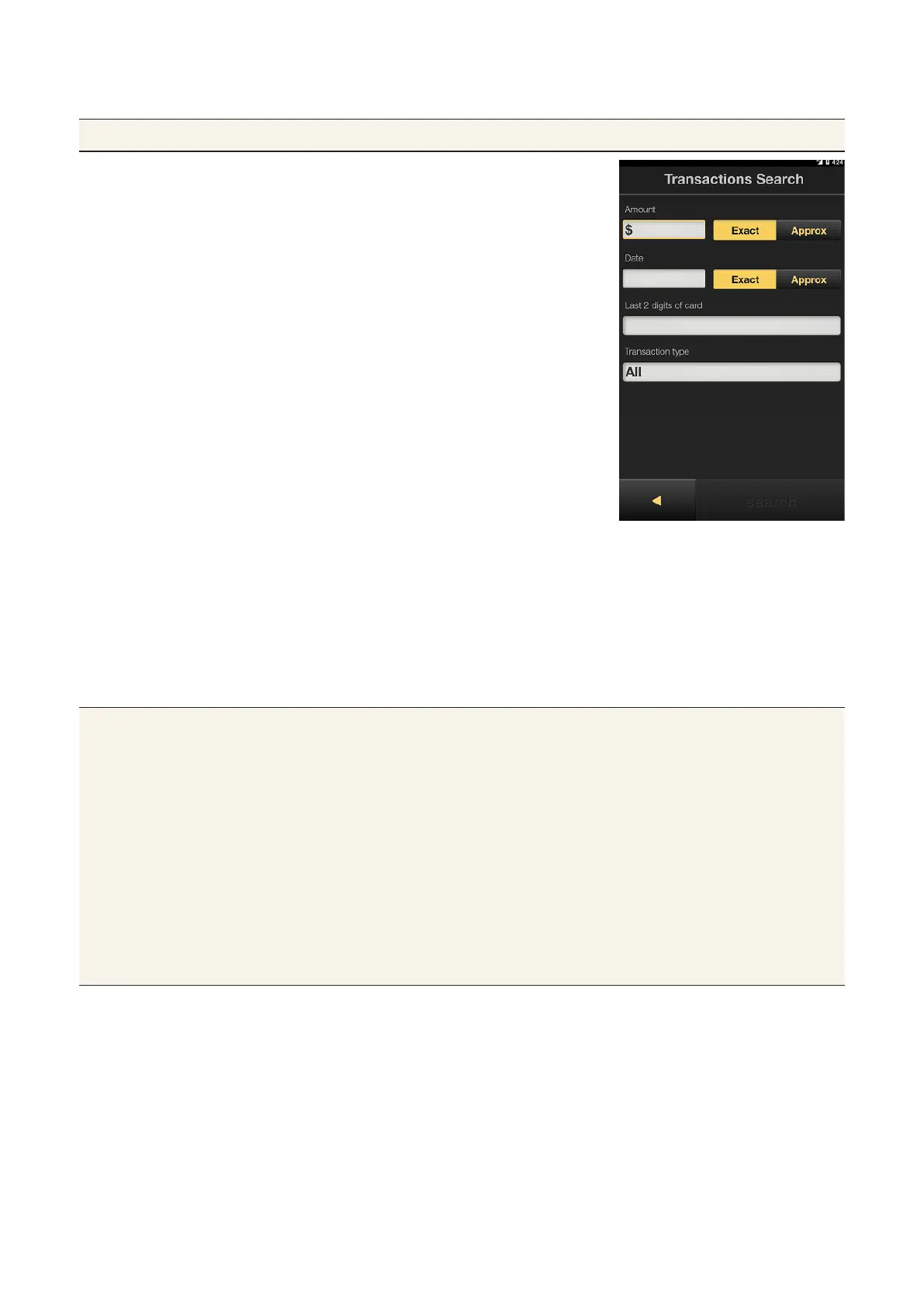
Finding a specific transaction.
Purpose To find a specific transaction.
Find a specific
transaction
1. From the Transactions tab, tap
Search.
2. Tap in the fields to enter the details
you wish to search for, including:
• Amount: enter the transaction
value and tap Exact or Approx.
• Date: enter the transaction value
and tap Exact or Approx.
• Last two digits of card: enter
the last two numbers on the card
used in the transaction.
• Transaction type: select the
type of transaction from the list.
3. Tap Search. A list of transactions
meeting the search criteria will be
displayed.
4. Tap the transaction you need to
view its receipt.
5. If needed, tap print to reprint
the receipt, or email to send the
receipt.
6. Tap Finish.
Tips • The list of transactions will provide time, transaction type, card/
account type, and amount.
• To process a refund for a specific transaction, tap the transaction
and click refund.
• Icons beside each transaction show the transaction status. A
tick indicates the transaction was successful, a cross indicates a
declined transaction, and circular arrows indicate a refund was
processed via the transaction history screens.
• Using the Approx icon for Amount will show transactions within
20% of the search value. Using the Approx icon for Date will
show transactions within one day of the search date.



 To Next Page