Setup Connecting to a Computer or Network (Optional)
CubiScan 125 16
• Operate the CubiScan 125 without a computer using the touchscreen.
Refer to “Measuring/ Weighing Items” on page 25 for information.
Connecting to a Computer via Ethernet
This section describes how to use Ethernet to connect a computer to the
CubiScan 125 (recommended method).
Use Quantronix’s Qbit software (refer to the Qbit User Guide) or the
touchscreen options (see Chapter 4 “Configuration”) to configure the
CubiScan 125 for TCP/IP communication. Contact Quantronix if you need
additional assistance.
If you are using the Ethernet connection option:
1. Install the driver that is needed, for further information on installing
the driver, see below.
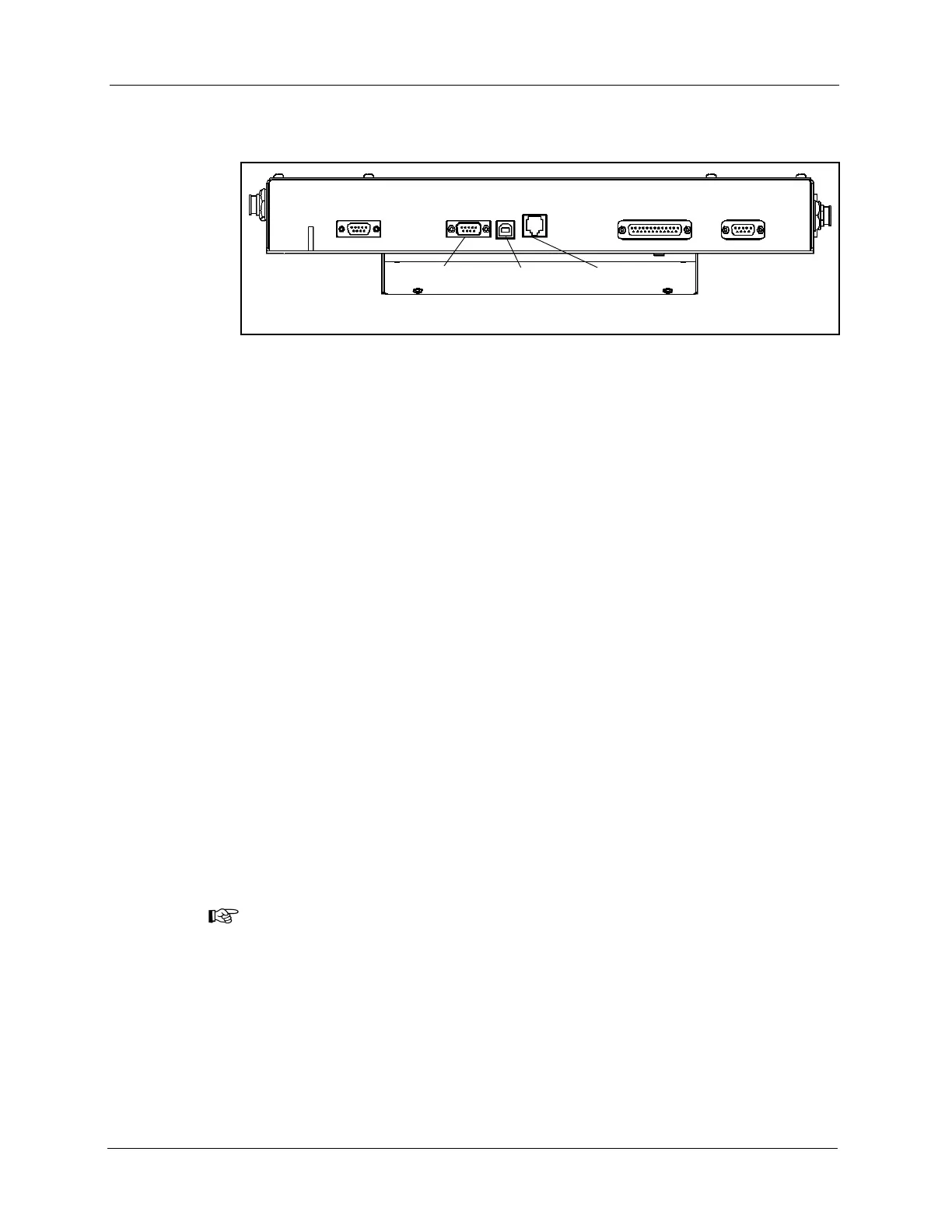
2. Connect the Ethernet cable (supplied) to the CubiScan 125’s Ethernet
port, as shown in Figure 13.
3. Attach the Ethernet cable to the TRENDnet USB to Ethernet cable
adapter (supplied).
4. Connect the TRENDnet cable adapter to the PC.
NOTE
The following screen images were taken from a Windows 7 operating system.
Your screen images may appear different if you are using a different operating
system.
Installing and
Configuring the
Ethernet Driver
To install the Ethernet driver there are two options.
1. You can install the driver using the TRENDnet CD-ROM and User’s
Guide.
Or you can complete the following steps:
Figure 13
Ethernet, Serial, and USB Connectors


 To Next Page