Setup Connecting to a Computer or Network (Optional)
CubiScan 125 19
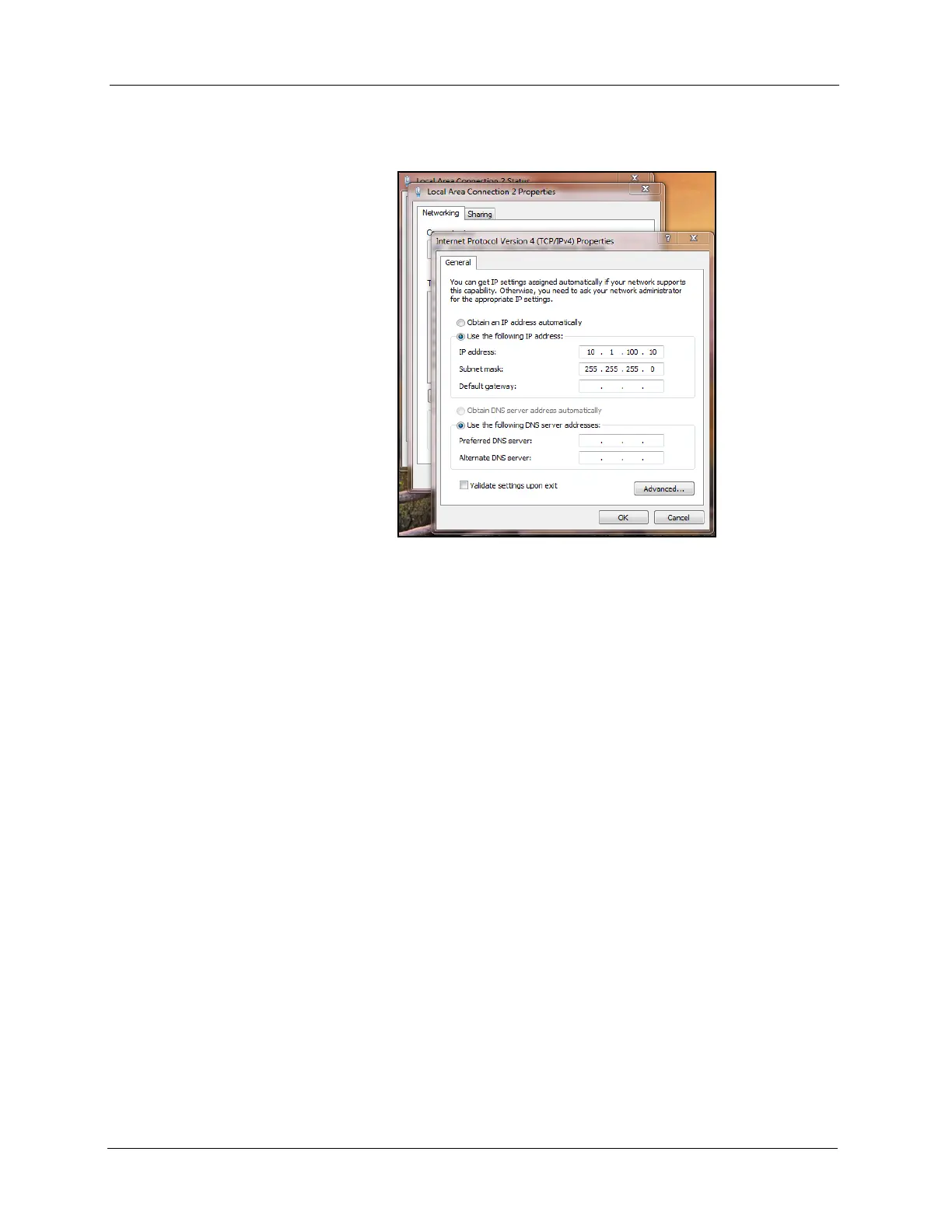
2. Select [Properties]. Double-click Internet Protocol Version 4 to
bring up the general properties window.
From this screen you can set the IP address and Subnet mask. The
recommended IP address setting is 10.1.100.10. The recommended
Subnet mask setting is 255.255.255.0.
3. Click
[OK] to exit when you are finished. Close any other remaining
windows.
Once you have completed this setup process, the computer should
communicate with the CubiScan 125.
Connecting to a Computer via USB
This section describes how to use a USB connection to connect a computer
to the CubiScan 125.
If you are using the USB cable (not supplied) connection:
1. Connect the USB cable to the CubiScan 125’s USB port located on the
controller box, as shown in Figure 13.
2. Make sure that the proper driver has been installed on the PC (see
below).
3. Connect the USB cable to the PC.
Figure 19
General Properties Window


 To Next Page