Operation CubiScan 125 Touchscreen
CubiScan 125 24
CubiScan 125 Touchscreen
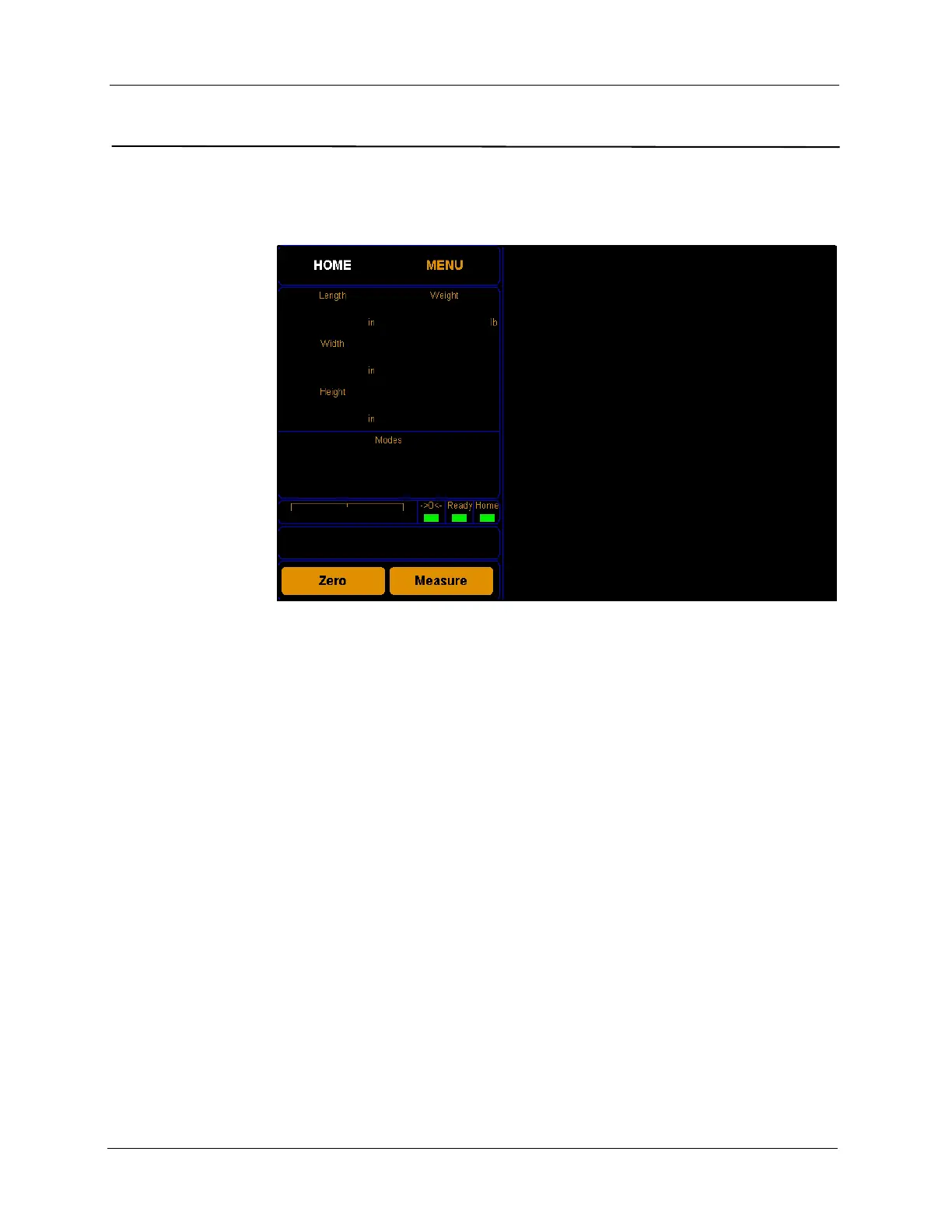
You can use the CubiScan 125 touchscreen (below) to configure and control
the CubiScan 125 as well as display measurement results.
All measurement, setup, and diagnostic information is shown on the
touchscreen. You tap touch keys on the display to change the configuration
and perform diagnostics.
• Tap a key to select a function.
• Tap [Zero] to “zero” the CubiScan 125 (see “Zeroing the CubiScan 125 on
page 31).
• Tap [Menu] to select configuration or calibration functions.
Other touch keys may be used for specific functions and are described in
the instructions for that function. Refer to Chapter 4 “Configuration” on
page 28 for information on configuration and to “Diagnostics” on page 60
for information on diagnostics.
Touchscreen Care
Never use a sharp or hard-tipped object to tap on the touchscreen. It is
glass and can scratch or break. You can tap lightly on the screen with your
fingertip, or you can use the eraser end of a pencil or a stylus with a soft
point. Use a light touch, just hard enough for the screen to respond.
Figure 20
CubiScan 125 Touchscreen


 To Next Page