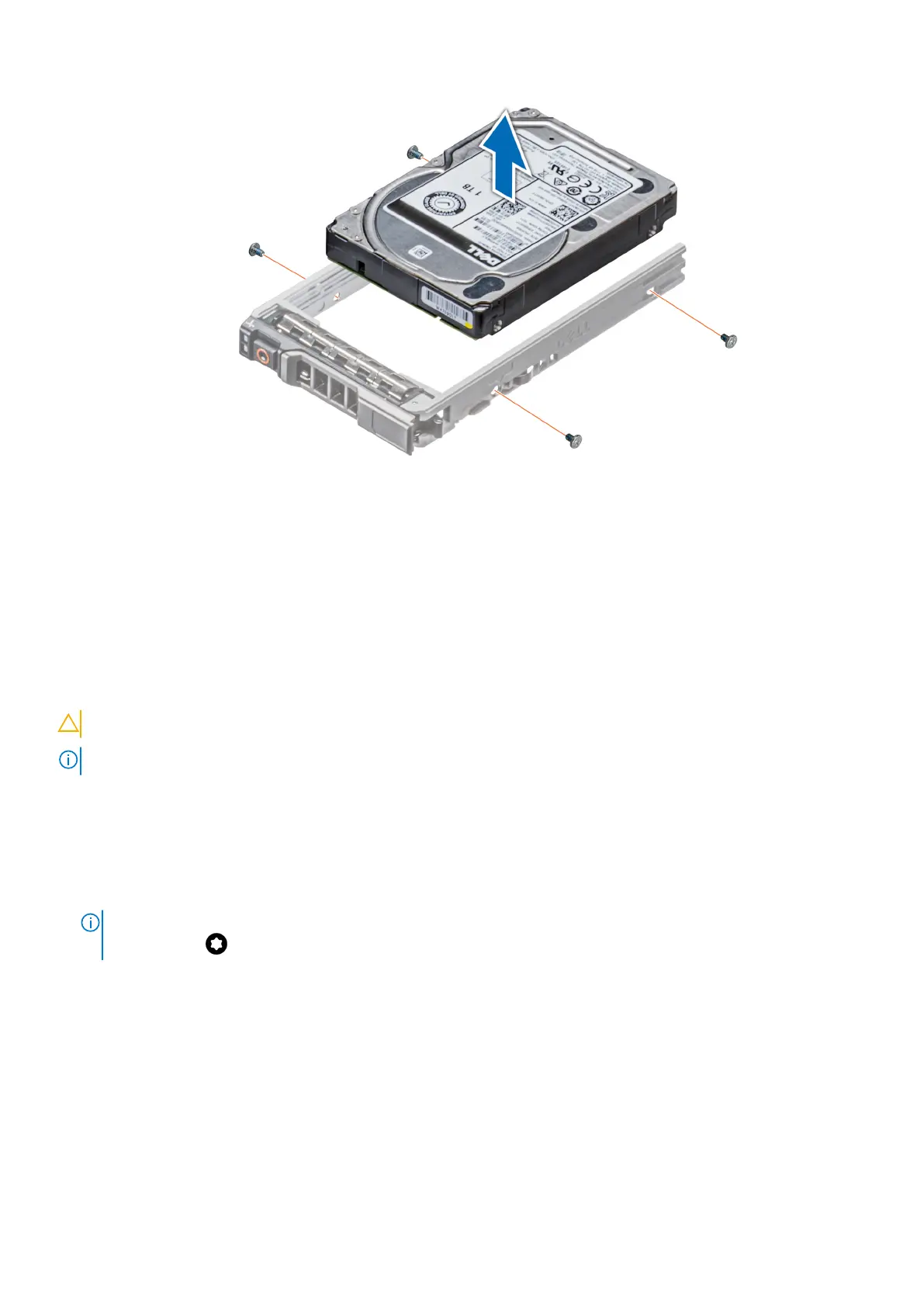
Figure 50. Removing the drive from the drive carrier
Next steps
Replacing the drive into the drive carrier.
Installing a drive into the drive carrier
Prerequisites
Follow the safety guidelines listed in Safety instructions.
CAUTION: Mixing drive carriers from other generations of PowerEdge servers is not supported.
NOTE: When installing a drive into the drive carrier, ensure that the screws are torqued to 4 in-lbs.
Steps
1. Insert the drive into the drive carrier with the connector end of the drive towards the back of the carrier.
2. Align the screw holes on the drive with the screws holes on the drive carrier.
When aligned correctly, the back of the drive is flush with the back of the drive carrier.
3. Using a Phillips 1 screwdriver, secure the drive to the drive carrier with screws.
NOTE:
If the drive carrier has Torx screw, use Torx 6 (for 2.5-inch drive) or Torx 8 (for 3.5-inch drive) screwdriver to
install the drive.
Installing and removing system components 59





 To Next Page