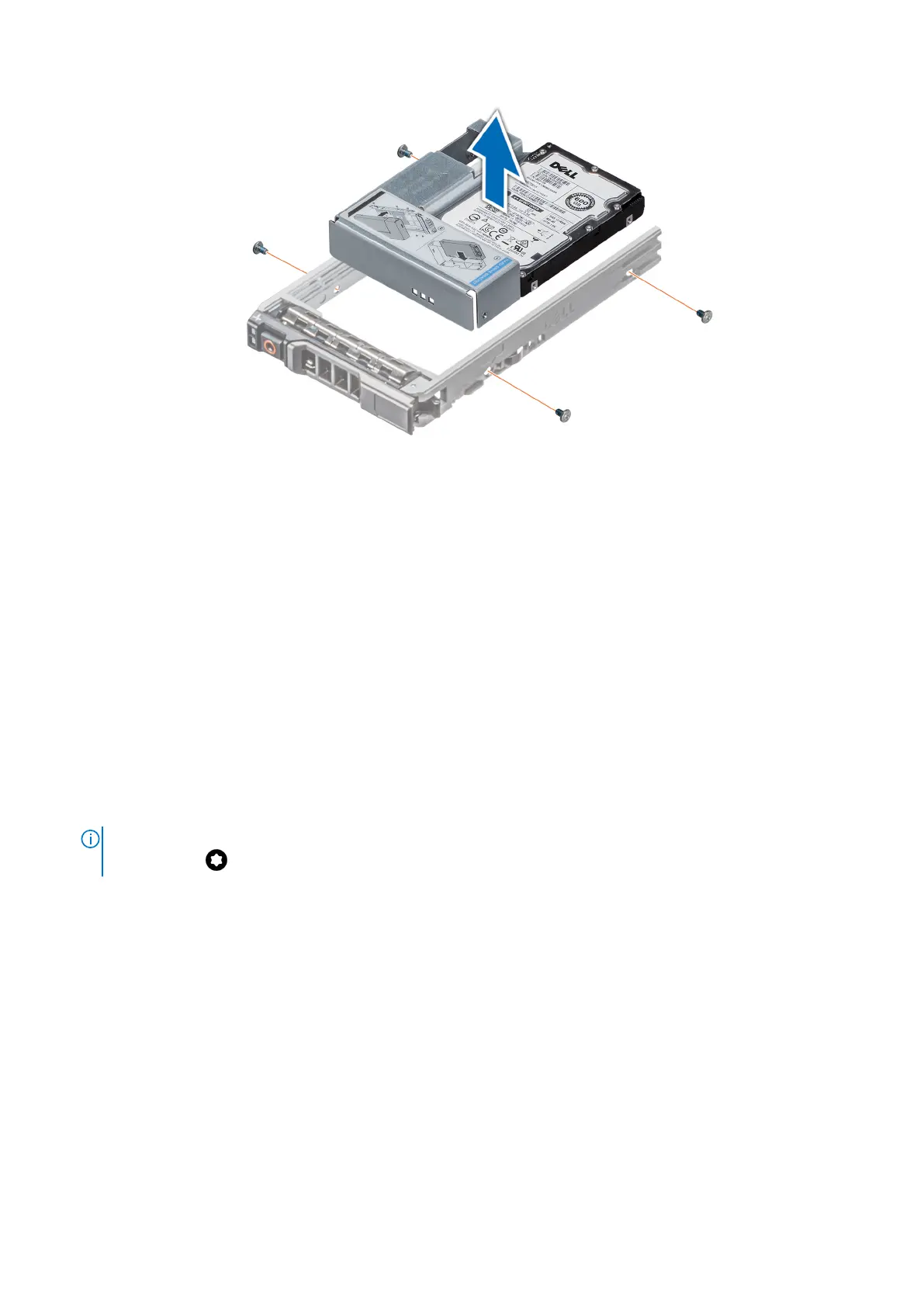
Figure 52. Removing a 3.5-inch drive adapter from a 3.5-inch drive carrier
Next steps
Replace the 3.5-inch drive adapter into the 3.5-inch drive carrier.
Installing a 3.5-inch drive adapter into the 3.5-inch drive carrier
Prerequisites
1. Follow the safety guidelines listed in Safety instructions.
2. Install the 2.5 inch drive into the 3.5-inch drive adapter.
Steps
1. Insert the 3.5-inch drive adapter into the 3.5-inch drive carrier with the connector end of the drive toward the back of the
3.5-inch drive carrier.
2. Align the screw holes on the 3.5-inch drive adapter with the holes on the 3.5-inch drive carrier.
3. Using a Phillips 1 screwdriver, secure the 3.5-inch drive adapter to the 3.5-inch carrier.
NOTE:
If the drive carrier has Torx screw, use Torx 6 (for 2.5-inch drive) or Torx 8 (for 3.5-inch drive) screwdriver to
install the drive.
Installing and removing system components 61






 To Next Page