CAUTION: When installing a drive, ensure that the adjacent drives are fully installed. Inserting a drive carrier
and attempting to lock its handle next to a partially installed carrier can damage the partially installed carrier's
shield spring and make it unusable.
CAUTION: To prevent data loss, ensure that your operating system supports hot-swap drive installation. See the
documentation supplied with your operating system.
NOTE: When a replacement hot swappable drive is installed and the system is powered on, the drive automatically begins
to rebuild. Ensure that the replacement drive is blank or contains data that you wish to overwrite. Any data on the
replacement drive is immediately lost after the drive is installed.
NOTE: Ensure that the drive carrier's release handle is in the open position before inserting the carrier into the slot.
1. Follow the safety guidelines listed in the Safety instructions.
2. Remove the drive carrier or remove the drive blank when you want to assemble the drives in to the system.
Steps
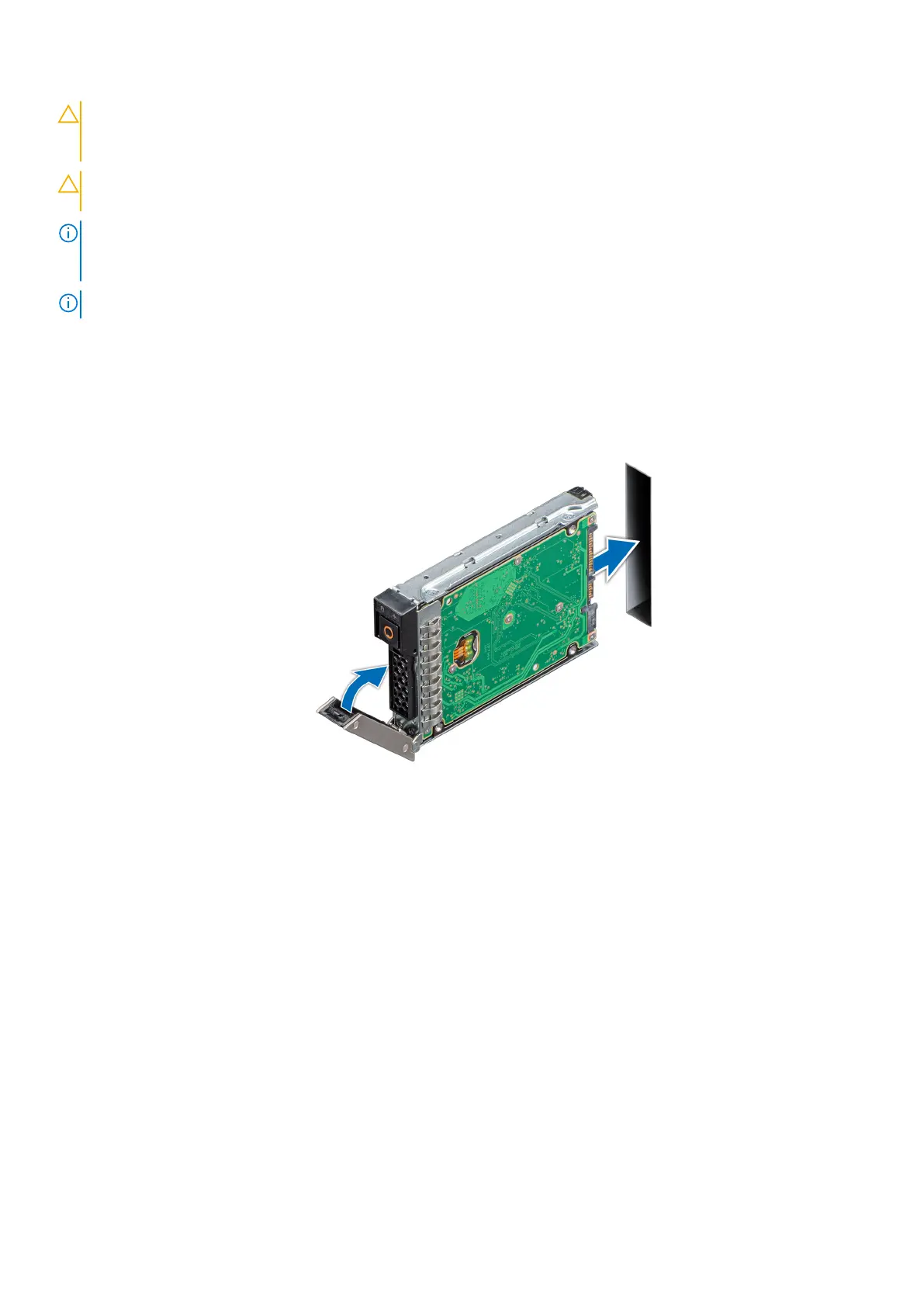
1. Slide the drive carrier into the drive slot.
2. Close the drive carrier release handle to lock the drive in place.
Figure 33. Installing drive carrier
Removing the E3.s drive carrier
Prerequisites
1. Follow the safety guidelines listed in the Safety instructions.
Steps
1. Push the release button towards the left to pop out the release handle.
2. Holding the drive carrier release handle, slide the drive carrier out of the drive slot.
70
Installing and removing system components







 To Next Page