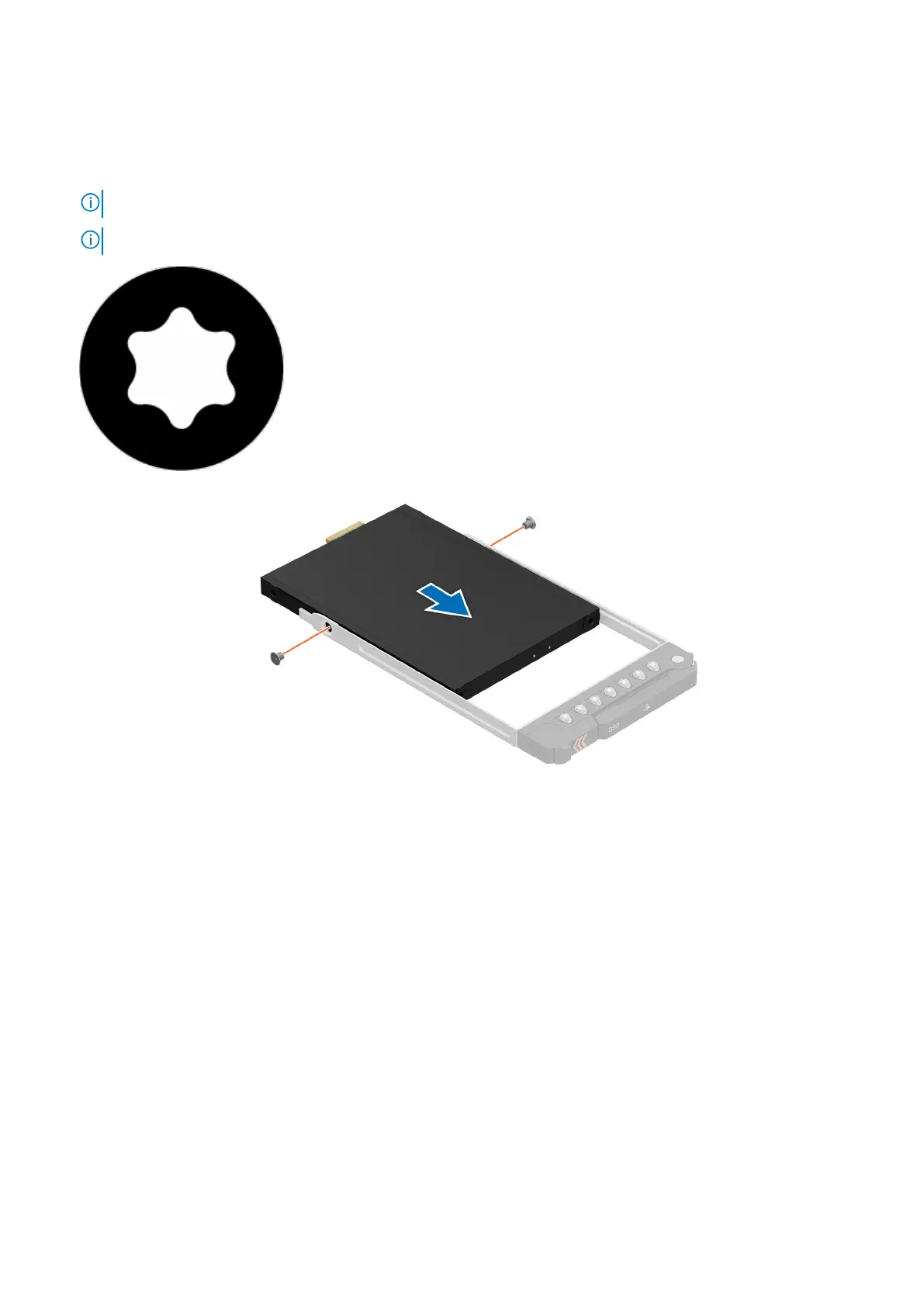
Steps
1. Insert the drive into the drive carrier with the drive connector facing towards the rear of the carrier.
2. Align the screw holes on the drive with the screws holes on the drive carrier.
3. Using a Phillips 1 screwdriver, secure the drive to the drive carrier with the screws.
NOTE: When installing a drive into the drive carrier, ensure that the screws are torqued to 4 lbf-in.
NOTE: If the hard drive or SSD carrier has Torx screw, use Torx 6 (for 2.5-inch drive) screwdriver to install the drive.
Figure 41. Installing the E3.s drive into the drive carrier
Next steps
1. Install the drive carrier.
Drive backplane
This is a service technician replaceable part only.
Drive backplane details
Depending on the configuration, your system supports:
● 2.5-inch (x6) Universal backplane
● 2.5-inch (x6) SAS/SATA backplane
● 2.5-inch (x4) Universal backplane
● E3.s (x8) backplane
76
Installing and removing system components







 To Next Page