If the drive is online, the green activity or fault indicator blinks while the drive is powering off. When the drive indicators are
off, the drive is ready for removal. For more information, see the documentation for the storage controller.
CAUTION: Before attempting to remove or install a drive while the system is running, see the documentation
for the storage controller card to ensure that the host adapter is configured correctly to support drive
removal and insertion.
CAUTION: To prevent data loss, ensure that your operating system supports drive installation. For more
information about the drives installation or uninstallation requirements, see the operating system's user
guide.
Steps
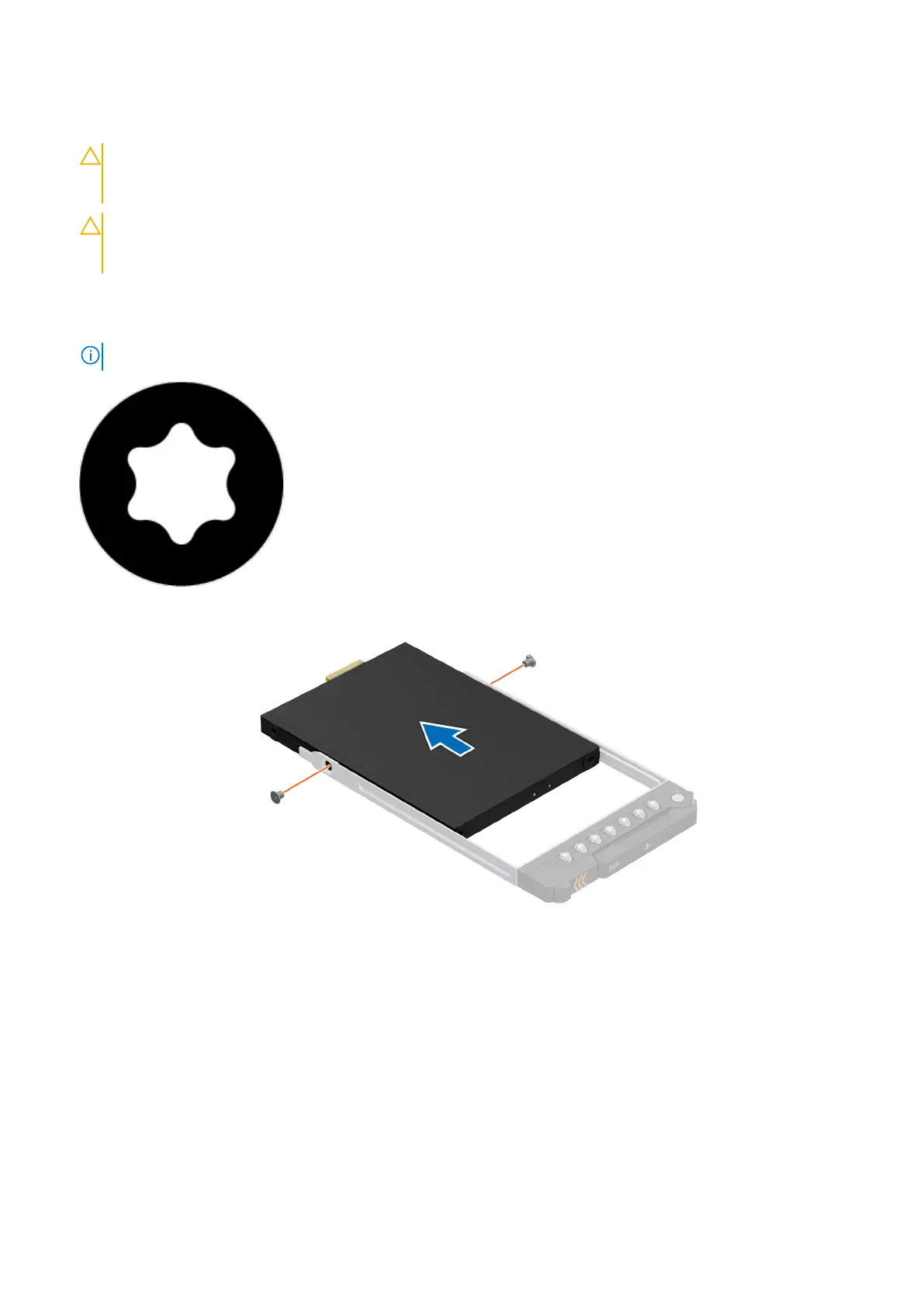
1. Using a Phillips 1 screw driver, remove the screws from the slide rails on the drive carrier.
NOTE: If the hard drive or SSD carrier has Torx screw, use Torx 6 (for 2.5-inch drive) screwdriver to remove the drive.
2. Slide the drive out from the drive carrier.
Figure 40. Removing the E3.s drive from the drive carrier
Next steps
1. Installing an E3.s drive in to the drive carrier.
Installing the E3.s drive into the drive carrier
Prerequisites
1. Follow the safety guidelines listed in the Safety instructions.
2. Remove the E3.s drive blank.
Installing and removing system components
75







 To Next Page