460 |
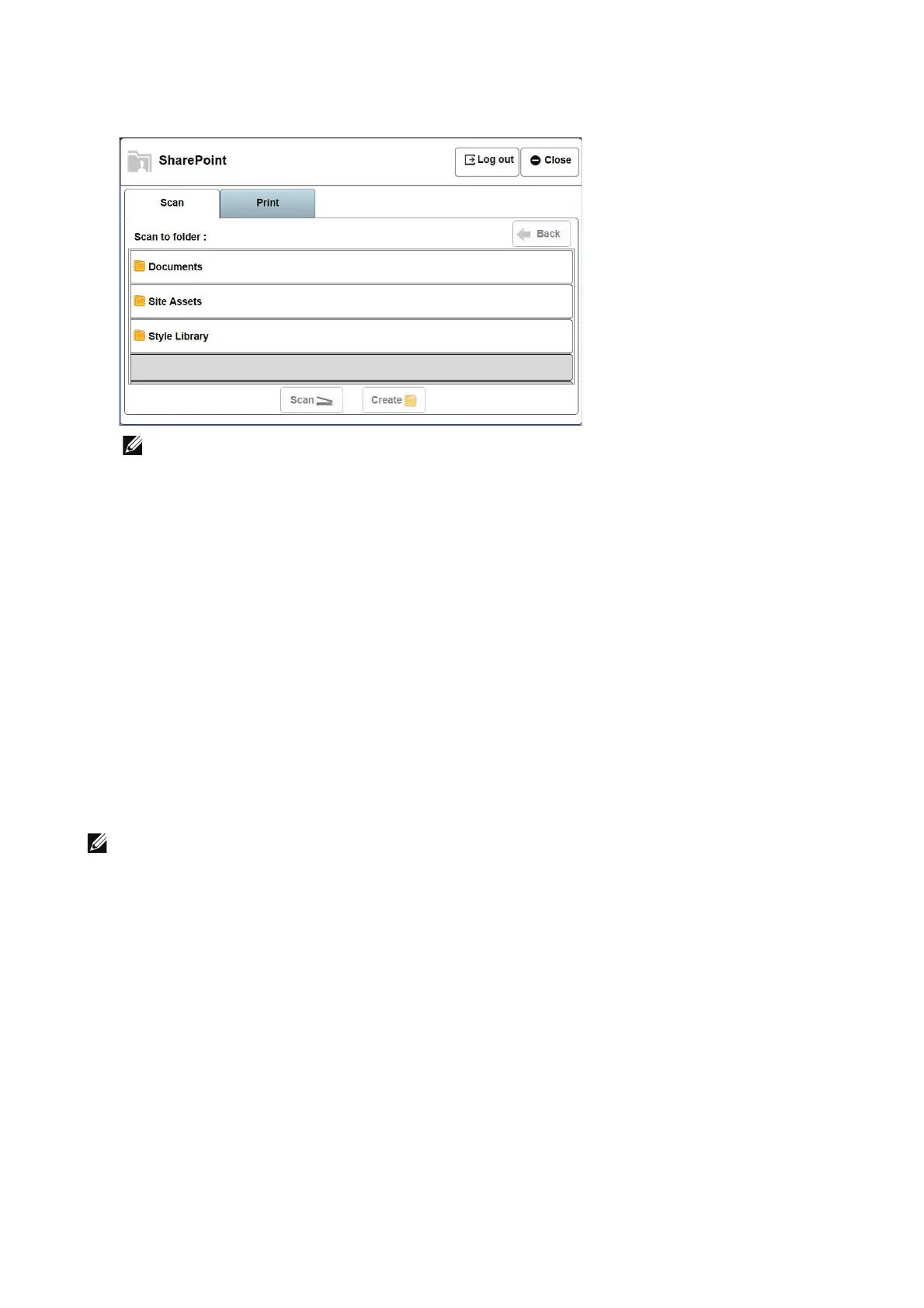
3 Enter User name, password and click on Login button.
• If Shared Document library is already available in MSPS site, then the page will appear by default
with Shared Document Library where the user can directly scan or print a document.
Otherwise, the User home page will appear with available Document libraries (root folder)
where the user can select any of the folders to scan or print a file.
Scan
To create a new folder
1 Select Create button from the Scan tab and enter the name of the folder in Folder
Name text box.
2 Click on OK button.
To scan a document to the folder
1 Select a folder to store the scanned image and click on Scan button.
Setting the Basic and Advanced scan feature options
• To use these settings, Admin should enable the Display Scan Options in the Scan Setting tab.
1 Select a folder to store the scanned image and click on Scan button.
2 Tap on the Basic Scan features, set type of Edge Erase, File format, and enter a File
Name.
3 Select Advanced tab and set type of Output Color, Original Size, Original Orientation,
Original Type and Resolution and click on OK button.
Print
To print a file from an MSPS server
1 Select the file from a folder to print.
2 Click on the Print button.












 To Next Page