Copyright @ 2011-2015 Dinstar
4 Configurations on Web Interface
4.1 How to Log in Web Interface
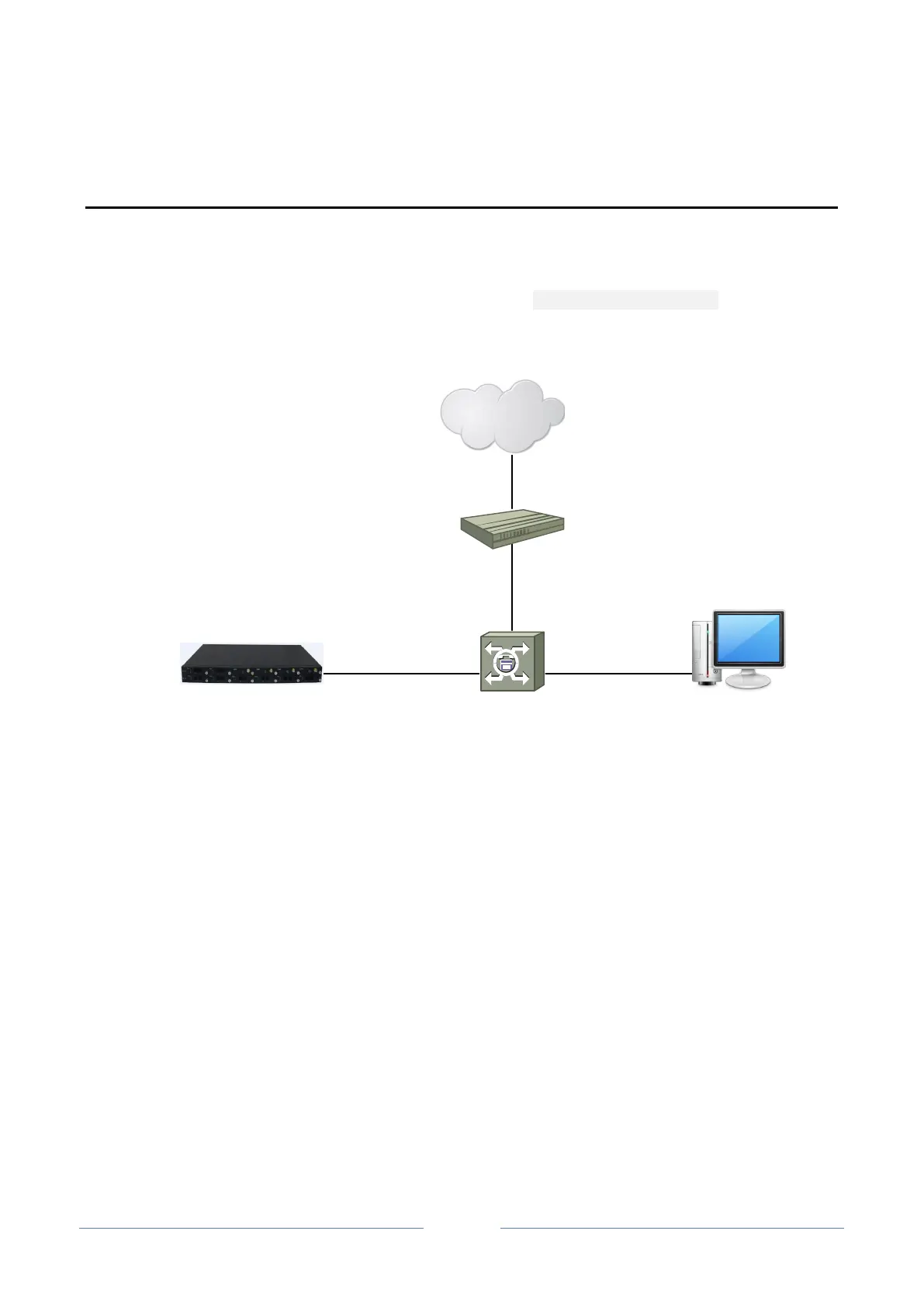
Connect UC2000 to the network according to the following network topology, and dial *158 to query the
IP address of the UC2000 device.
UC2000
Switch
PC
Internet
Router
4.1.1 Preparations for Login
Modify the IP address of the PC to make it at the same network segment with the IP address of UC2000
device, since the default IP address of the UC2000 device is 192.168.11.1.
Check the connectivity between the PC and the UC2000. Click Start Run of PC and enter cmd to
execute ‘ping 192.168.11.1’ to check whether the IP address of the UC2000 runs normally.
4.1.2 Log in Web Interface
Open a web browser and enter the IP address of the UC2000 (the default IP is 192.168.11.1). Then the
login GUI will be displayed. Both the default username and password are admin.
It is suggested that you should modify the username and password for security consideration.



 To Next Page