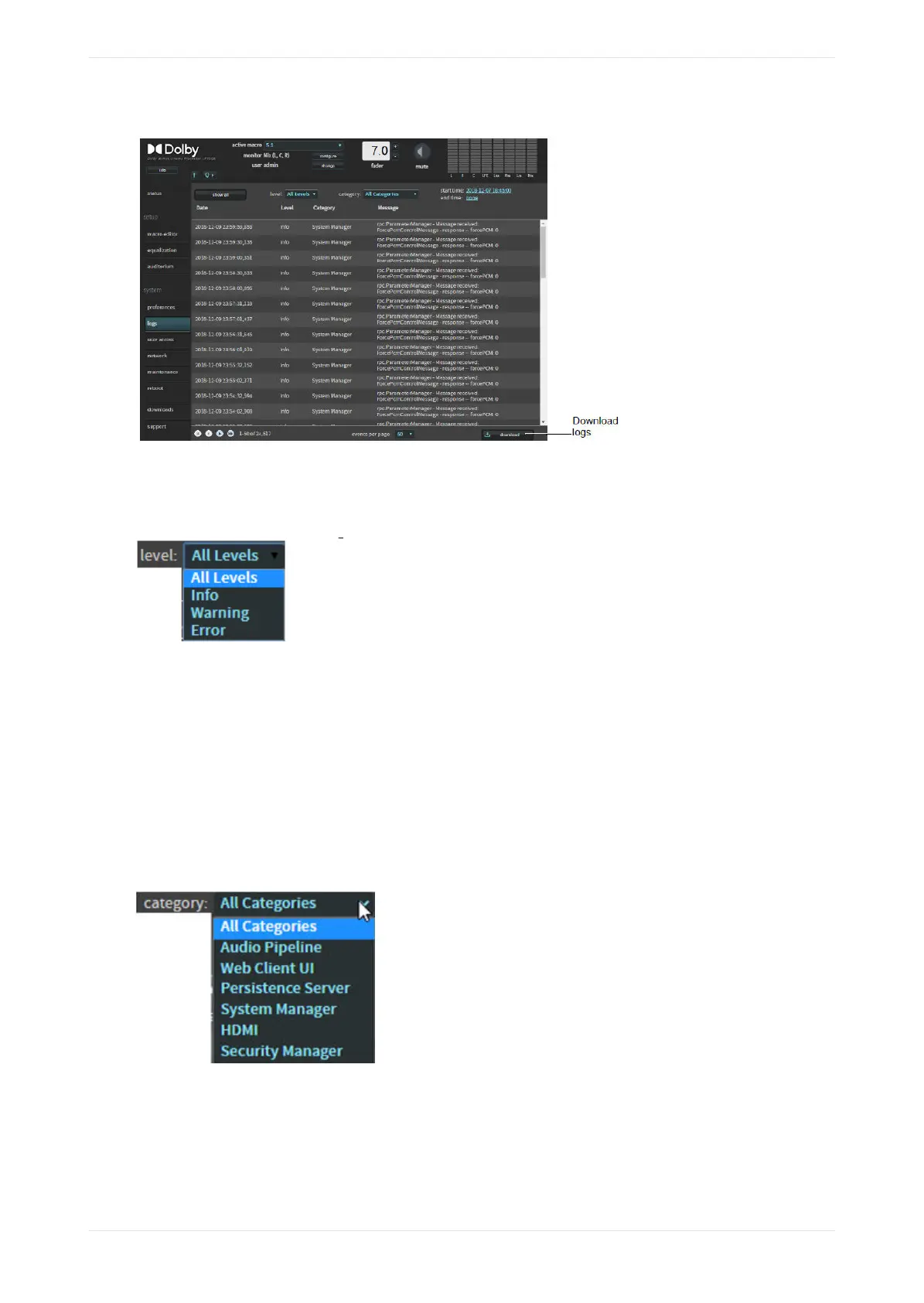
Figure 91: Event logs screen (all levels, all categories selected)
When you click the level field, the corresponding drop‐down menu appears, where you can select the user
log display level, as shown in the following figure.
Figure 92: Level menu
You can display all or only one of these user log levels:
• Info specifies the lowest level of severity and is generally informative.
• Warning specifies medium severity and is highlighted in yellow.
• Error specifies an alert of high importance and is highlighted in red.
Category
When you click the category field, the corresponding drop‐down menu appears, where you can select a user
log display category, as shown in the following figure. These items allow you to display events from a specific
system component.
Figure 93: Category menu
Start time/end time
When you click the start time or end time field, two options appear: All and Custom. All specifies a log for
all time frames. Custom activates the date and time fields, where you can select a specific time frame. Click
the check mark to display the specified log. If you click the x, the system displays all time frames (same as
Viewing and downloading the system logs
Dolby Cinema Processor CP950 and Dolby Atmos Cinema Processor CP950A Manual 71
Issue 9 Part Number 8800298 19 January 2022


 To Next Page