5. If there is a problem with the center channel speaker, enable center channel bypass by clicking its on/o
button, which toggles between on and o.
Enabling the bypass (on) sends center channel audio to the le and right speakers. You can run in this
mode until the center channel speaker problems are resolved.
6. If your network connection is slow, specify the interface update frequency by moving the respective
slider. This setting allows you to indicate how many updates per second the web client UI sends.
If your network connection is slow, you can increase this value using the slider, which has a range of 50 ms
(fast updates) to 10,000 ms (slow updates). Slower updates result in a more responsive user interface, but
fewer updates to the audio meters. Connecting over the network to the CP950/CP950A (locally or
remotely) results in a web client update at the specified frequency.
7. To enable or disable the AES intermittent connection alert, move the respective slider to on or o. This
setting defaults to on, which functions the same as in previous soware versions. If the AES3 connection
to the playback system is lost intermittently, an alert appears. With some media blocks, the AES3
connection is reset oen, causing false positives so you can now set the AES intermittent connection
alert to o.
8. If you want to specify whether the FPUI displays the CP950/CP950A IP address, click the front panel
configuration > display IP address on/o button, which toggles between on and o. This option is
provided because some customers do not want the IP address displayed.
9. To lock the CP950/CP950A front panel from unauthorized access, you need to use a four-digit pin code.
You must have manager-level privileges or higher to access this feature. In the Front Panel Lock pane,
there are separate options: lock front panel, lock fader, lock monitor, and lock pin. When you click on
for one of these options, a dialog box prompts you to enter a numeric four digit pin to lock or unlock the
front panel interface. All options are all set to o by default. You can also change the pin and set a pin
timeout interval.
3.6 Viewing and downloading the system logs
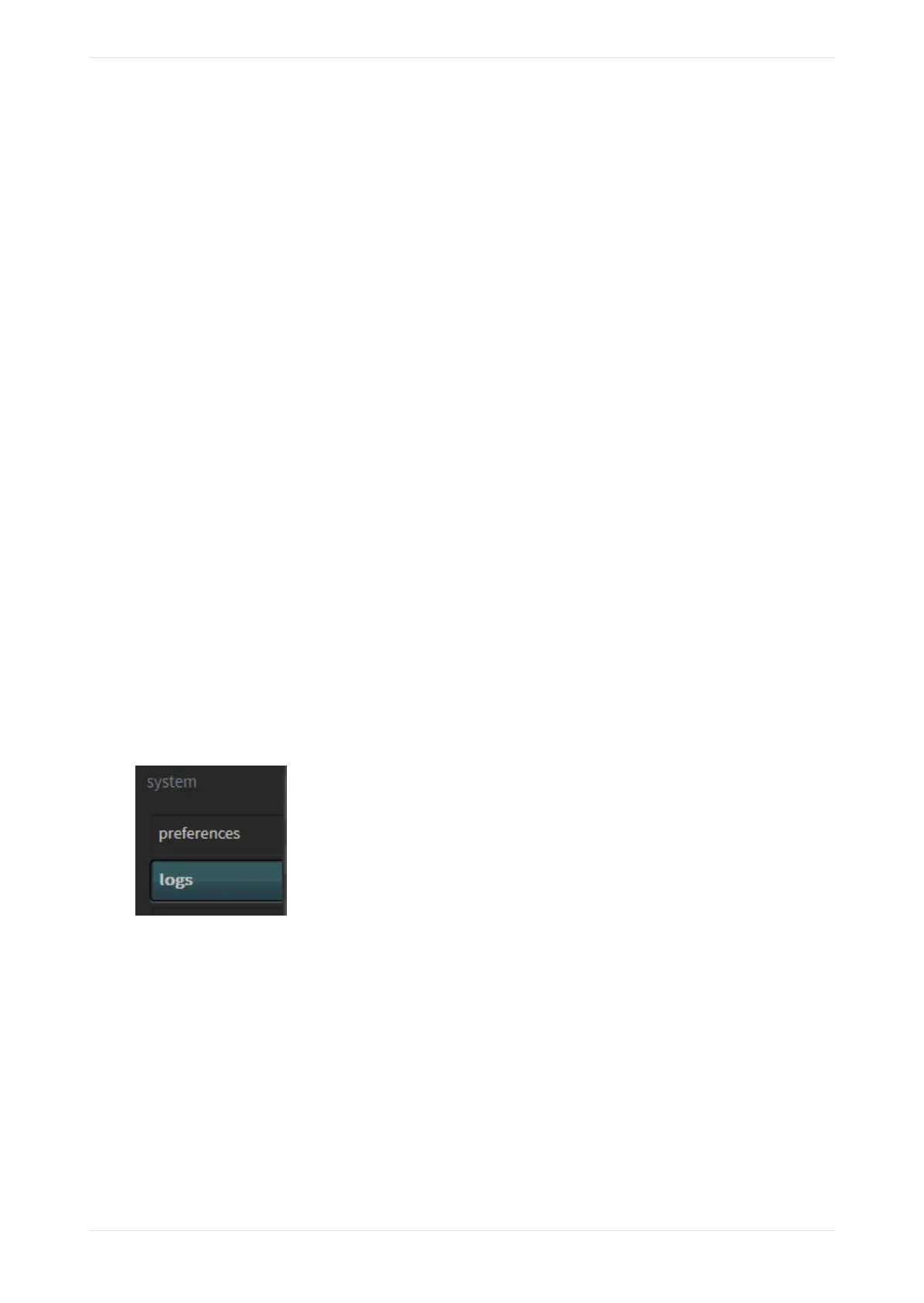
The logs display information regarding the Dolby CP950/CP950A system. You can view the logs by clicking
logs in the system menu at the le side of the screen, as shown in the following figure, or download the logs
to review them oline or to send to your support team. The system may take several minutes to compile a
complete set of logs.
Figure 90: Select logs
The logs screen appears, as shown in the following figure.
You can download the logs in a .tgz file by clicking download in the lower-right corner of the logs screen,
as shown in the following figure. When downloading logs, the system gathers all information, regardless of
the filters you set in the web client. At the root of the file is a report.txt file that contains basic system
information. This single file provides helpful information on the versions, configuration, and Dolby CP950/
CP950A status. Note that gathering logs can take some time, from 30 seconds to (rarely) 5 minutes.
You can use the Dolby Log Analyzer (http://loganalyzer.dolbycustomer.com/) to import log files and obtain
useful information to diagnose common problems.
You can filter the logs by level, category, or start time/end time by clicking the respective area and making
the desired selection, or by clicking show all to remove all filters.
Working with the web client user interface
Dolby Cinema Processor CP950 and Dolby Atmos Cinema Processor CP950A Manual 70
Issue 9 Part Number 8800298 19 January 2022



 To Next Page