Flatten button
You can use the flatten button to set all visible bands to 0 dB gain.
When you click flatten, Grossman eq sets all of the visible bands to 0 dB gain by flattening only the area of
the EQ range that is currently visible on the graph, based on the zoom slider setting.
Grossman eq results
You can view the results of the Grossman EQ.
Aer using the above controls, be sure to click save at the top of the screen to retain your changes (or cancel
to discard your changes). Aer saving your settings, the main equalization screen should now display the
resulting 20 Hz to 20 kHz curve (without the markup of the Grossman eq contribution).
Aer configuring the desired parameters, click the save button to create your new preset. You can delete a
customized preset by clicking the minus (-) button. You cannot delete the AutoEQ preset.
4.1.5 Configuring the macro editor
When your new EQ preset is finalized and completed, you can configure the macro editor.
Procedure
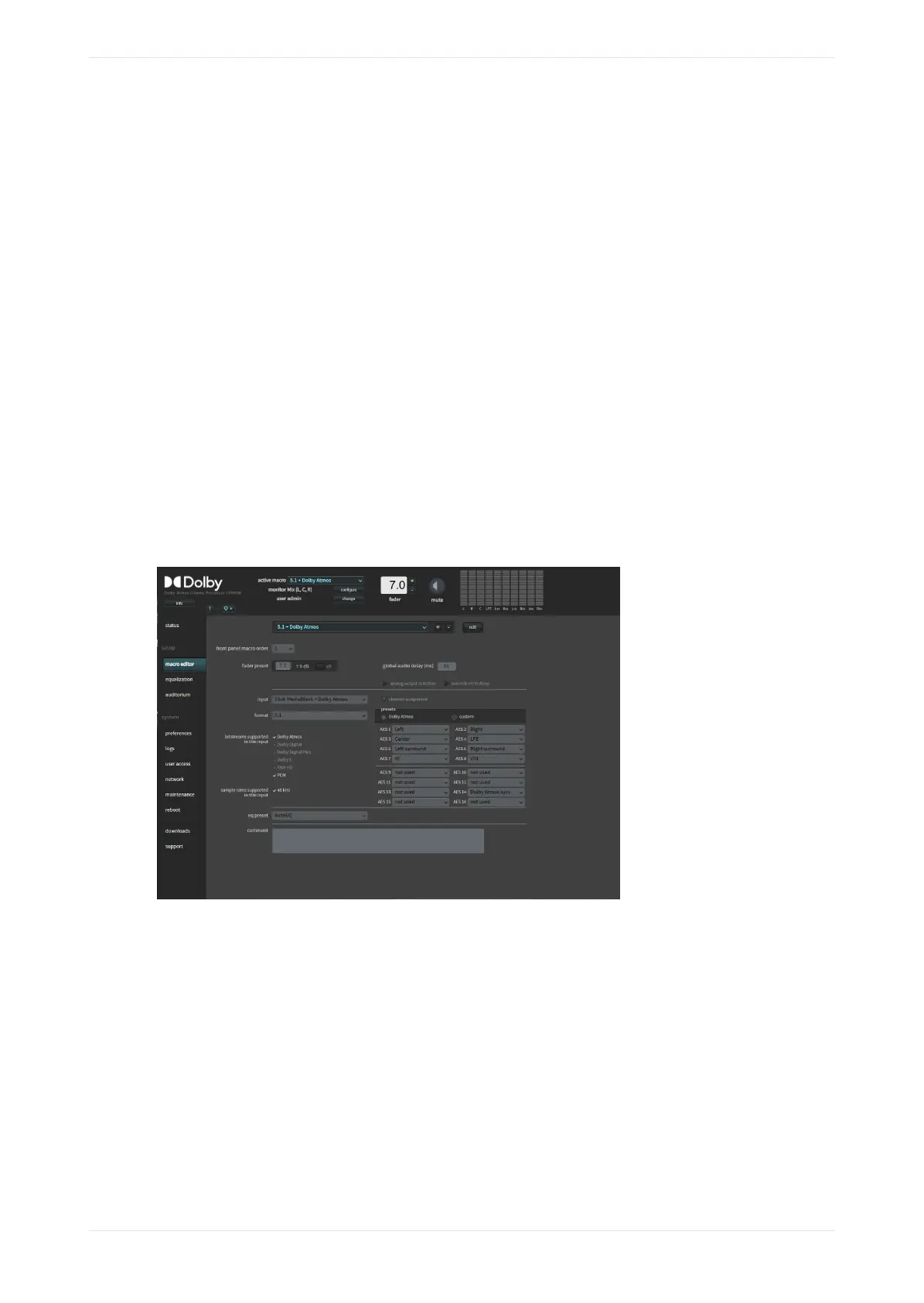
1. Aer equalizing the auditorium, click macro editor in the navigation bar to display the macro editor
screen.
Figure 128: Macro editor screen
2. At the bottom of the macro editor screen, you can change the eq preset setting for all of your current
macros to the new preset you created.
Alternatively, you can also push a specific EQ preset to all macros in the equalization screen, (shown in
the following figure). This saves time aer creating a new EQ preset and having to manually update every
macro. When you select the push to all macros button, the system pushes the highlighted (active) EQ
preset to all macros.
Configuring equalization with the CP950 real-time analyzer
Dolby Cinema Processor CP950 and Dolby Atmos Cinema Processor CP950A Manual 97
Issue 9 Part Number 8800298 19 January 2022



 To Next Page