8-58
6205s BATHYMETRIC AND SIDE SCAN SONAR 0020300_REV_E
8.3 Configuring COM Ports
There are three available COM ports on the Interface Box to provide the necessary information to the
6205s. This information includes position (latitude/longitude), heading, attitude (roll, pitch, and heave),
and time. This appendix explains how to configure the three COM ports depending on what type of
sensors are used.
NOTE: Most of the COM port configuration can and should be completed
via the Discover Bathymetric Software.
8.3.1 One Sensor
One sensor, such as the Applanix PosMV, may be used to supply position (latitude/longitude), heading,
attitude, and a time source. For this type of configuration, only COM1 will be utilized.
To configure the COM ports for one sensor:
1. Turn on Topside PC and connect the 6205s via the deck cable to the 6205s Topside Interface Box.
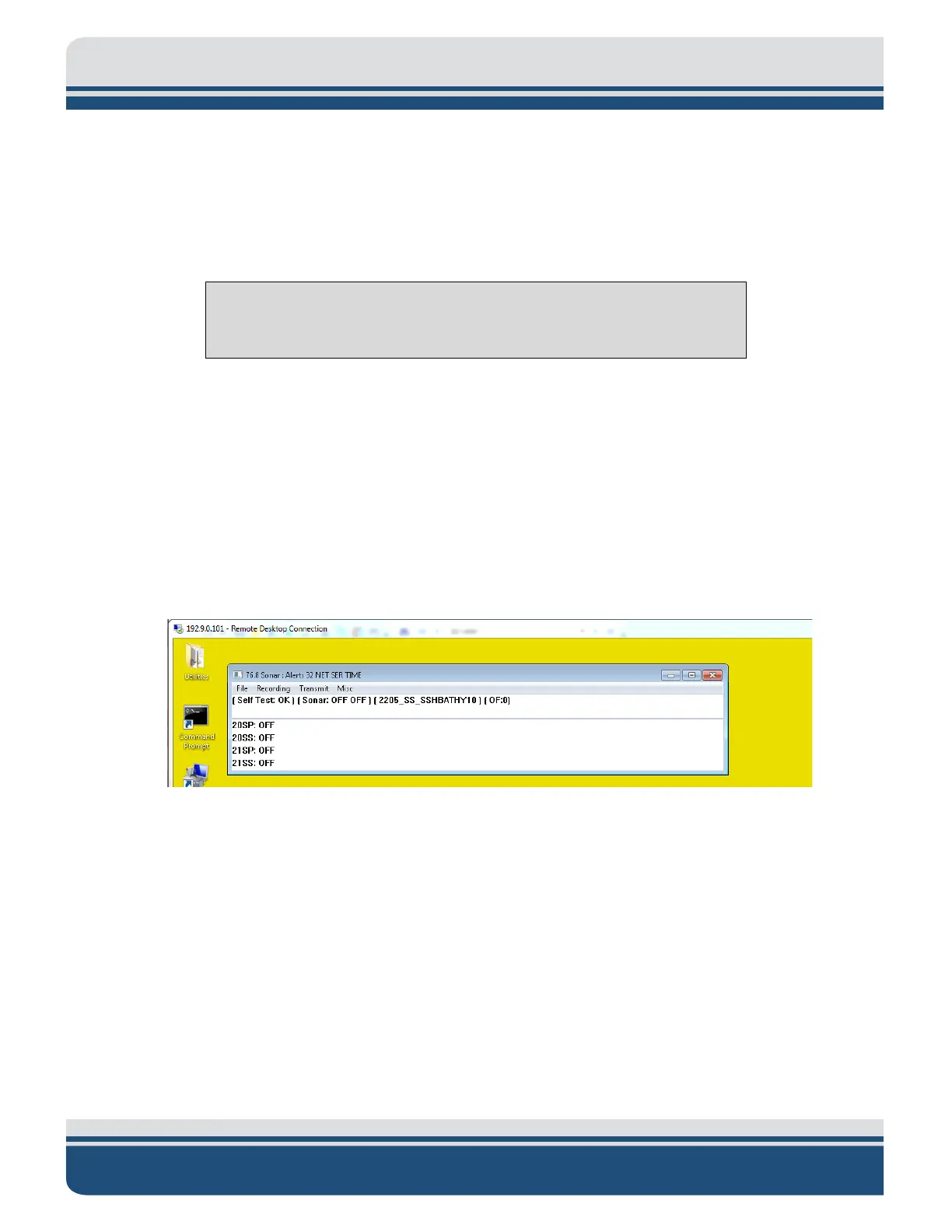
2. Turn on the 6205s Sonar Head and run the Remote Desktop Application, named Sonar. The main
screen, as shown in
FIGURE 8-11, should appear.
Figure 8-11: Sonar Remote Desktop Application, Main Screen
Here, the user will see the Sonar Application running (designated by the blue arrow). Sonar.exe is
the firmware that controls the system.
3. Click on the 'X' at the top right to close the firmware.
4. Double click on the Shortcut to EdgeTech icon and open the SSSonarBathy folder, then Sonar
folder.
5. Look for the SonarSerial.ini file, as shown in
FIGURE 8-12, and open it using WordPad or Notepad,
as shown in
FIGURE 8-13.


 To Next Page