You need to set “Allow home screen editing” in the Security Settings to ON before
editing the app icons.
Settings > Security Settings > Allow home screen editing P.76
Adding an App Shortcut
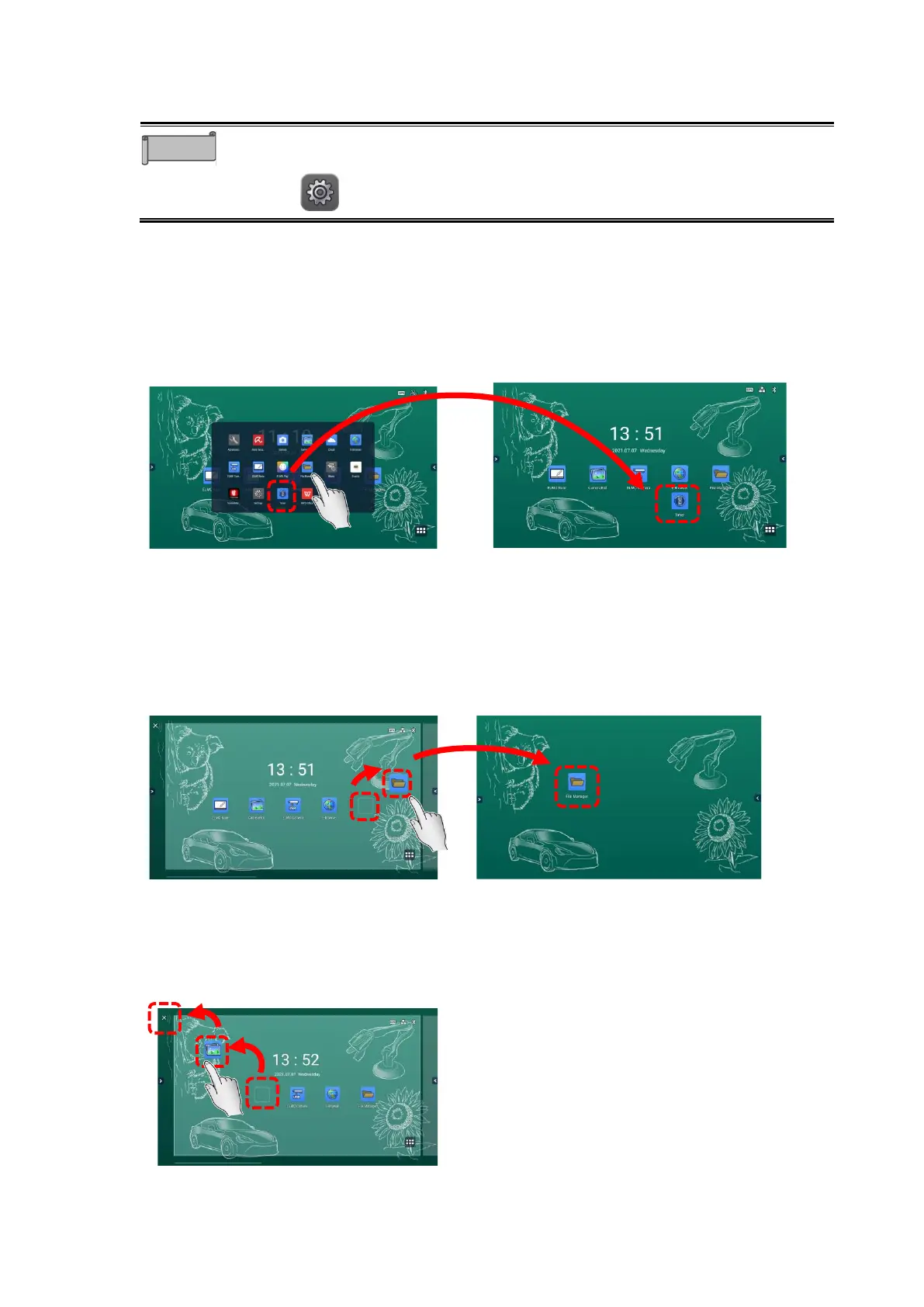
1 Display a list of apps.
2 Long-press the app icon that you want to add to the Home screen.
3 Drag and drop the app icon to a desired position on the Home screen.
A new app shortcut will be added on the Home screen.
Moving an App Shortcut
1 Long-press the app icon that you want to move on the Home screen.
2 Drag and drop the app icon to a desired position.
The app icon will be moved to the dropped position. If the icon is dragged to the right
edge of the screen, a new page will be added to the right.
Removing an App Shortcut
1 Long-press the app icon that you want to remove from the Home screen.
2 Drag and drop the app icon to the “X” mark at the top left of the Home screen.



 To Next Page