EasyManua.ls Logo

Elmo EL65R2 - ELMO Note: Drawing and Editing; Drawing and Shape Creation; Line and Object Editing

Elmo EL65R2
89 pages
Print Icon
To Next Page IconTo Next Page
To Previous Page IconTo Previous Page
Loading...
26
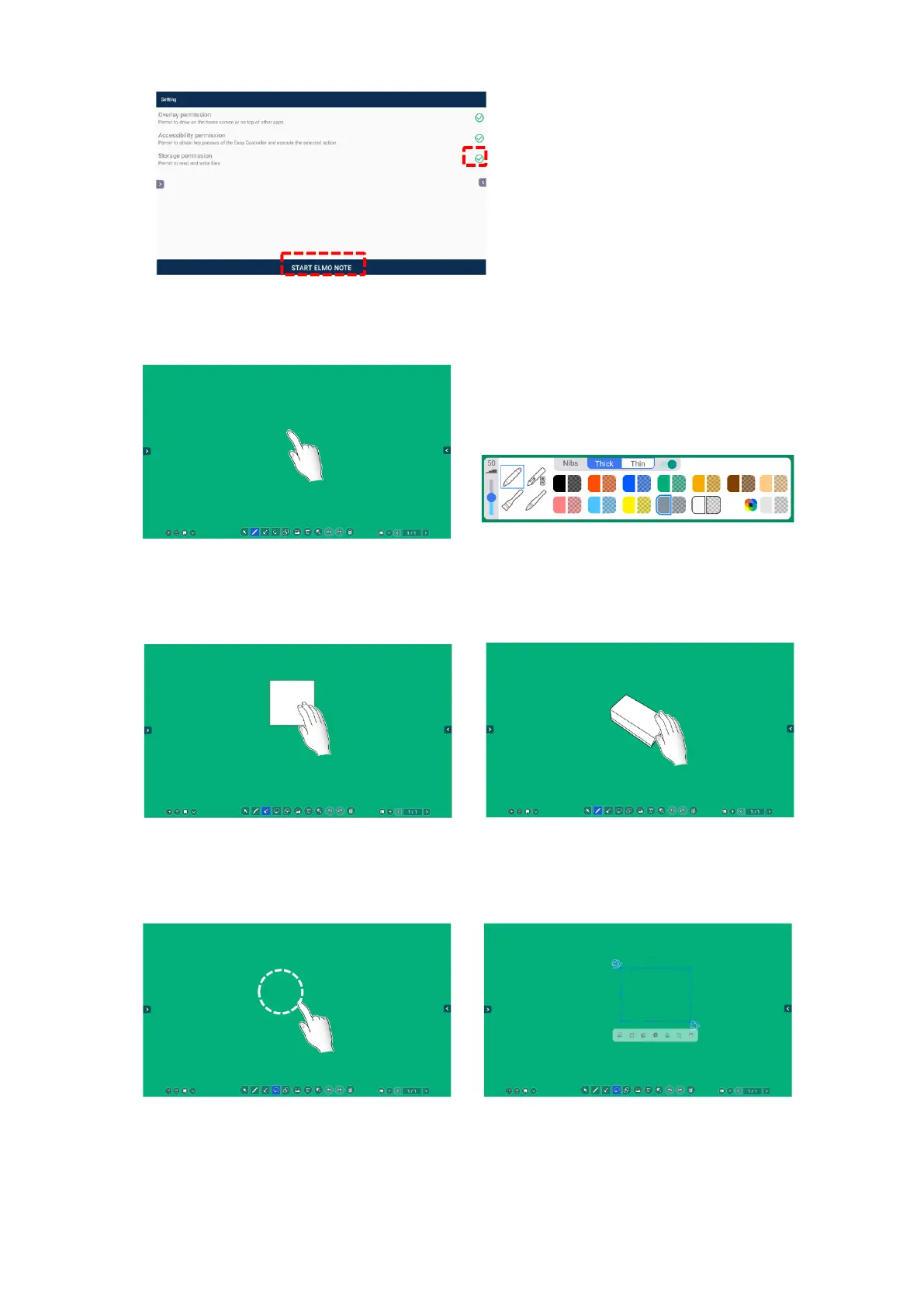
3 Tap START ELMO NOTE after completing all the settings.
Basic Operations
Drawing lines and shapes
Tap the Pen icon and trace on the screen
with your finger or Touch pen.
When the Pen icon is double-tapped, you
can change the line color and thickness.󳞥󳊜
P. 28󳞦
Deleting the lines
Tap the Eraser icon and rub the screen to
delete the lines.
Editing the lines
You can also delete the lines using the
supplied Eraser.
Tap the Select icon and circle the line that
you want to edit.
The selected object can be copied, deleted,
and moved by dragging.
󳞥󳊜P. 33󳞦
abc
abc
ab
abc
c

Table of Contents

Related product manuals