20
2.2 Basic Screen Operations
◆
Home Screen
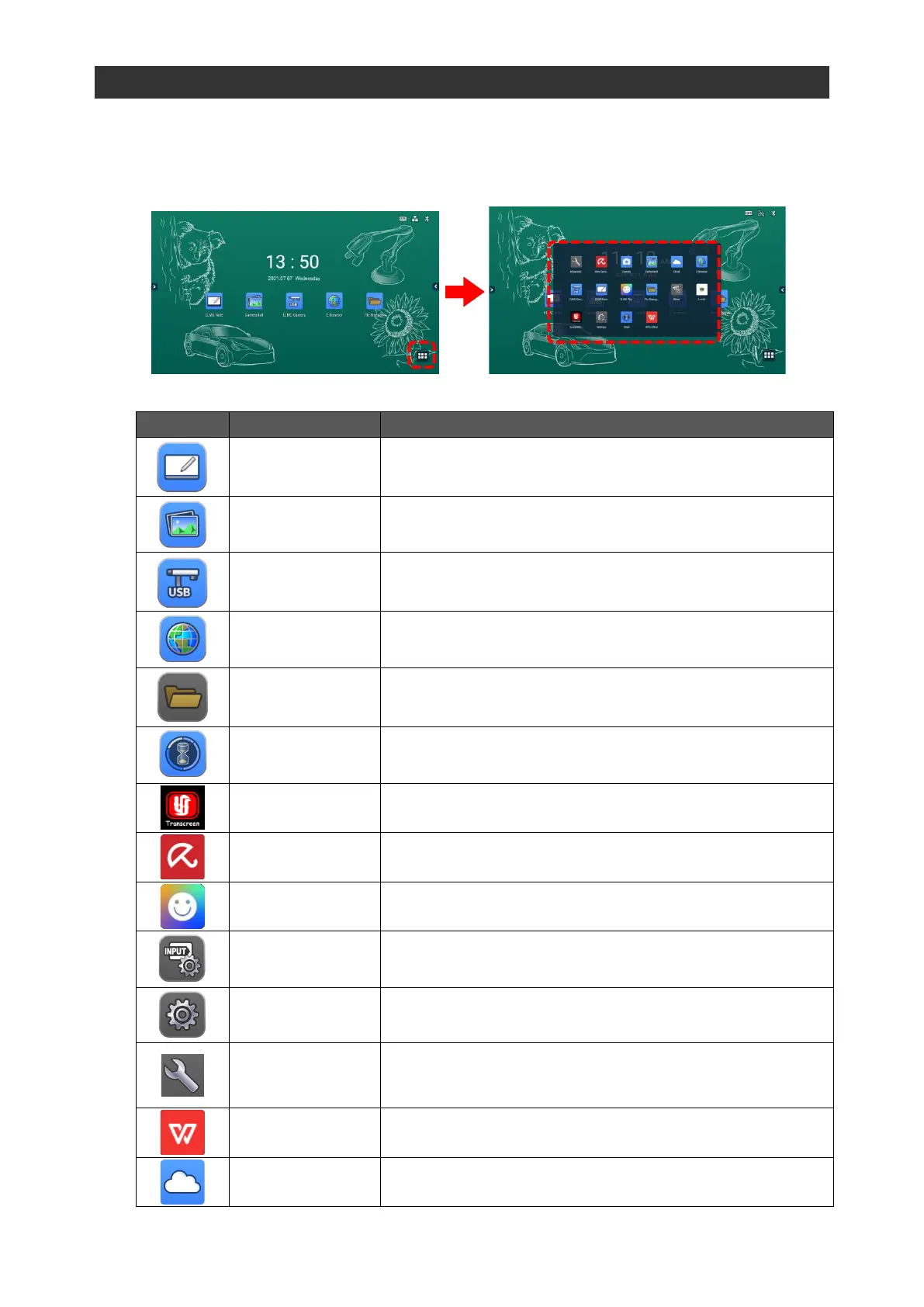
The Home screen will appear when the power is turned on.
Tap the List of apps icon at the bottom right of the screen to display a list apps installed on the
product.
Main Apps
To start ELMO Note (whiteboard). P. 25
To start Camera Roll. P. 38
To start a USB camera. P.40
To start E Browser. P. 42
To start File Manager. P. 56
To start ELMO timer. P. 45
Screen Mirror
Transcreen
To share the screen of other device such as a tablet.
P. 51
To perform a virus scan or cleanup of internal memory.
P. 54
To start ELMO Play. P. 55
To configure the Source Settings. P. 67
To configure the settings of the product. P. 70
To set the proxy settings or connection settings to the stealth
access point when connecting to the wireless network.
P. 71
To create/view/edit/save Office documents or browse PDF
files.
To start Cloud.
You can select between “Google Drive” and “One Drive”.



 To Next Page