33
◆
Functions Available When Selecting an Object
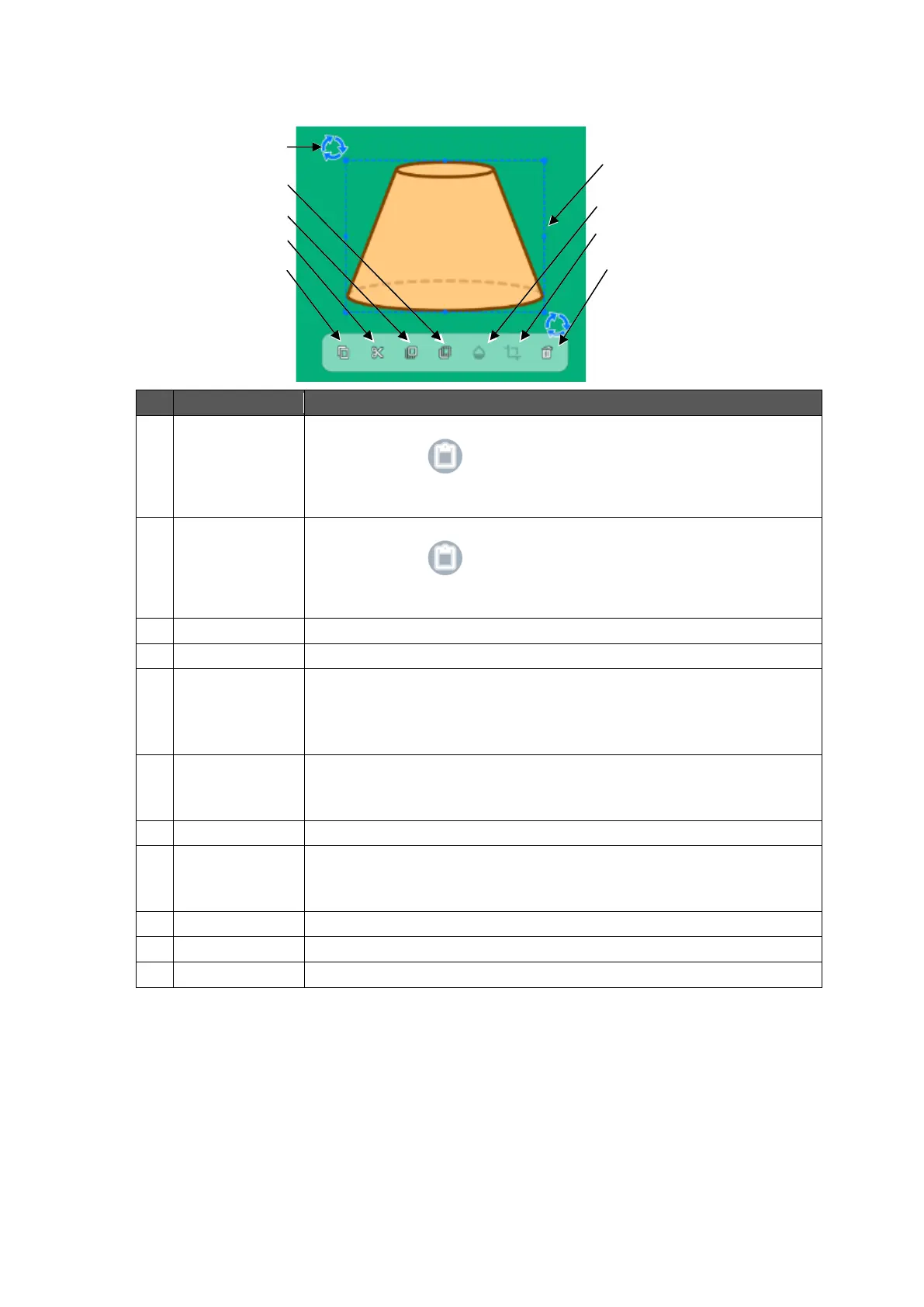
Tap the Select icon in the toolbar to select an object (shape, image, and video).
To copy the selected object.
The Paste icon will appear when any part of the screen other
than the object is tapped.
Tap the Paste icon to paste the copied object.
To cut the selected object.
The Paste icon will appear when any part of the screen other
than the object is tapped.
Tap the Paste icon to paste the cut object.
To bring the selected object to the front.
To bring the selected object to the back.
To make the selected object transparent. (only for images and
materials)
When this icon is tapped, a slider will appear to adjust the level of
transparency.
To trim the selected object. (only for images and materials)
When this icon is tapped, a frame will appear around the object to
adjust the trimming area.
To delete the selected object.
To change the size of the selected object by dragging the frame.
Shapes such as circles and stars will be scaled up or down while
maintaining a 1: 1 aspect ratio.
To rotate the selected object by dragging the Rotate icon.
To move the object by dragging.
To freely change the size and rotate by pinching two points.



 To Next Page