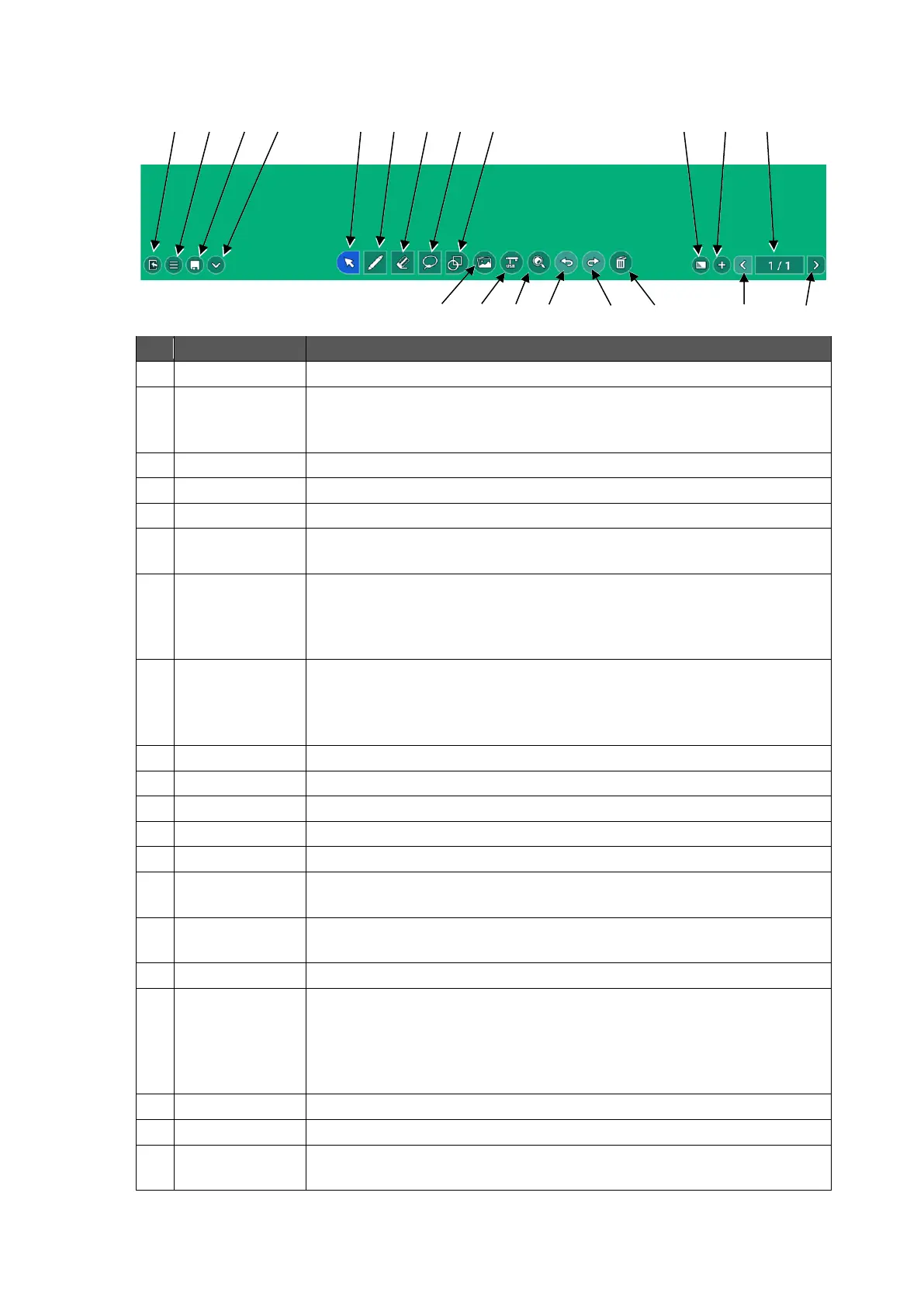
To draw free-hand lines. P.28
To delete the lines and objects.P. 29
If you tap this icon while an object is selected, the selected object will
be deleted.
To select the lines and objects on the screen.P. 29
To draw various shapes.P. 30
To pan and zoom the whole area.P. 30
To change the background of the whiteboard.
Various colors, patterns, and designs can be selected.P.31
To add a new page to the next page of the currently displayed page.
(Max. 30 pages can be added.)
The same background as the selected page will be applied to the
added page.P. 32
To display thumbnails of each page.
Tap the thumbnail to move to the page of the tapped thumbnail.
Tap the Page back button and Page forward button to move between
pages.P.32
To move to the previous page.
To move to the next page.
To open the menu. P.34
To display the Save dialog box.P. 36
To hide the toolbar.
Tap this icon again to show the toolbar.
To start the Camera Roll app.
Images and videos can be attached to ELMO Note. P. 38
To start the ELMO Camera app. P.40
To enlarge the area selected by dragging operation.
Using icons “+” and “-“, you can change the magnification ratio
between 100% and 2400%.
In the Operation mode, you can change the magnification ratio
between 50% and 2400%.
To undo the last operation.
To cancel the undo operation.
To delete all the drawings and shapes. The background will not be
deleted.



 To Next Page