52
◆
Using on Windows OS
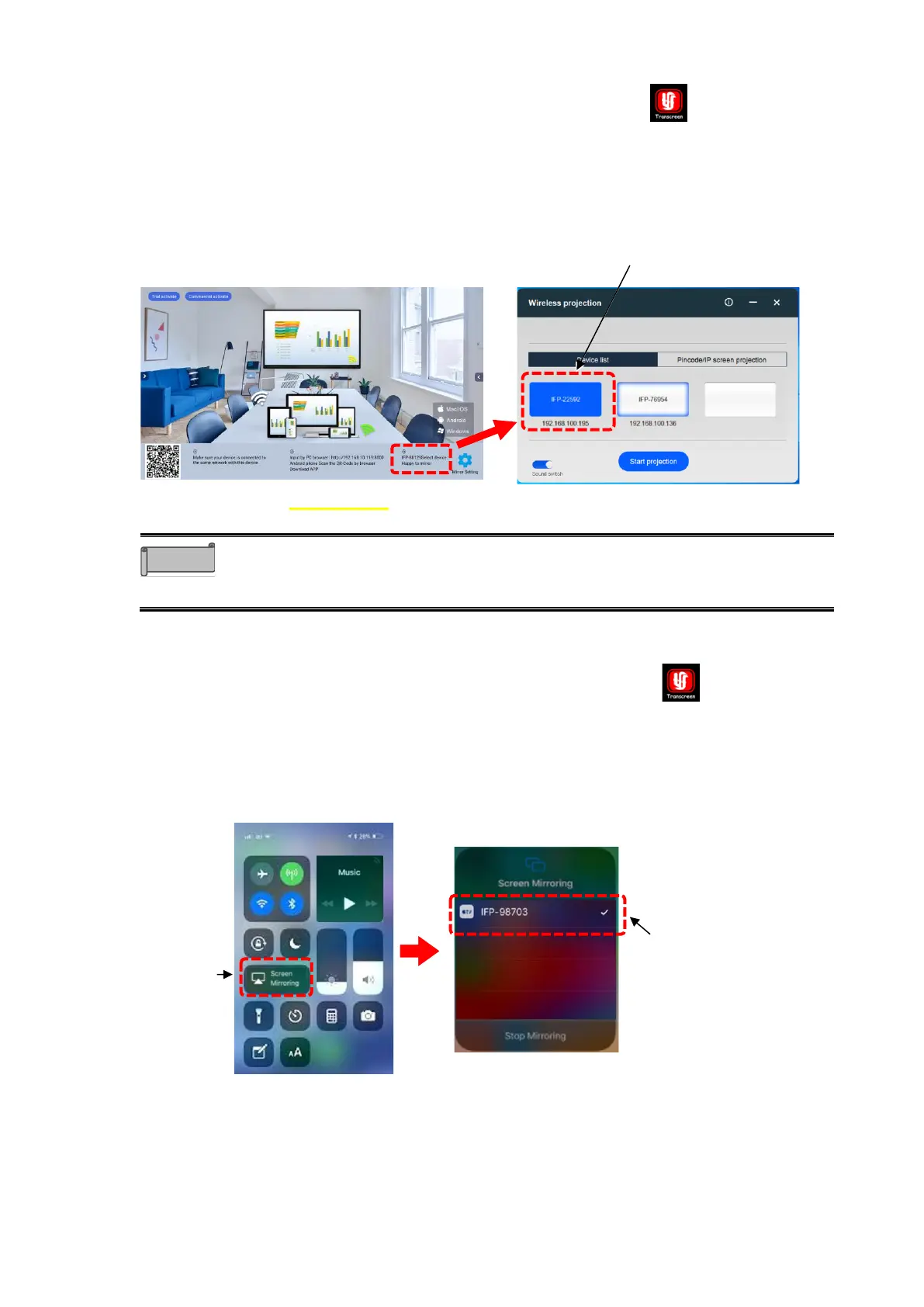
1 Tap the Screen Mirror icon in the list of apps.
2 Start the Transcreen app installed on the Windows device.
3 Select the device name of the product and tap “Start Mirroring”.
4 The screen of the connected device will be displayed on the display monitor of the
product.
⚫ When installing the app on a Windows computer, use Microsoft Edge.
⚫ You can also check the device name of the product from “Terminal
information” in "Settings".P. 78
◆
Using on iOS or MacOS
1 Tap the Screen Mirror icon in the list of apps.
2 Start Airplay (a screen mirroring app) installed on the iOS device or Mac OS device.
3 Select the device name of the product.
4 The screen of the connected device will be displayed on the display monitor of the
product.
Select the device name of the product
Screen Mirror app screen on the Whiteboard
screen
Select the device name of
the product



 To Next Page