37
3.2 Using Overlay Function
You can draw on the entire surface of the external input video or browser screen in the same
way as ELMO Note.
◆
Startup
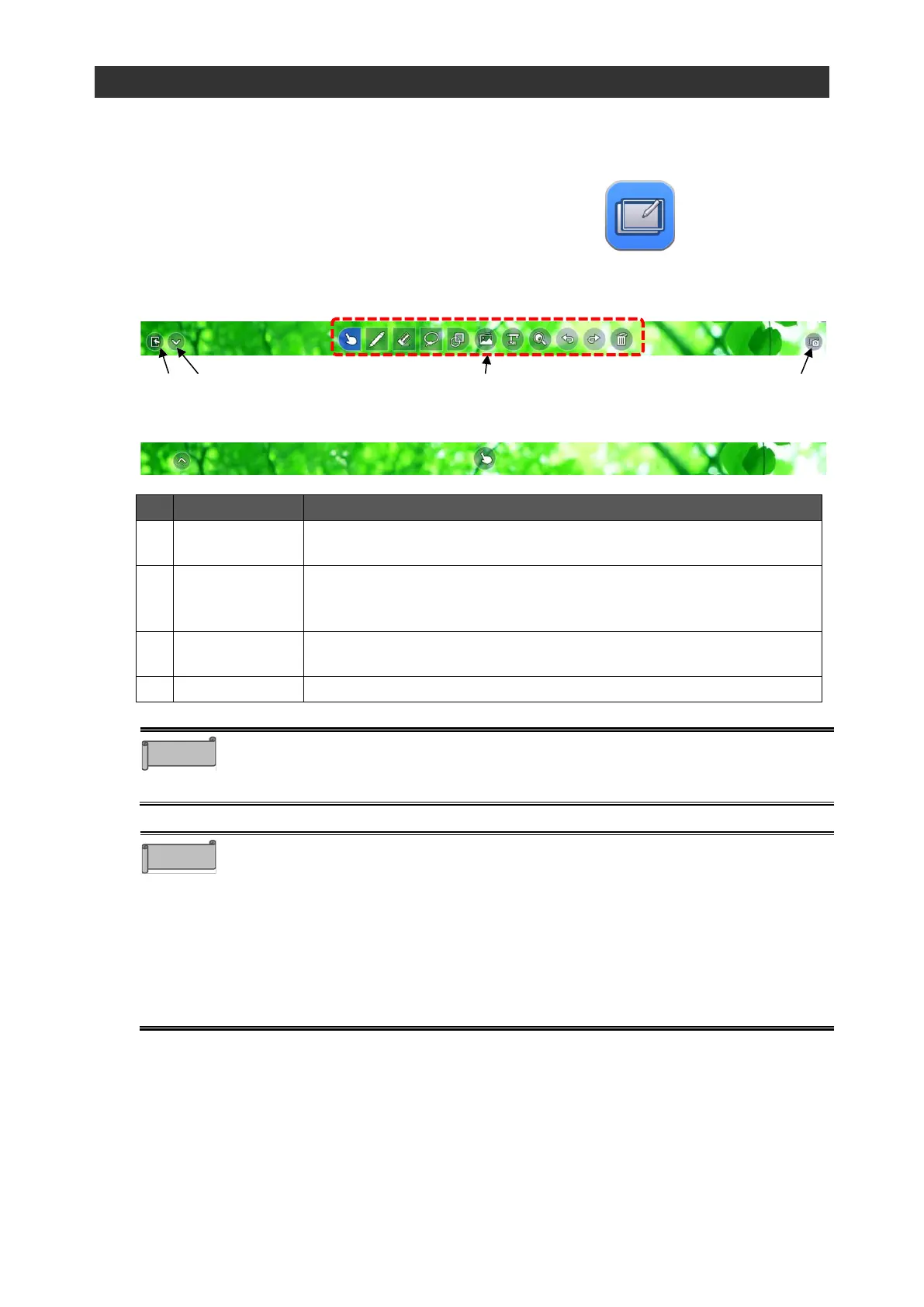
Tap the Overlay icon in the list of apps or the side menu bar.
◆
Toolbar Description
Same functions as ELMO Note (whiteboard) are available.
Refer to page P.27 for details.
To capture and save the screen image.
The captured screen image will be saved in the Camera Roll folder in
png format.
To hide the toolbar. Tap this icon again to show the toolbar.
The product is in the Operation mode when the toolbar is hidden.
⚫ To temporarily end the overlay function and operate the product, put the
Overlay app in the Operation mode.
(The toolbar will disappear and a finger icon will appear.)
⚫ If you use the enlarge function in the Overlay app, the captured screen will be
enlarged. Therefore, on-screen operations such as video playback, camera
image output, and screen mirroring will temporarily stop. The magnification
ratio will be from 100% to 2400%.
⚫ In the Operation mode, all drawings will be deleted. The deleted drawings can
be displayed again by tapping "Return".
⚫ When switching from the Enlarge mode to the Operation mode, the drawings
will be deleted. The deleted drawings cannot be displayed again even by
tapping "Return".
When toolbar is displayed
When toolbar is hidden (in the Operation mode)



 To Next Page