25
3
Using Apps
3.1 Using ELMO Note (Whiteboard)
You can use the screen like a whiteboard or blackboard.
You can draw lines and diagrams, and place images and videos.
◆
Startup
Tap the ELMO Note icon in the list of apps or the side menu bar.
◆
Initial Startup
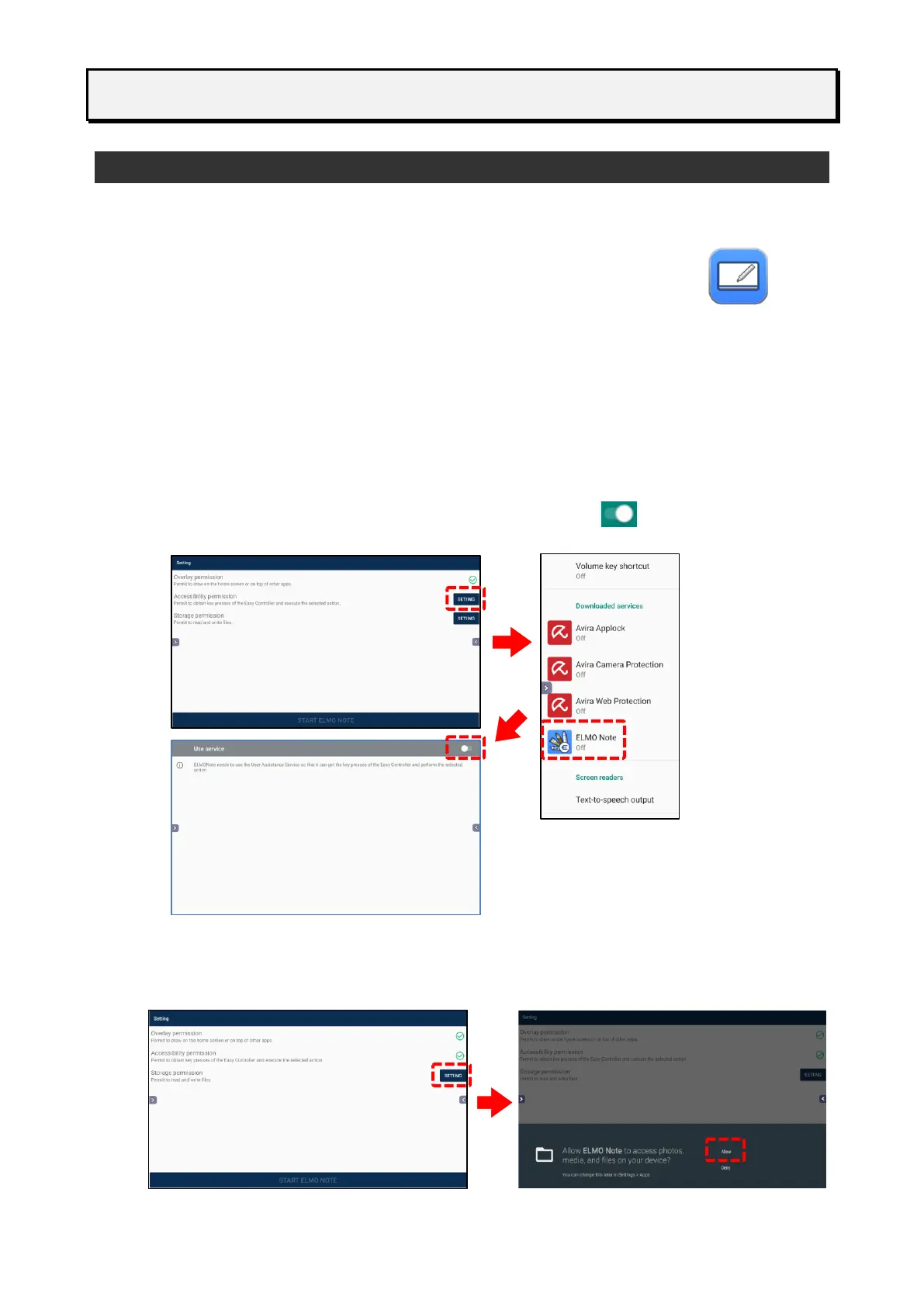
When you start ELMO Note or Overlay app for the first time, the initial settings screen will
appear. Enable "Accessibility Permission" and "Storage Permission" settings before start.
They may have been set depending on the version you are using.
1 Configuring the Accessibility Permission Setting
Tap “SETTING” in the Setting screen.
Tap “ELMO Note” and set the “Use service” setting to ON .
Press the Return button on the Operating panel to go back to the Setting screen.
2 Configuring the Storage Permission Setting
Tap SETTING” in the Setting screen. Then tap “Allow” to allow ELMO Note to access the
storage.



 To Next Page