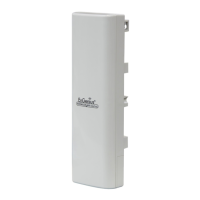
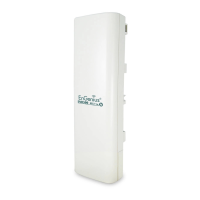
EnGenius EOC2611P Version 1.0
12
3 SwitchingBetweenOperatingModes
This devicecan operate in threemodes: AccessPoint, ClientBridge, WDSBridge, Client Router and
Meshmodes.Thischapterwilldescribehowtoswitchbetweenoperatingmodes.
3.1 LoggingIn
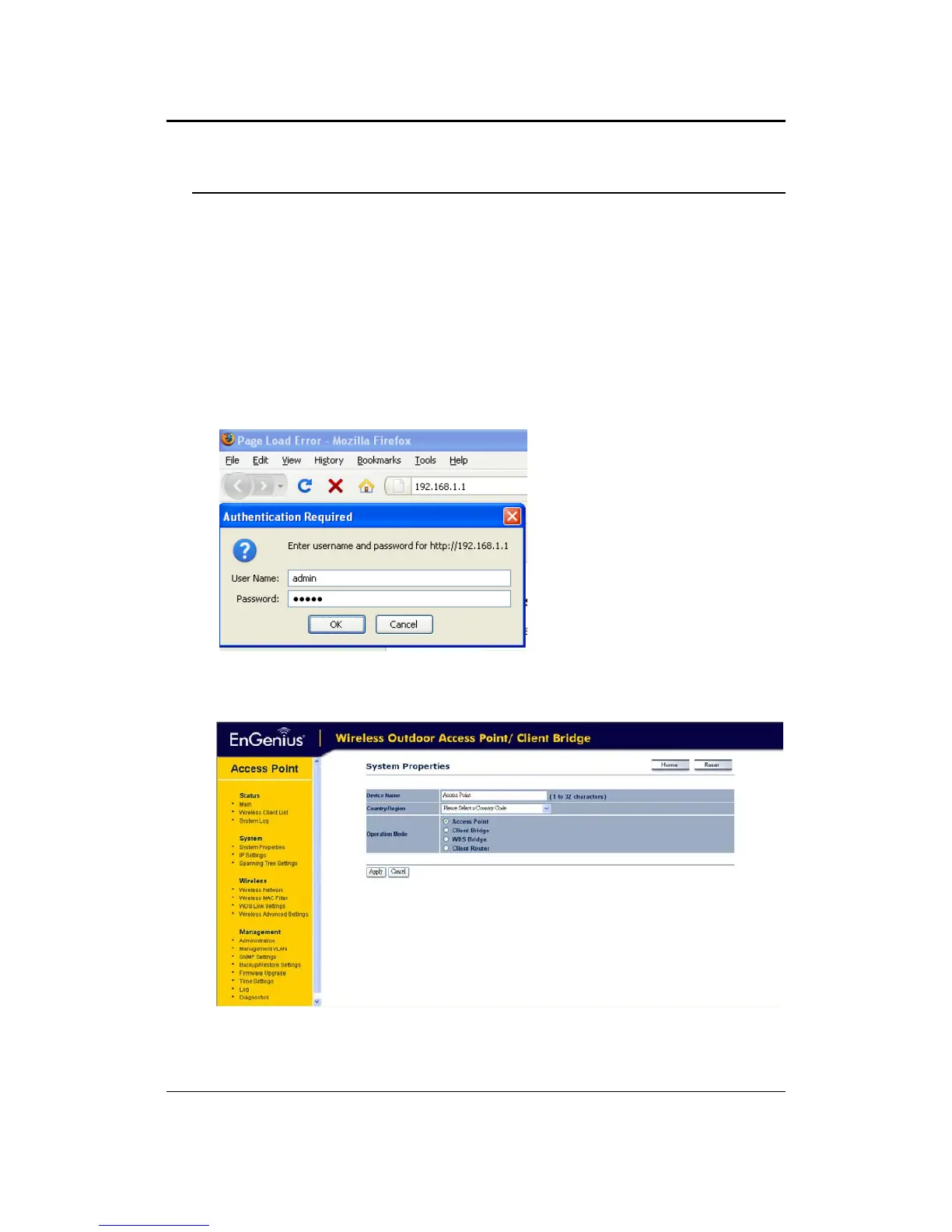
To configure the device through the web‐browser, enter the IP address of the device (default:
192.168.1.1)intotheaddressbaroftheweb‐browserandpressEnter.
Make sure that the device and your computer are configured on the same subnet. (Refer to
Chapter2inorder
toconfiguretheIPaddressofyourcomputer)
AfterconnectingtotheIPaddress,theweb‐browserwilldisplaytheloginpage.
Specifyadminforboththeusernameandpassword.
After logging in, you will see the graphical user interface of the device. Click on the System
PropertieslinkundertheSystemsectionoftheleftmenu.
Select operating mode you wanted from the list (Access Point, Client Bridge, WDS Bridge or
ClientRouter)andthenclickontheApplybutton.



 To Next Page