4.4 Wireless
The Wireless section of the left menu has the following
options: Wireless Network, Wireless MAC Filter, WDS
Link Settings, and Wireless Advanced Settings. Each
optionisdescribedbelow.
4.4.1 WirelessNetwork
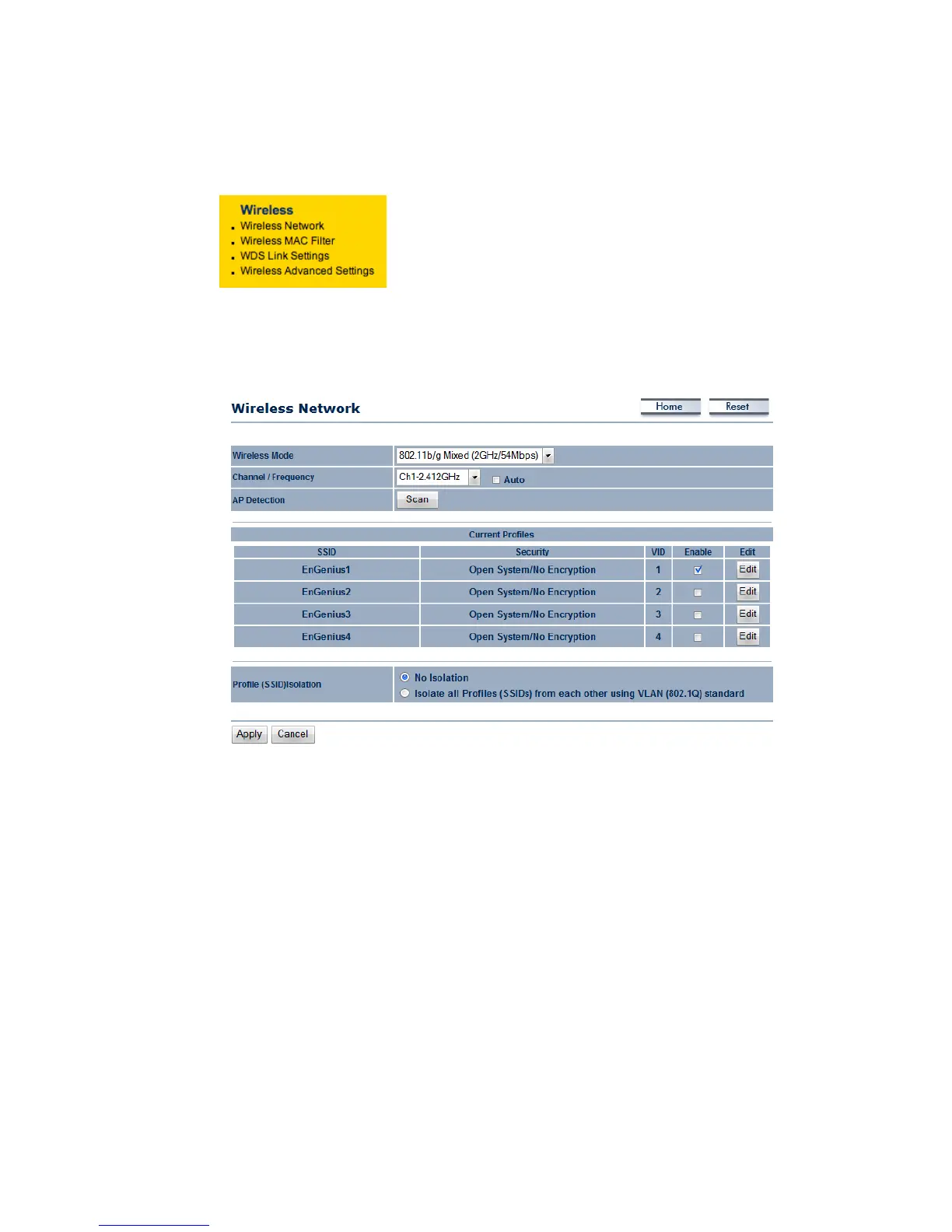
The Wireless Network page allows you to configure the wireless mode, channel, SSID, and
securitysettings.
Wireless Mode: Depending on the type of wireless clients that are connected to the network,
you may select B, G or B/G‐mixed or Super‐G. If you are not sure about which clients will be
accessing the wireless networks, it is recommended that you select B/G‐mixed
for the best
performance.
Channel/Frequency:Selectachannelfromthedrop‐downlist.Thechannelsavailablearebased
onthecountry’sregulation.
Auto: The EOC2611P will scan nearby wireless signals and choose the channel with the least
interference.
APDetection:PresstheScanbuttonto
findnearbywirelesssignals.
Current Profiles: Usercan configure each SSID. EOC2611P supports4 SSIDs, user can decide to
usehowmanySSIDvia“Enable”ornot.Whenclick“Edit”button,youcansetupdetails,include
SSID,VLANIDandSecurityMode.
Profile(SSID)Isolation:Whenyouselectthisfunctiontoenable,unitcanisolateallprofiles(SSIDs)
fromeachotherusingVLANstandard.



 To Next Page