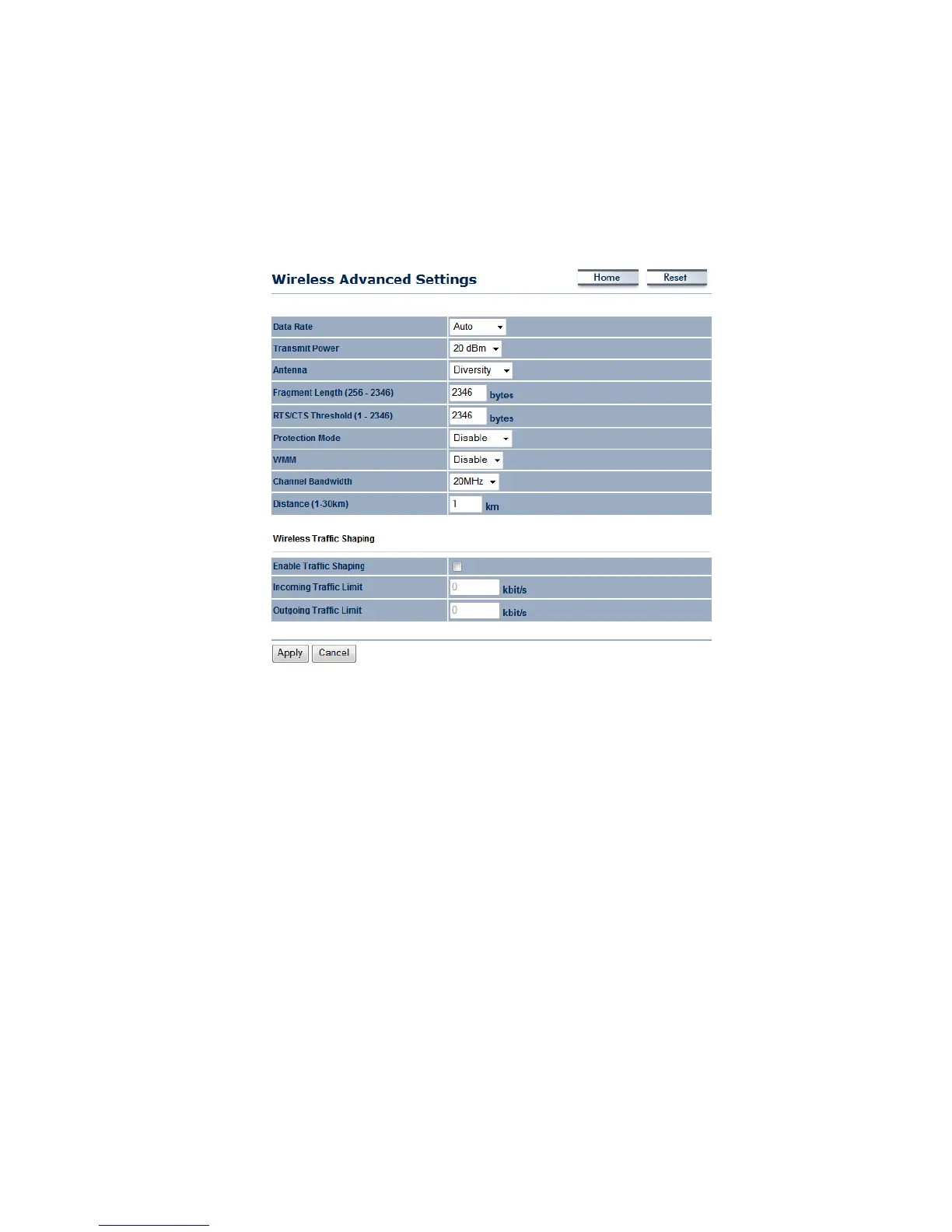
5.4.3 WirelessAdvancedSettings
Onthispageyoucanconfiguretheadvancedsettingstotweaktheperformanceofyourwireless
network. Options available are: Data Rate, Transmit Power, Fragmentation Threshold, RTS
Threshold,ProtectionMode,WMM,ChannelBandwidthandDistance.
Data Rate: Ifyouwouldlike tohave a fixed datarate, you may select onefrom the drop‐down
list.However,forbestperformanceitisrecommendedtousetheAutosetting.
Transmit Power: You may have the different application distance of the device by selecting a
valuefromthedrop‐downlist .Thisfeaturecanbehelpfulinrestrictingthecoverageareaofthe
wirelessnetwork.
Antenna:YoucanselecttheantennapolarizationtoDiversity,HorizontalorVertical.
Fragment: Packetsover the specified size will be fragmented in order to improve performance
on
noisynetworks.
RTS Threshold: Packets over the specified size will use the RTS/CTS mechanism to maintain
performanceinnoisynetworksandpreventinghiddennodesfromdegradingtheperformance.
Protection Mode: If your wireless network is using both 802.11b and 802.g devices then it is
recommended to enable this
feature so that the 802.11b devices will not degrade the
performanceof802.11gdevices.
Distance(1‐30km):Specifyadistancebetween1and30Km.
Wireless Traffic Shaping: Specifythe maximum bandwidthallocated to Incoming andOutgoing
traffic.
ClickontheApplybuttontosavethechanges.



 To Next Page