EnGenius EOC2611P Version 1.0
33
5 ClientBridgeOperatingMode
5.1 LoggingIn
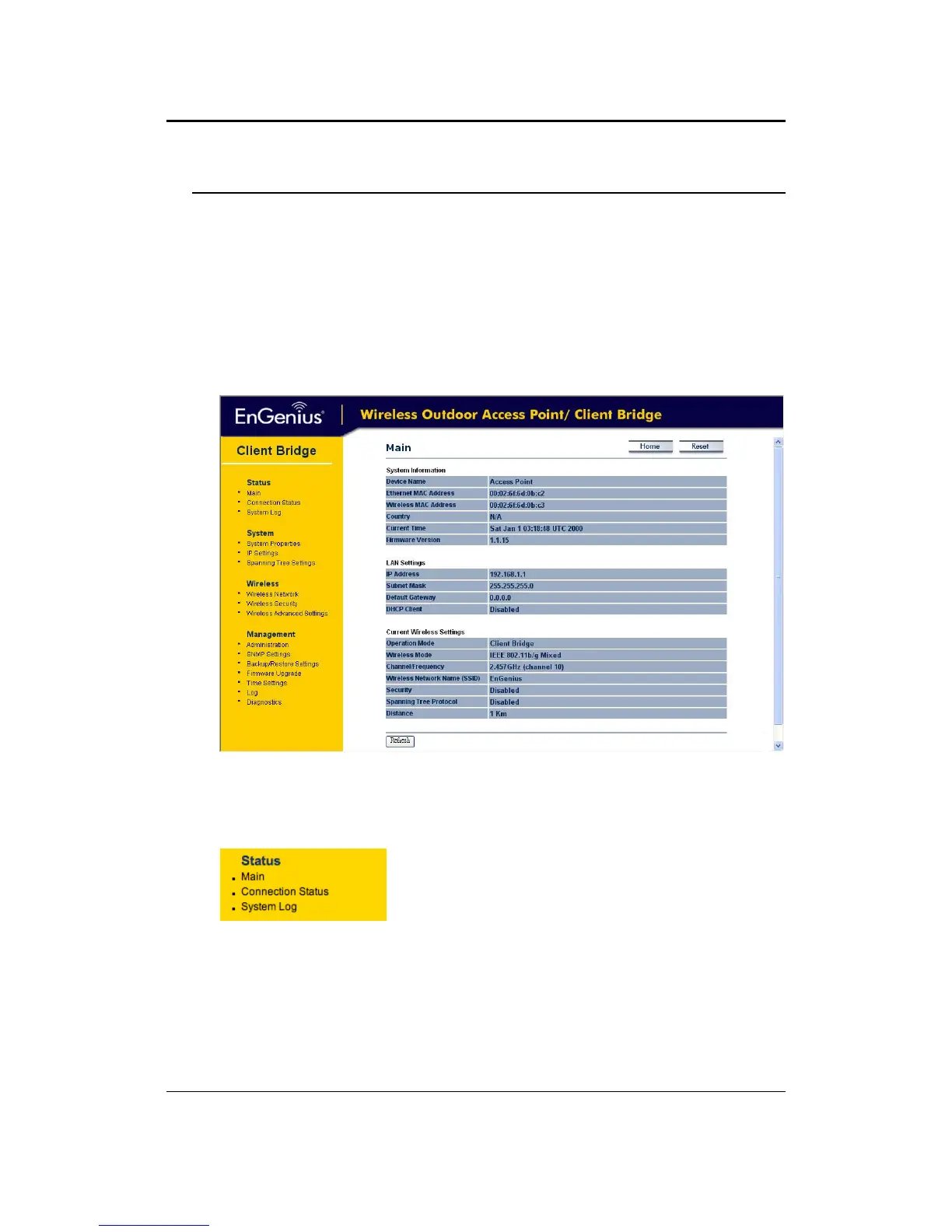
After loggingin youwill graphical user interface (GUI) ofthe device. Thenavigation drop‐down
menuonleftisdividedintofoursections:
1. Status:Displaystheoverallstatus,connectionstatus,andsystemlog.
2. System:Thismenuincludesthesystemproperties,IPandSpanningTreesettings.
3.
Wireless:Thismenuincludesnetwork,securityandadvancedsettings.
4. Management: This menu includes the admin setup, SNMP, firmware upgrade, time settings,
diagnosticsandsave/restorebackup.
5.2 Status
There arethree options under the Status section of the
left menu: Main, Connection Status and System Log.
Eachoptionisdescribedindetailbelow.
5.2.1 Main
Click on the Main link under the Status drop‐down menu. The status that is displayed
corresponds with the operating mode that is selected. Information such as device name,
firmware version, MAC address, country and current time are displayed in the ‘System
Information’section.IPaddress,subnetmask,defaultgateway
andDHCPclientaredisplayedin



 To Next Page