Copying Without Margins
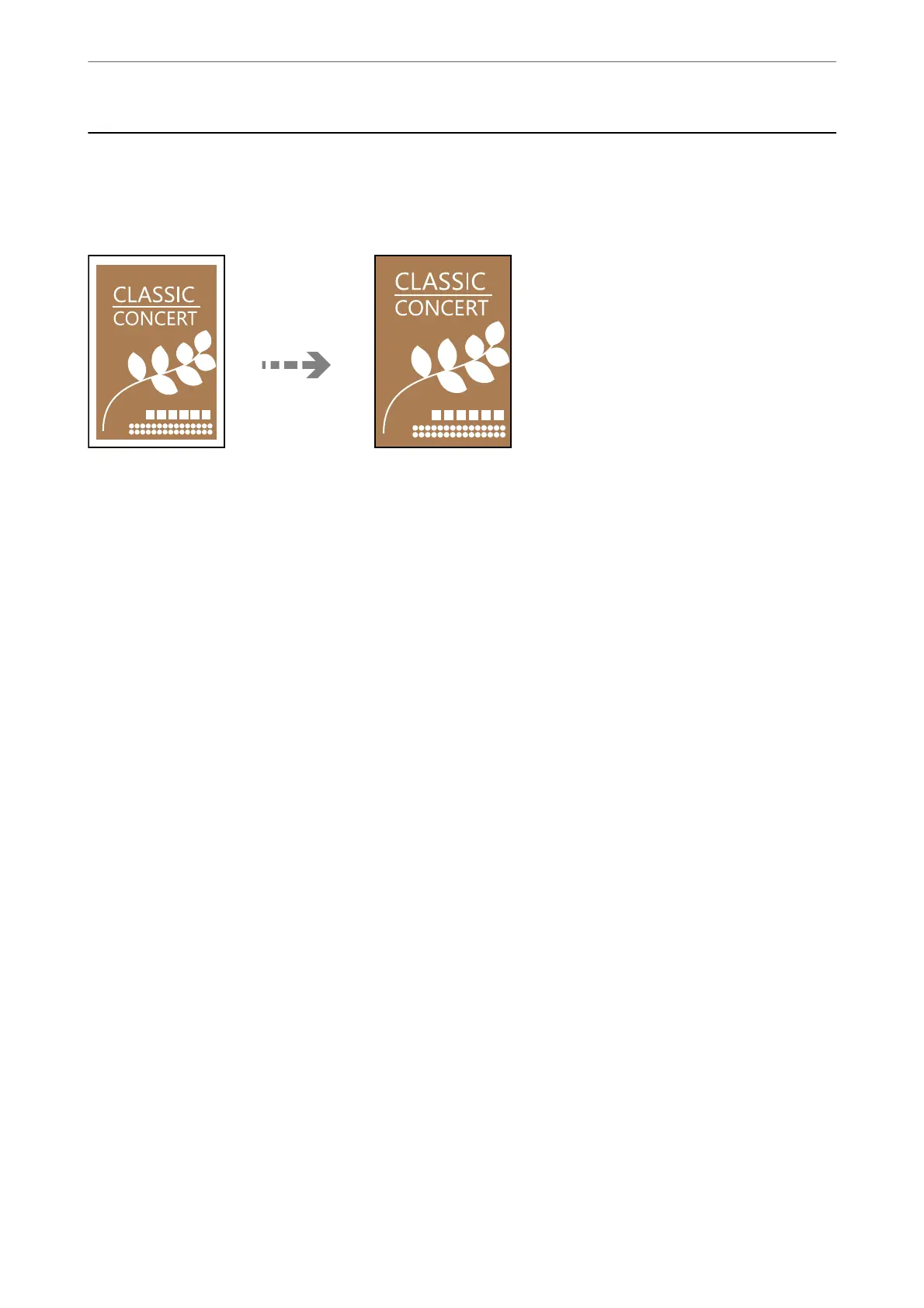
Copies without margins around the edges.
e
image is enlarged a little to remove margins from the edges of the
paper.
1.
Load paper in the printer.
“Loading Paper in the Paper Cassette 1” on page 33
“Loading Paper in the Paper Cassette 2” on page 36
“Loading Paper in the Rear Paper Feed Slot” on page 39
2.
Place the originals.
“Placing Originals on the scanner glass” on page 51
3.
Select Various Prints on the control panel.
4.
Select Various copies > Borderless Copy.
5.
Select the Copy tab, and then change the settings as necessary.
“Menu Options for Copying” on page 122
6.
Select the Advanced Settings tab, and then change the settings as necessary.
“Menu Options for Copying” on page 122
7.
Select the Copy tab, and then set the number of copies.
8.
Tap
x
.
Note:
❏ If you select Preview, you can check the scanned image.
❏
e
color, size, and border of the copied image are slightly
dierent
from the original.
Copying
>
Copying Without Margins
132



 To Next Page
 Loading...










