10.
Select the paper size and paper type.
“Paper Size and Type Settings” on page 31
11.
Check the settings, and then select Close.
Note:
e output tray slides out automatically when printing starts.
Related Information
& “Available Paper and Capacities” on page 288
Loading Paper in the Rear Paper Feed Slot
c
Important:
Do not load paper in the rear paper feed slot until the printer prompts you to do so. Doing so will result in the blank
paper being ejected.
1.
Do one of the following.
❏ When printing from the control panel: Select rear paper feed slot as Paper Setting, make other print
settings, and then tap
x
.
❏ When printing from a computer: Select rear paper feed slot as the Paper Source setting, make other print
settings, and then click Print.
2.
A message is displayed on the control panel telling you that the printer is preparing, and then you are
instructed to load paper.
3.
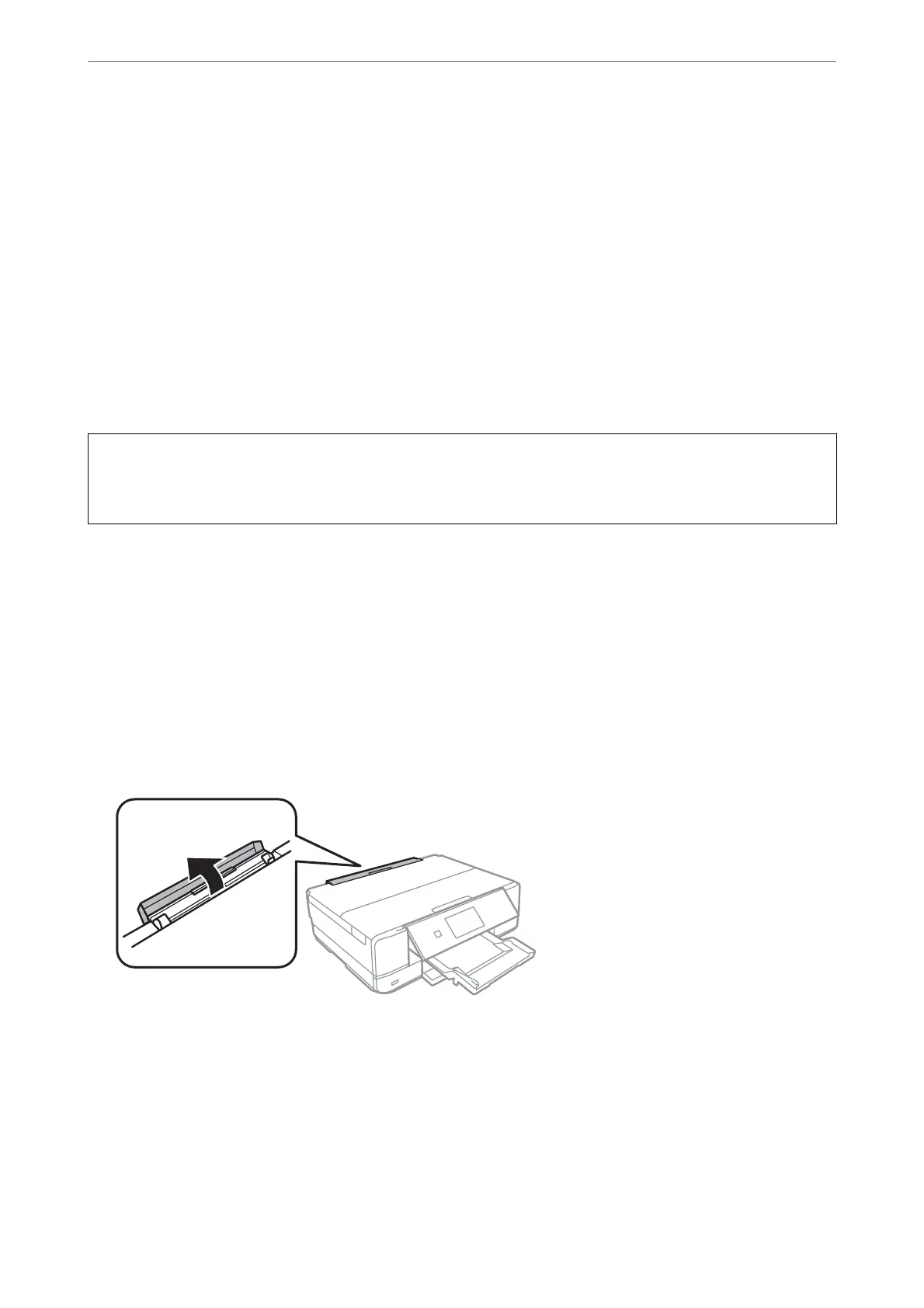
Open the rear paper feed slot cover.
Loading Papers and CD/DVDs
>
Loading Paper
>
Loading Papers
39



 To Next Page
 Loading...










