User Manual THE NUMPAD February 16, 2010
Xynergi Media Production Centre Page 108
Double click any clip to locate to its timecode.
Press the
Playhead soft key, or select the Under Playhead checkbox, to display only
clips touching the cursor. This is updated as the transport moves.
Press the
Pop soft key, or select the Pop button, to bring the currently selected clip to the
top layer on its track. This can be used to manage multiple takes of the same recording,
layered on a single track.
Press the
Offline soft key, or select the Only Offline Clips button, to reduce the list
to only those clips for which media are not currently available.
Click the
Reveal File button to display a Windows Explorer window, showing the file
containing the media for the clip.
Resize the dialog by dragging with the mouse on any of its sides.
Change the order of displayed fields by dragging the field names horizontally with the
mouse.
The Clip Search dialog can be displayed at any time using the Edit Screen menus:
View Clip Search
This allows you to keep it on the screen while you do other types of editing.
Jump by Seconds
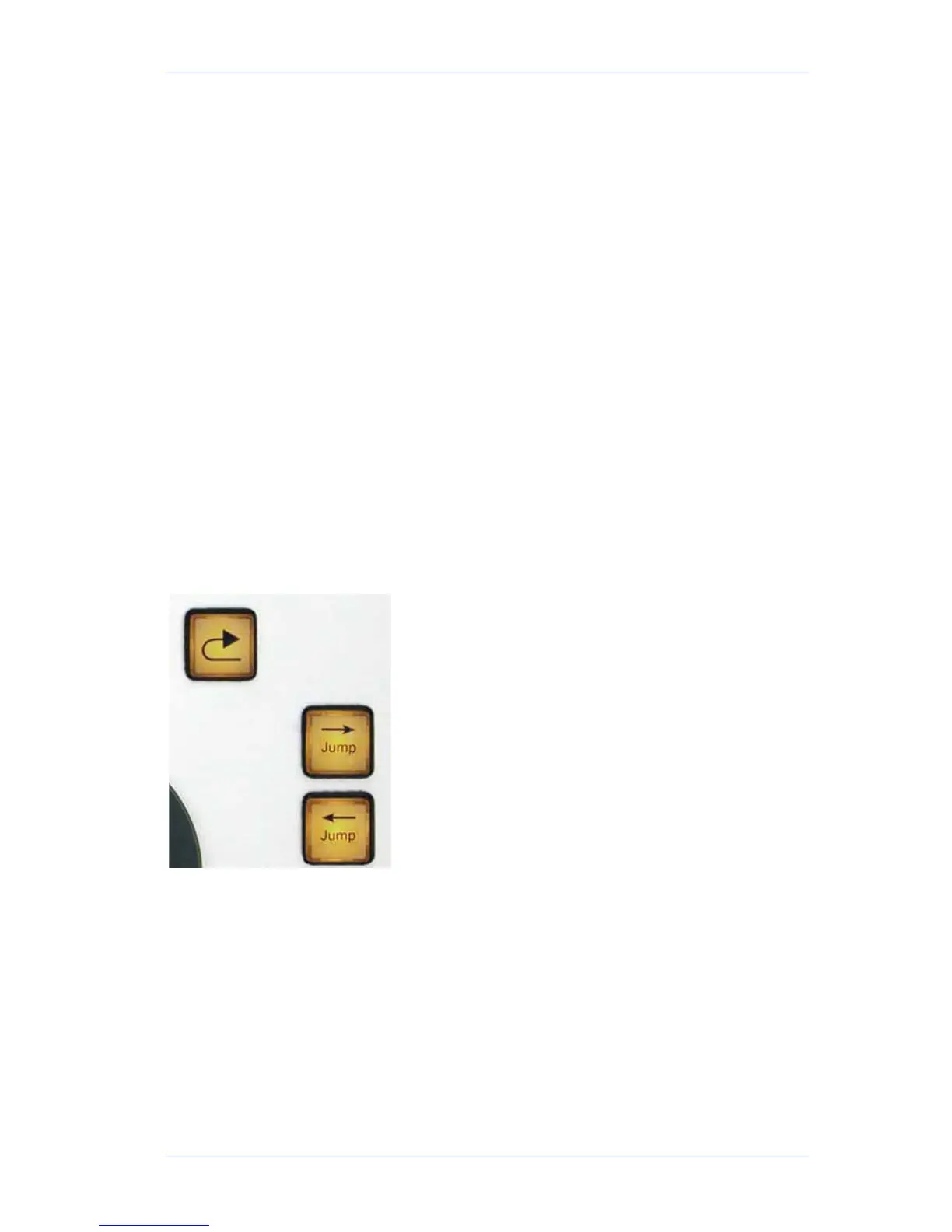
The Jump commands move the transport to special destinations, including marks and clips.
You can also use
Jump with the Numpad keys to move by a number of seconds, by a single frame,
or to an exact frame edge.
To jump by seconds:
Step 1 Hold down
Jump Left (to go backwards) or Jump Right (to go forwards)
Step 2 Press a button from
00 to 9
Step 3 Press more
numpad buttons if you want to make more jumps
Step 4 Release the
Jump button
If you press 1, the transport jumps by one second



 To Next Page